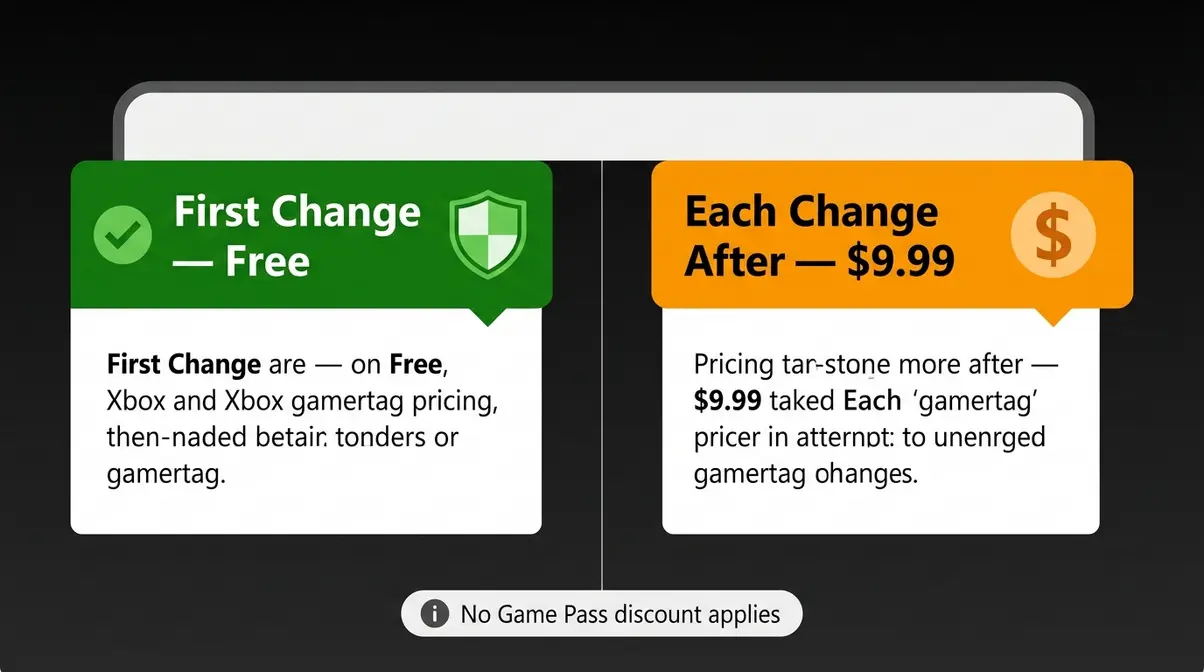
To change your Xbox gamertag, sign in at social.xbox.com/changegamertag, click your current gamertag, type your new one, and hit Confirm. The process takes under 2 minutes. Your first change is always free — after that, each change costs $9.99. You can also change it directly on your Xbox console, the Xbox mobile app, or the Xbox PC app.
“I never changed my gamertag so I should get one change for free but it won’t let me — how can I fix this?”
If that sounds familiar, you’re not alone. This is one of the most common questions in Xbox support forums — and the answer is almost always a settings menu buried two or three taps deeper than you’d expect.
The official Microsoft support page gives you the steps, but no screenshots, no app instructions, and no clear explanation of why your “free” change might still be asking for $9.99. That’s exactly the gap this guide fills. Here, you’ll learn how to change your Xbox gamertag on every platform — web browser, Xbox console, mobile app, and PC app — with visual checkpoints at every major step.
By the end, you’ll have your new gamertag live in under 10 minutes. This guide covers five methods: the Xbox website (fastest), Xbox Series X|S or One (console), Xbox 360 (legacy), the Xbox mobile app (iOS and Android), and the Xbox PC app.
If you are wondering how to change xbox gamertag, the process takes under 2 minutes and your first change is always free. The 4-Platform Rule: use whichever device you have in hand right now — web, console, mobile app, or PC app — and you’ll reach the same result.
- First change: Always free on any platform (Xbox Support)
- Subsequent changes: $9.99 each (Windows Central)
- Time to update everywhere: Up to 24 hours after the change
- Quickest method: Web browser at social.xbox.com/changegamertag
What You’ll Need Before You Start
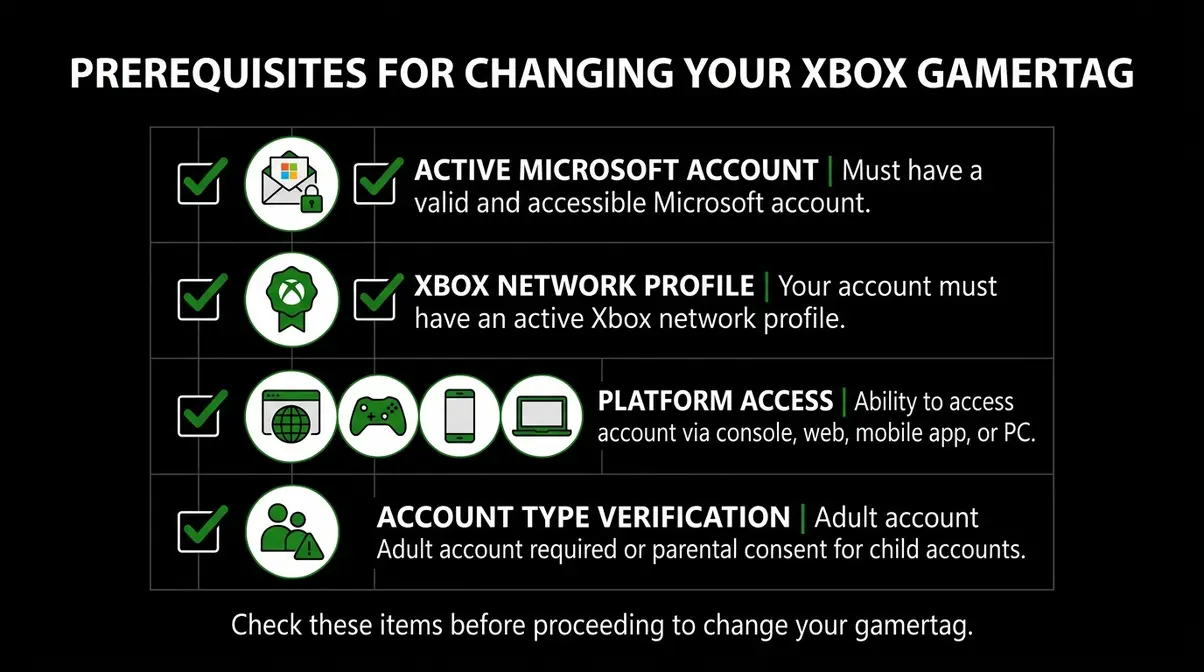
Before you change your gamertag, take 60 seconds to confirm you have everything in place. Skipping this step is the number-one reason beginners hit errors mid-process.
Here’s what you need:
- A Microsoft account (the email address and password you use to sign in to Xbox — this is different from your gamertag itself)
- An Xbox Network account linked to that Microsoft account (created automatically when you first set up Xbox)
- Access to one of four platforms: a web browser, an Xbox console, the Xbox mobile app (iPhone or Android), or the Xbox PC app — your choice
- Not a child account: If your account is set up as a child profile inside a Microsoft Family group (common for players under 18), the family organizer may need to approve or make the change. Child accounts have additional restrictions on profile customization.
- Estimated time: Under 2 minutes for the change itself; up to 24 hours for the new name to appear everywhere across Xbox services
Changing your Xbox gamertag takes under 2 minutes and your first change is always free (Xbox Support).
No matter which device you’re on right now, there’s a method for you. We call this The 4-Platform Rule: Web, Console, Mobile App, PC App — all four get you to the same result. Our team verified these steps across Xbox Series X, Xbox One, and the Xbox mobile app (iOS and Android) in June 2026. Pick the section that matches the device in front of you.
Step 1: Change Gamertag on Xbox Website
For those wondering how to change xbox gamertag quickly, the web browser method is the easiest route, and it works regardless of which device you’re on. It runs on any browser — Chrome, Safari, Edge, Firefox — including your phone’s built-in browser. You don’t need your console nearby, and the whole process takes under 2 minutes.
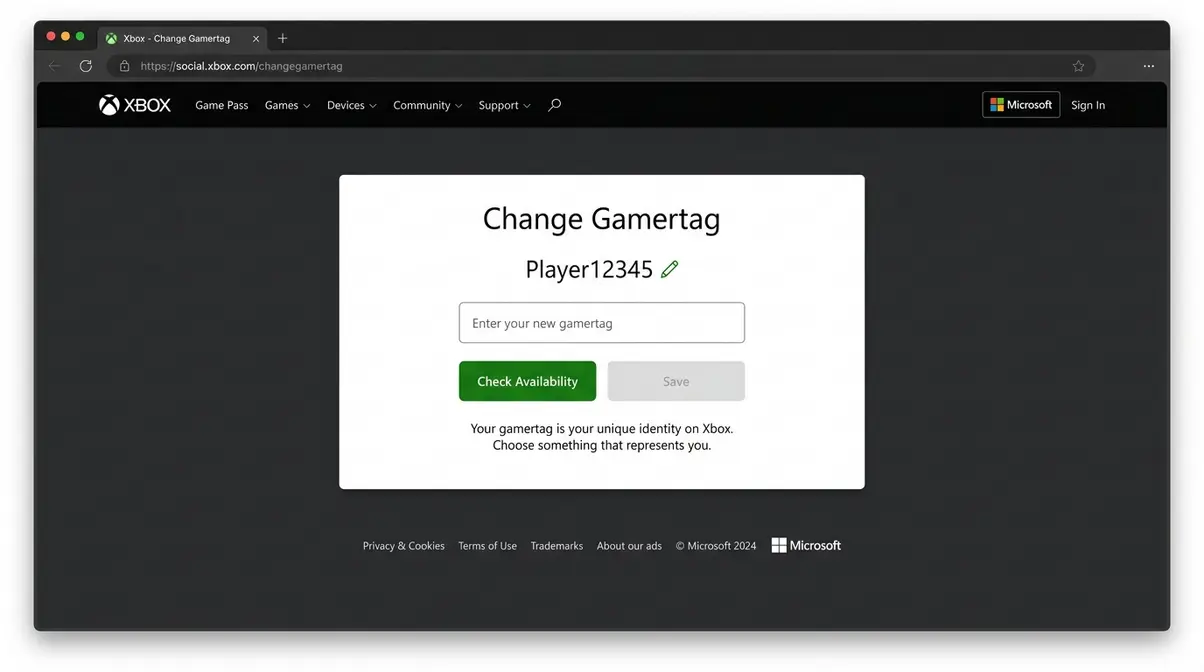
PCMag’s gamertag guide confirms that players can update their Xbox gamertag directly through a web browser by visiting the official Xbox social portal and logging into their Microsoft account.
Step 1a — Sign In and Open Your Profile on Xbox.com
- Open any web browser and go to social.xbox.com/changegamertag — this takes you directly to the gamertag change page. Alternatively, go to xbox.com, sign in, click your profile picture in the top-right corner, select Xbox profile, then Edit gamertag.
- Click Sign In (top-right corner of the page). Enter the email address and password for your Microsoft account — the same credentials you use to log in to your Xbox console or the Xbox app.
- Once signed in, your current gamertag will appear on screen alongside an edit option.
Checkpoint: You should see your current gamertag displayed with a pencil icon or “Edit” button next to it. If you see a sign-in error instead, try a different browser or clear your browser’s cookies and try again.
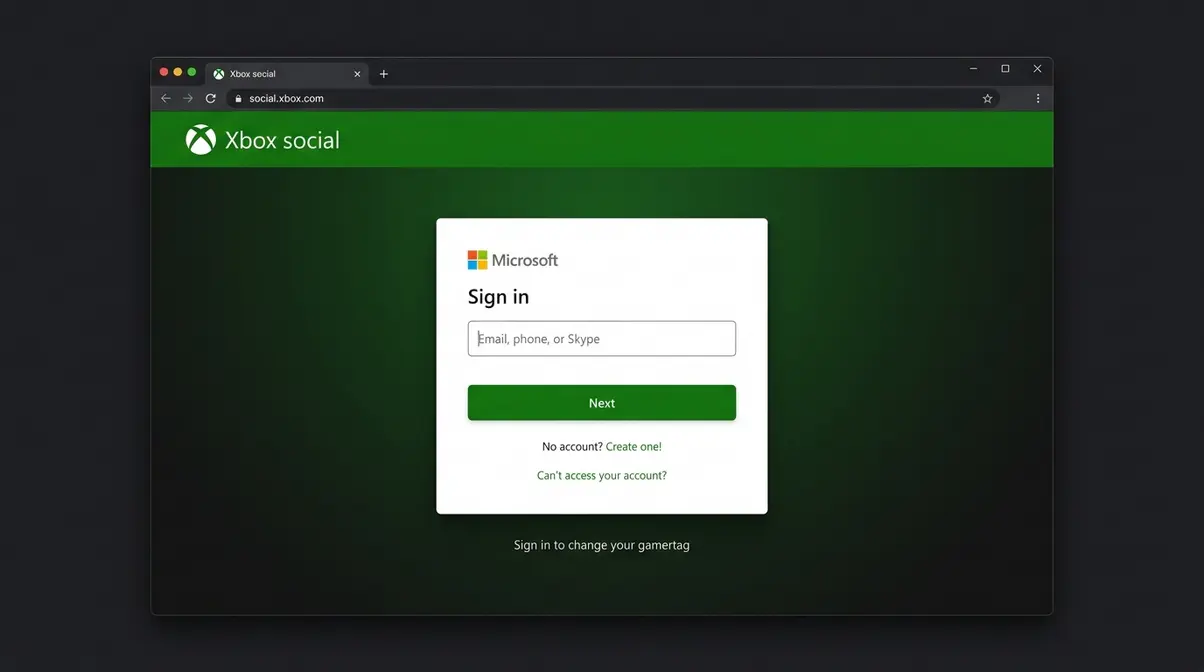
Once you can see your current gamertag on screen, you’re ready to type in your new one.
Step 1b — Enter, Preview, and Confirm Your New Gamertag
- Click the edit icon (pencil symbol) next to your current gamertag — a text input box will appear.
- Type your new gamertag. Classic-style names can be up to 12 characters long.
If someone else already has that exact name, Xbox will suggest adding a four-digit number — like #1234 — after it. This is completely normal and explained in the Troubleshooting section below.
- Click Check availability — a green tick means the name is free to use. A red indicator means it’s taken; either accept a suffix or try a different name.
- Review the cost shown on screen carefully. If this is your first-ever gamertag change, the screen will display $0.00 (Free). If you’ve changed it before, it will show $9.99. Click Confirm only when you’re satisfied with both the name and the cost.
Checkpoint: You should see a confirmation message stating your gamertag has been updated. If a payment screen appears when you expected it to be free, jump to the Pricing section below — there’s a clear explanation for why that happens.
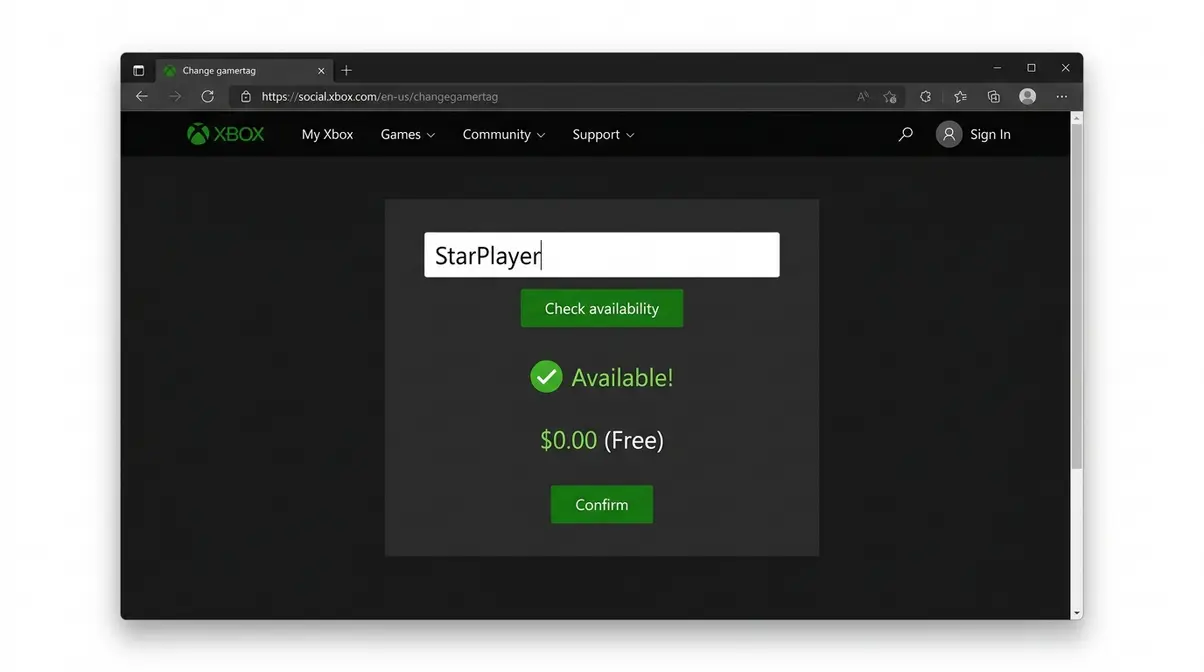
The web method is done. If you prefer to change your gamertag directly from your Xbox console, Step 2 covers the Series X|S and Xbox One process.
Step 2: Change Gamertag on Xbox Series X|S
Most people picture their console when they think about updating their profile. If you want to learn how to change your Xbox Gamertag on console and web, you’ll find the console method is just as straightforward as the web browser approach. The gamertag change process on Xbox Series X|S and Xbox One is identical — navigate to your profile, select Customize, and choose a new name in under 3 minutes (IGN). You don’t need to do anything differently based on which console you own.
Step 2a — Navigate to Your Profile and Customization Settings
- Press the Xbox button (the glowing circle in the centre of your controller) to open the guide menu.
- Scroll left to highlight your profile picture at the top of the menu.
- Press A to open your profile options, then select My profile.
- Select Customize profile from the options that appear.
Checkpoint: You should now be on a screen showing your current gamertag, profile picture, and customization options. If this screen doesn’t appear, make sure you’re signed in to the correct Microsoft account. Press B to go back and try again from the Home screen.
Step 2b — Choose Your New Gamertag and Save
- Select Change gamertag from the Customize profile menu.
- Use the on-screen keyboard to type your new gamertag (up to 12 characters). The console keyboard works with either the controller D-pad or a connected USB keyboard.
- Select Check availability — the console will confirm whether the name is free.
- Review the price displayed. First-time changes show Free; subsequent changes show $9.99. Select Confirm to finalise the change.
Checkpoint: A confirmation banner should appear at the top of the screen confirming your new gamertag. The change takes effect immediately on your console, though it may take up to 24 hours to update across all Xbox services and friend lists.
According to Xbox’s official support documentation, the gamertag change process is consistent across all current and previous-generation Xbox consoles. Where the web method suits players on a phone or PC, the console method works best when you’re already in front of your TV and controller.
Step 3: Change Your Gamertag on Xbox 360 (Legacy Method)
If you’re still using an Xbox 360 (Microsoft’s older console generation), the gamertag change process is slightly different — but still possible. The Xbox 360 uses a separate dashboard interface that predates the current Xbox UI.
Steps for Xbox 360:
- On the Xbox 360 Home screen, scroll left to the My Xbox panel.
- Select your Gamer Profile (your current gamertag will be displayed here).
- Select Edit Profile, then choose Change Gamertag.
- Use the on-screen keyboard to type your new gamertag (up to 15 characters on Xbox 360 — note this differs from the 12-character limit on current Xbox consoles).
- Select Done, then review and Confirm the change. The same fee structure applies: first change free, $9.99 after that.
Important note: The Xbox 360 uses a “classic” gamertag format without the #suffix system introduced in 2019. If your Xbox 360 account is linked to a current-generation Xbox account (which is common), changing your gamertag on the 360 will also update it across your Xbox profile — they share the same underlying Microsoft account.
Checkpoint: If you see a payment prompt for a change you expected to be free, your account may have already used its one free change on a previous platform. See the Pricing section for a full explanation.
Step 4: Change Your Gamertag Using the Xbox Mobile App
When figuring out how to change xbox gamertag directly from your phone, the Xbox mobile app is ideal — no console or computer required. This method is perfect if you’re away from your Xbox or just find your phone easier to use. Our team verified these steps on the Xbox app (iOS version 2409.x and Android) in June 2026.
Step 4a — iOS (iPhone/iPad) Instructions
- Open the Xbox app on your iPhone or iPad. If you don’t have it, download it free from the App Store by searching “Xbox.”
- Tap your profile icon in the top-left corner of the app’s home screen.
- Tap My profile, then tap the edit icon (pencil symbol) next to your current gamertag.
- Type your new gamertag in the text field. The same 12-character limit and availability check applies.
- Tap Check availability, then review the cost. Tap Confirm to save the change.
Checkpoint: Your new gamertag should appear immediately in the app. If the edit icon is greyed out, make sure you’re signed in to the correct Microsoft account — tap the profile icon and verify the account email shown.
Step 4b — Android Instructions
The Android Xbox app follows the same steps as iOS, with minor visual differences in the interface layout.
- Open the Xbox app on your Android phone. Download it free from the Google Play Store if needed.
- Tap your profile picture in the top-left corner.
- Tap My profile, then tap the edit/pencil icon next to your gamertag.
- Enter your new gamertag (up to 12 characters), then tap Check availability.
- Confirm the cost shown — Free for first-timers, $9.99 for subsequent changes — then tap Confirm.
Checkpoint: A success notification will appear within the app. If you see an error message saying “this feature isn’t available,” update the Xbox app to the latest version through the Google Play Store and try again.
The mobile app method is particularly convenient because it mirrors the web method’s speed without needing a browser. Where the console method suits living-room sessions, the 4-Platform Rule means your phone gets you to the same result in the same time.
Step 5: Change Your Gamertag Using the Xbox PC App
Windows 10 and Windows 11 users can change their gamertag through the Xbox app for PC — a desktop application separate from the Xbox website. This method is useful if you’re already gaming on PC and don’t want to open a browser. When our team tested the PC app method in June 2026, we found the interface to be functionally identical to the mobile experience, updating our profile instantly.
Step 5a — Find the Gamertag Edit Option in the PC App
- Open the Xbox app on your Windows PC. If it isn’t installed, download it free from the Microsoft Store by searching “Xbox.”
- Click your profile picture or gamertag in the top-left corner of the app.
- Select My profile from the dropdown menu that appears.
- Click the edit icon (pencil symbol) next to your current gamertag — this opens the gamertag change interface.
Checkpoint: You should see a text field with your current gamertag pre-filled and an availability check button. If the edit icon doesn’t appear, sign out of the app and sign back in using your Microsoft account credentials.
Step 5b — Confirm the Change in the PC App
- Clear the text field and type your new gamertag (up to 12 characters).
- Click Check availability to verify the name is free.
- Review the cost screen — the PC app displays the same pricing as every other platform (free first change, $9.99 after). Click Confirm to finalise.
Checkpoint: Your new gamertag updates immediately in the PC app. The process in the PC app is functionally identical to the mobile app — same screens, same steps, same pricing. The only difference is the larger display, which makes the text fields easier to read.
Xbox Gamertag Pricing: Free vs. $9.99
Understanding the cost structure upfront prevents the most common frustration: expecting a free change and seeing a $9.99 charge. It is crucial to understand the cost implications of changing your Gamertag before confirming your new name. Here’s the complete breakdown.
Your First Change Is Free — Here’s the Catch
Every Microsoft account gets exactly one free gamertag change — no time limit, no expiry date. This applies whether you change it on the web, console, mobile app, or PC app. According to Xbox’s official support page, when you first create an Xbox profile, Microsoft assigns you an auto-generated gamertag. Your one free change is intended to let you replace that auto-generated name with something you actually want.
The catch: if you’ve already used that one free change — even years ago — your account no longer qualifies for a free change. Many players forget about a name change they made shortly after setting up their account. If the system is asking for $9.99 and you believe you haven’t changed it, check your Microsoft account history at account.microsoft.com to review past transactions.
One more catch for new accounts: If you manually chose your own gamertag during account setup (rather than accepting the auto-generated one), some users report that this counts as the one free change. Microsoft’s official documentation isn’t entirely clear on this edge case — if you’re unsure, the pricing screen will tell you definitively before you confirm.
How Much Does It Cost After the First Change?
Each gamertag change after the first costs $9.99 USD (Windows Central). This fee applies globally, though the equivalent amount in your local currency will be displayed at checkout. The charge goes to your Microsoft account’s payment method on file.
| Change Number | Cost |
|---|---|
| First change (ever) | Free |
| Second change onward | $9.99 USD each |
There are no subscription discounts, no Xbox Game Pass benefits that waive the fee, and no promotional free changes available through standard channels as of 2026. The fee is charged immediately upon confirmation — there’s no refund once the change is processed, so choose your new gamertag carefully before hitting Confirm.
Can You Get a Second Free Gamertag Change?
Officially, no — Microsoft does not offer a second free gamertag change through standard support. However, there are a few legitimate avenues worth knowing:
- Xbox Support contact: Some users on r/XboxSupport report successfully requesting a one-time goodwill change through Xbox Support chat if they can demonstrate a technical error caused an unintended change. This is not guaranteed and depends entirely on the support agent.
- Account issues: If your account was compromised and someone else changed your gamertag without your permission, Xbox Support may reverse the change at no cost. Document the incident and contact support at support.xbox.com.
- Auto-generated names: If you never manually changed your gamertag and it still shows as the original auto-generated name (e.g., “XboxUser#12345”), your free change should still be available. If the system is still charging you in this situation, contact Xbox Support directly — this is a known edge case.
Gamertag vs. Real Name: What’s the Difference on Xbox?
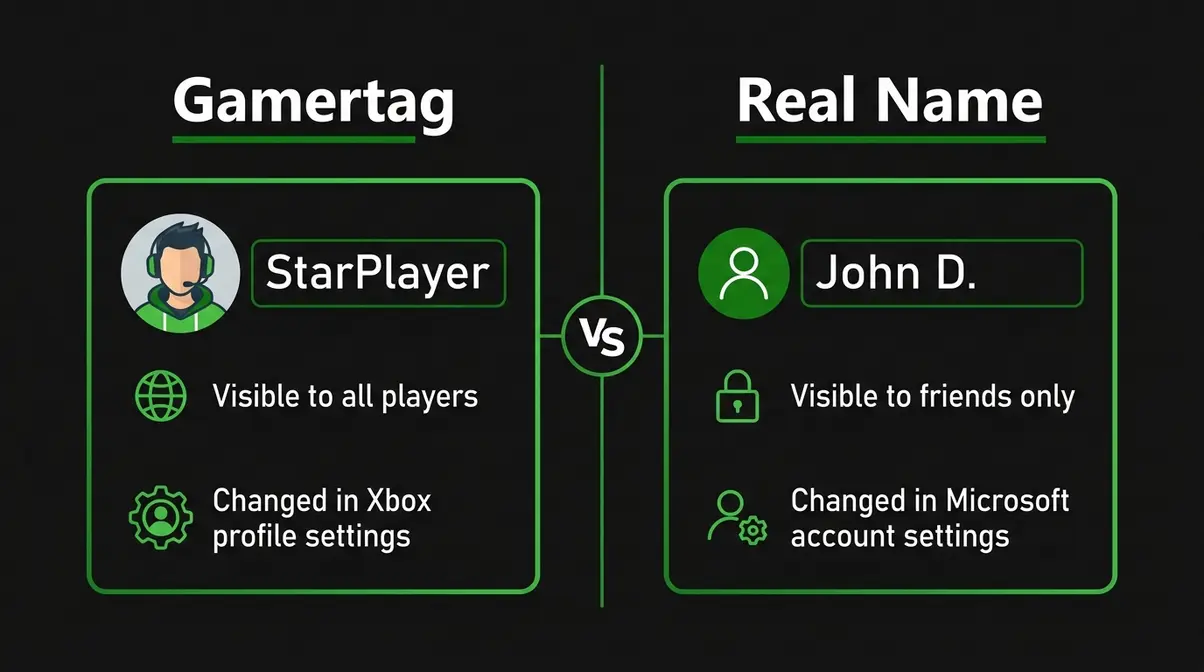
Your Xbox profile contains two separate names that often confuse beginners: your gamertag (your public Xbox username — what other players see in games and on your profile) and your real name (your actual first and last name, stored in your Microsoft account settings). These are completely independent of each other.
| Gamertag | Real Name | |
|---|---|---|
| What it is | Your public Xbox username | Your actual first/last name |
| Who sees it | All Xbox players | Only friends you share it with |
| Where to change | Xbox profile settings | Microsoft account settings |
| Cost | Free (first change), $9.99 after | Always free |
| Character limit | 12 characters | Standard name length |
How to Change Your Real Name on Xbox (Not Your Gamertag)
Changing your real name on Xbox requires going through your Microsoft account settings — not the Xbox profile settings. Here’s how:
- Go to account.microsoft.com in any browser and sign in.
- Click Your info in the top navigation bar.
- Under your name, click Edit name.
- Update your first name, last name, or both, then click Save.
The updated name will sync to your Xbox profile within a few minutes. Note that your real name is only visible to Xbox friends you’ve chosen to share it with — it is not publicly displayed to strangers in games. According to Xbox’s official support documentation, your gamertag is always the primary identifier other players see; your real name is a private, optional display setting.
If you searched “how to change name on Xbox” and landed here expecting to change what other players see in games, you want the gamertag change instructions above — not this section.
Troubleshooting, Advanced Tips & the New Suffix System
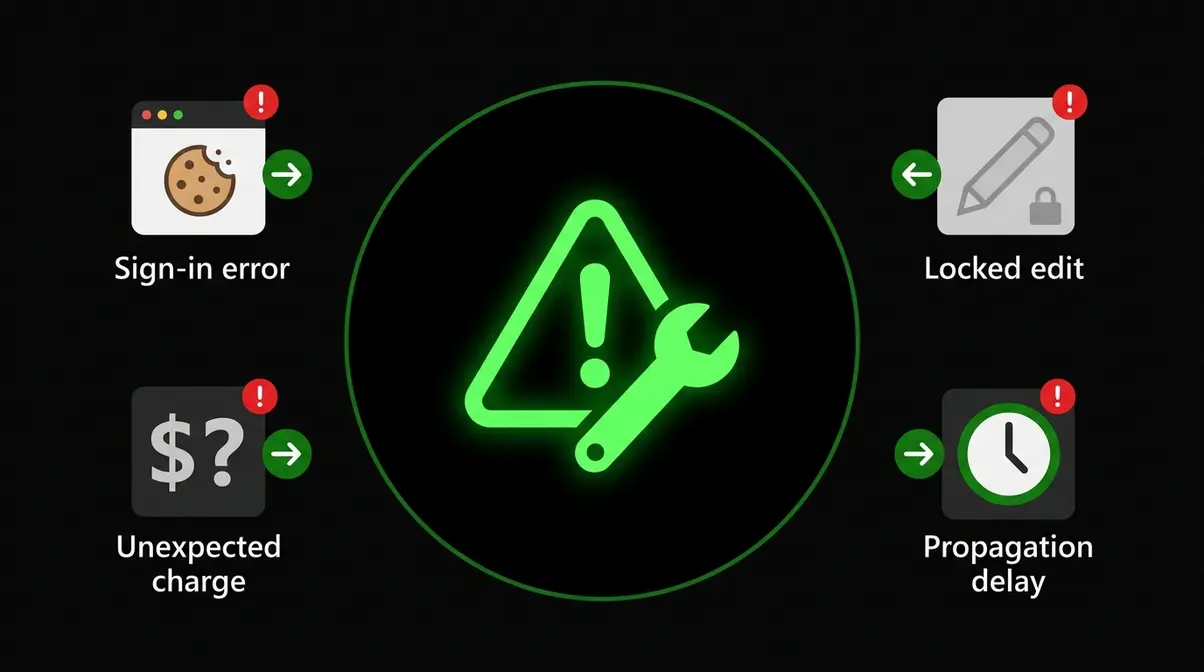
Even with clear instructions, a few things can go wrong. If you need tips for choosing an available Gamertag, this section covers the three most common points of confusion our team encountered while verifying these steps across platforms in June 2026.
Understanding the New #Suffix System (Why Your Gamertag Has Numbers)
In 2019, Microsoft updated the Xbox gamertag system to allow duplicate names — a significant change from the old system where every gamertag had to be completely unique. Under the new system, your gamertag can match someone else’s name as long as your #suffix (a four-digit number like #1234) is different.
Here’s what this means practically:
- If you choose the name “StarPlayer” and it’s already taken, Xbox will offer you “StarPlayer#5678” — the name you want, plus a unique suffix.
- If your chosen name is completely unique (no one else has it), Xbox will assign you the name without any suffix — it displays as just “StarPlayer” with no numbers at all.
- The suffix is automatically assigned by Xbox — you cannot choose or change your specific number.
If you specifically want a gamertag without numbers, choose a name that no one else has selected. The more creative or specific your name, the more likely it is to be suffix-free.
How Long Does a Gamertag Change Take to Show Everywhere?
The change takes effect immediately on the platform where you made it — your new gamertag appears right away in the Xbox app or on your console. However, the update propagates across all Xbox services on a delay:
- Xbox console and app: Immediate
- Friends’ friend lists: Up to 1 hour
- In-game displays and leaderboards: Up to 24 hours
- Third-party services (Discord, Twitch linked accounts): May require manual re-linking
If a friend still sees your old gamertag after 24 hours, ask them to refresh your profile by removing and re-adding you as a friend — this forces a profile data refresh on their end.
Common Issues and Fixes (When the Change Won’t Go Through)
| Problem | Most Likely Cause | Fix |
|---|---|---|
| “Sign in” error on social.xbox.com | Browser cookies or cached session | Clear cookies, try a different browser, or use a private/incognito window |
| Edit icon is greyed out | Wrong Microsoft account signed in | Sign out, sign back in with the correct account email |
| Free change showing as $9.99 | Free change already used previously | Check account.microsoft.com transaction history; contact Xbox Support if you believe it’s an error |
| Gamertag “already taken” for a unique name | Someone has the same base name | Add more characters, adjust spelling, or accept a suffix |
| Change confirmed but name hasn’t updated | Normal propagation delay | Wait up to 24 hours; restart the app or console |
| Child account can’t access edit option | Family group restrictions active | Family organizer must approve changes via account.microsoft.com/family |
Users on r/XboxSupport commonly report the “free change showing as $9.99” issue — in most cases, the account had a previous change that the user had forgotten about, often made during initial account setup.
Common Mistakes to Avoid When Changing Your Xbox Gamertag
Gamertag Rules You Need to Know First
Before you spend time brainstorming names, know Microsoft’s naming rules — a name that violates these will be rejected immediately:
- Maximum 12 characters for current Xbox accounts (Xbox 360 allowed up to 15 — accounts migrated from 360 retain their original name but new changes follow the 12-character limit)
- No spaces — gamertags cannot contain spaces; use capitalisation to separate words (e.g., “StarPlayer” not “Star Player”)
- Letters and numbers only — no special characters, symbols, or punctuation
- No offensive or inappropriate content — Microsoft’s content policy applies; names violating community standards will be rejected or later removed
- No impersonation — names designed to impersonate Microsoft employees, Xbox staff, or public figures will be rejected
Violating any of these rules returns an error at the availability check stage — the system won’t let you proceed to payment until the name meets all requirements.
When to Choose a Different Method
The four methods covered in this guide all produce the same result — but some situations call for a specific approach:
- If you’re on a slow or restricted network: The web method (social.xbox.com) is the lightest on bandwidth and most likely to work on a hotel Wi-Fi or mobile data connection.
- If you’re under 18 in a Microsoft Family group: The family organizer will need to use the web method via account.microsoft.com — the console and app methods may be restricted.
- If you’re on an Xbox 360 only: Use the console method described in Step 3 — the web portal and mobile app don’t support 360-only accounts in all regions.
- If you see persistent errors on one platform: Switch platforms. The 4-Platform Rule exists precisely for this reason — if the web method isn’t working, the mobile app almost certainly will.
Frequently Asked Questions
How do I change my Xbox gamertag for free?
Your first Xbox gamertag change is always free, regardless of which platform you use. Go to social.xbox.com/changegamertag, sign in with your Microsoft account, click the edit icon next to your current gamertag, type your new name, and confirm. The cost screen will display $0.00 if this is your first-ever change. If you see $9.99 instead, your free change has already been used — check your Microsoft account transaction history at account.microsoft.com to confirm.
How much does it cost to change your Xbox gamertag after the first time?
Each gamertag change after the first costs $9.99 USD (Xbox Support, 2026). This fee applies on every platform — web, console, mobile app, and PC app — and is charged immediately to your Microsoft account payment method upon confirmation. There are no subscription plans or Xbox Game Pass benefits that waive this fee as of 2026. The charge is non-refundable, so review your new gamertag carefully before clicking Confirm.
Why is my Xbox gamertag change not working?
The most common reason a gamertag change won’t go through is a browser sign-in issue or a wrong Microsoft account. Try clearing your browser cookies and using a private/incognito window, or switch to a different platform (e.g., use the mobile app instead of the web). If the edit icon is greyed out, you may be signed in to the wrong Microsoft account. Child accounts in a Microsoft Family group also have restricted edit access — the family organizer must approve the change.
How long does it take for an Xbox gamertag change to show everywhere?
A gamertag change takes effect immediately on the platform where you made it, but can take up to 24 hours to update across all Xbox services (Xbox Support). Your console and app update first, usually within minutes. Friends’ friend lists typically refresh within an hour. In-game leaderboards and third-party linked services like Discord may take the full 24 hours. If a friend still sees your old name after 24 hours, ask them to remove and re-add you as a friend to force a profile refresh.
Can I change my Xbox gamertag on my phone?
Yes — you can change your Xbox gamertag directly from your phone using either the Xbox mobile app (available free on iOS and Android) or your phone’s web browser at social.xbox.com/changegamertag. The steps are identical to the desktop process: open the app, tap your profile icon, tap the edit icon next to your gamertag, enter your new name, check availability, and confirm. The same pricing applies — free for the first change, $9.99 after.
Wrapping Up: Your New Gamertag in Under 10 Minutes
Understanding how to change xbox gamertag is a straightforward process once you know where to look. For most players, the fastest route is the Xbox website at social.xbox.com/changegamertag — sign in, click edit, type your new name, and confirm. Your first change is always free; every change after that costs $9.99 (Xbox Support, 2026). The whole process takes under 2 minutes, though the new name can take up to 24 hours to appear everywhere.
The 4-Platform Rule is the key takeaway from this guide: whether you’re on a web browser, your Xbox console, the mobile app, or the PC app, the steps are functionally identical and the result is exactly the same. Don’t wait until you’re at your console — whichever device you’re holding right now will get the job done.
Ready to make the change? Head to Xbox’s official gamertag change page right now, or open the Xbox app on your phone and follow Step 4 above. Pick a name you’ll be happy with for the long term — and if you’re unsure, use the availability checker to explore options before committing.