
How to Hard Reset HP Laptop: Safe Step-by-Step Guide
 noobsguidetech
July 3, 2026
26 min read
noobsguidetech
July 3, 2026
26 min read
 noobsguidetech
July 3, 2026
26 min read
noobsguidetech
July 3, 2026
26 min read
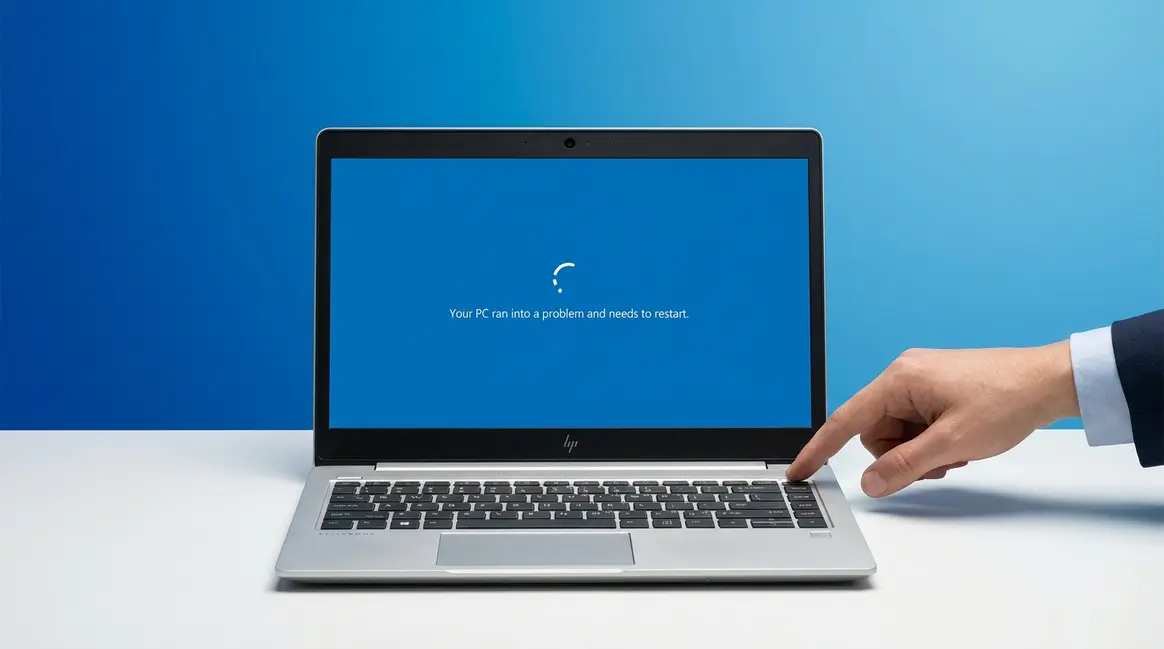
To hard reset your HP laptop, shut it down completely, unplug all cables and accessories, hold the power button for 15–30 seconds to drain residual power, then reconnect and restart. This 4-step power cycle takes under 2 minutes and does not delete any of your files. For a full factory reset (which erases all data), see Method 2 below.
If you’ve ever stared at a frozen screen and thought, “Why won’t this thing just work?” — you’re not alone. One of the most common things HP laptop owners say before searching for help sounds exactly like this:
“its been so slow for a long time its frustrating because i don’t have much installed.”
That frustration is completely valid. The good news: knowing how to hard reset hp laptop systems is simpler than it sounds — and the most common fix takes less than two minutes without touching a single file.
Here’s what makes this guide different from everything else you’ve found: the wrong reset method can erase every photo, document, and file on your laptop. Most guides skip that warning and jump straight to steps. This one won’t. By the end, you’ll know exactly which reset your HP laptop needs — and how to do it safely, step by step. We cover the quick power cycle (no data loss), the full factory reset, and what to do if you’re locked out without a password.
⚠️ Read this section first — it prevents accidental data loss.
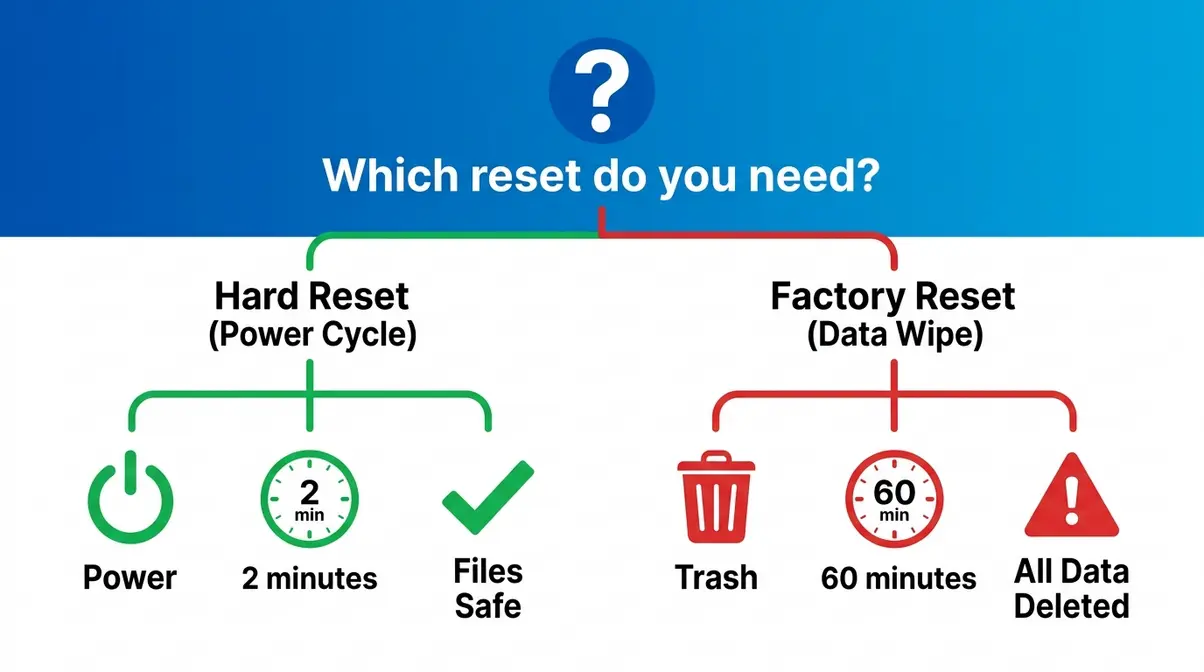
Before you press a single button, you need to know which reset you’re actually dealing with. It is crucial to understand the difference between hard reset and factory reset before proceeding. These two terms sound similar, but they produce completely different results. Choosing the wrong one could permanently delete everything on your laptop.
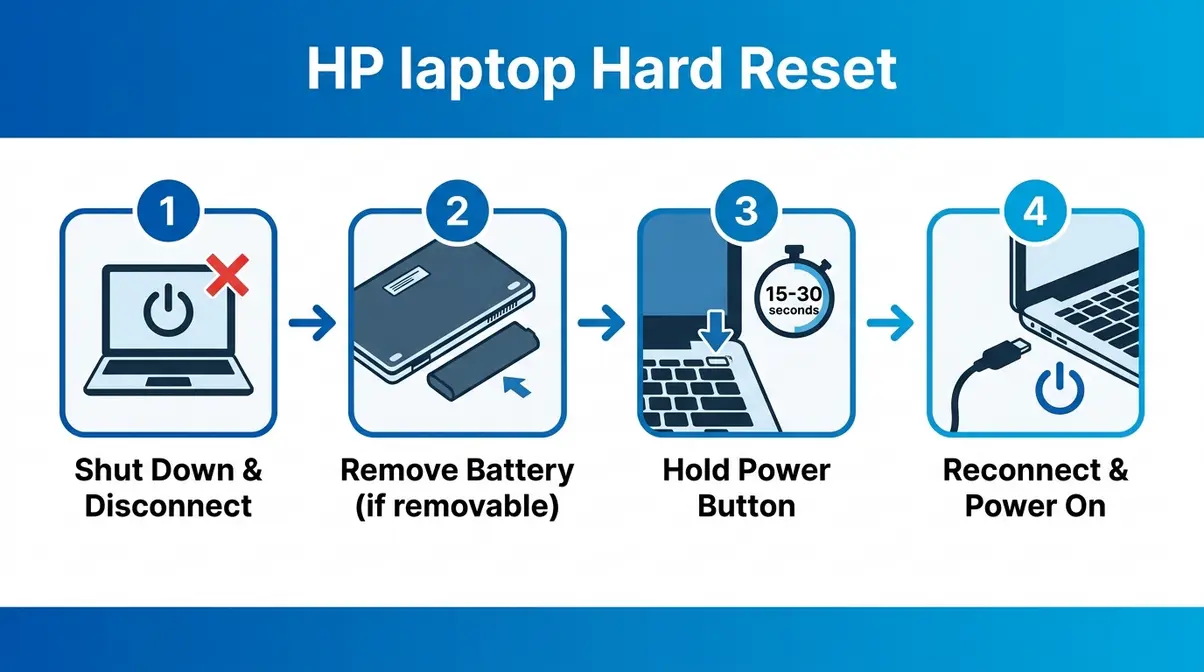
A hard reset, also called a power cycle or force restart, is a way of completely cutting power to your laptop’s hardware and draining any leftover electrical charge from the motherboard. Think of it like removing the batteries from a TV remote when it stops responding — you’re not changing any settings, you’re just forcing the electronics to restart from zero.
A hard reset does not delete your files, apps, photos, or passwords. Nothing stored on your hard drive is touched. According to HP’s official support documentation, performing a hard reset drains residual electrical charge and can resolve a wide range of freezing, black screen, and startup problems (HP Support, 2026).
You will NOT lose any files. This is the safest first step for almost any HP laptop problem.
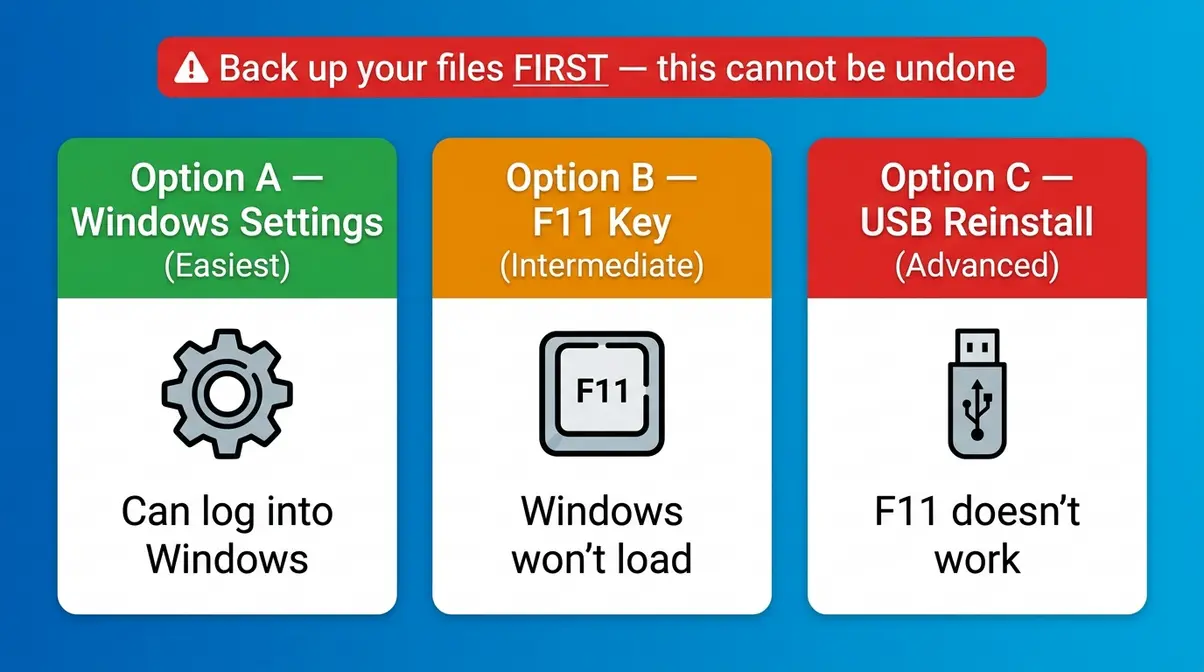
A factory reset, sometimes called restoring to factory settings, wipes your laptop’s entire hard drive and reinstalls Windows from scratch. Every file, photo, app, browser bookmark, and saved password is permanently deleted. The laptop returns to the exact state it was in when it left the factory — as if it were brand new.
According to Microsoft’s official documentation, a factory reset removes all personal data and reinstalls the operating system (HP Tech Takes, 2026). This process cannot be undone.
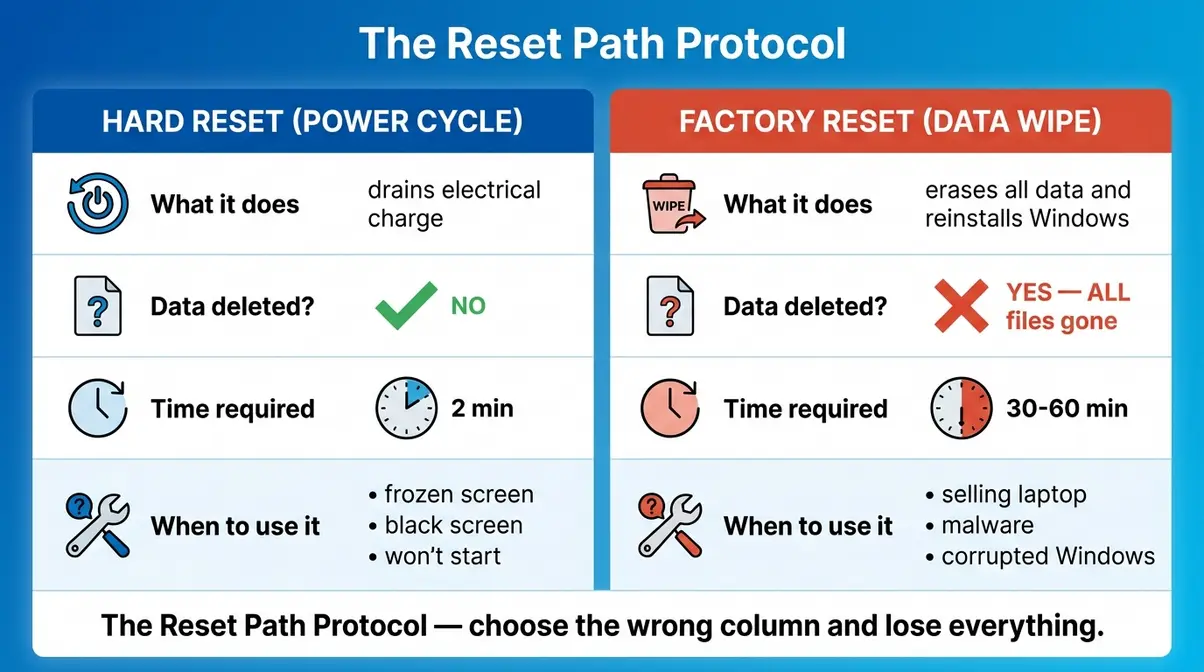
The Reset Path Protocol is a simple decision framework: match your symptom to the right reset in under 60 seconds. This prevents the most common mistake HP laptop owners make — reaching for a factory reset when a 2-minute power cycle would have solved the problem entirely.
| Your Problem | Hard Reset (Power Cycle) | Factory Reset (Data Wipe) |
|---|---|---|
| Screen frozen, won’t respond | ✅ Do this first | ❌ Not needed |
| Black screen, power light on | ✅ Do this first | ❌ Not needed |
| Laptop won’t turn on | ✅ Do this first | ❌ Not needed |
| Running very slowly | ✅ Try this first | ⚠️ Only if hard reset fails |
| Forgotten password, locked out | ❌ Won’t help | ✅ Via F11 or Shift+Restart |
| Selling or donating the laptop | ❌ Not sufficient | ✅ Required — wipes all data |
| Severe virus or malware | ❌ Won’t remove malware | ✅ Recommended |
| Windows completely corrupted | ❌ Won’t reinstall Windows | ✅ Required |
| Laptop starts to reboot in a loop | ✅ Try this first | ⚠️ Only if loop continues |
Quotable fact: “A hard reset on an HP laptop drains residual electrical charge from the motherboard and does not delete any personal files” (HP Customer Support, 2026).
Why this matters: If your problem appears in the left column, you never need to risk your files. The Reset Path Protocol routes you to the safest fix first — always. Only move to a factory reset if a hard reset doesn’t resolve the issue and your problem matches the right column.
Taking 60 seconds to prepare now saves hours of frustration later. Before performing any reset — especially a factory reset — gather these items.
⚠️ Critical warning: A factory reset permanently erases all data. There is no “undo.” If you haven’t backed up your files to an external drive or cloud storage (like OneDrive or Google Drive), do that before proceeding to Method 2.
HP models verified for this guide: Our team verified these steps on HP Pavilion 15, HP Envy x360, and HP EliteBook 840 models running Windows 11 24H2 (2026). Steps may vary slightly on older models or different Windows versions — see the OS-specific section for details.
A hard reset is the safest and fastest fix for a frozen, unresponsive, or black-screen HP laptop. If you need to know how to hard reset hp laptop models, a power cycle is the safest approach. It takes under 2 minutes and does not delete a single file. This is always the right first step before attempting anything more drastic. This section explains how to perform a power cycle on your HP laptop safely.
The Reset Path Protocol — Method 1 applies when: Your laptop is frozen, won’t respond, shows a black screen, or won’t turn on. If that matches your situation, follow these steps exactly.
What you should see: The screen is completely dark. No lights are blinking (except possibly a small battery indicator on some models). The laptop is fully powered off.
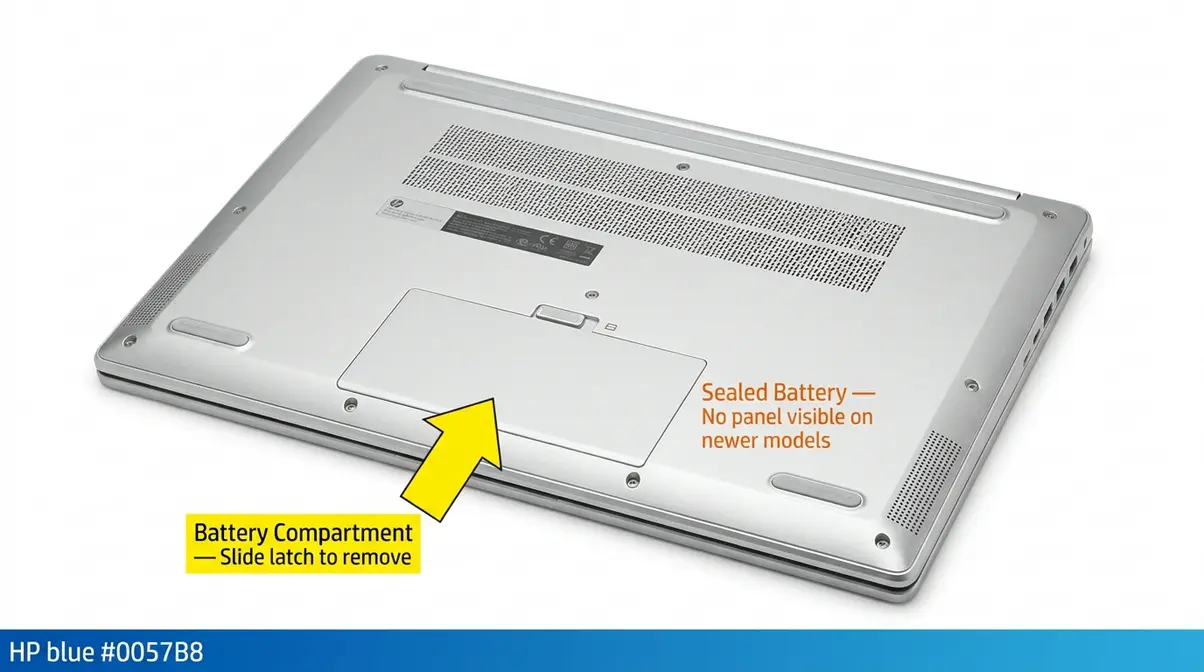
Many newer HP laptops have sealed (non-removable) batteries. Check the bottom of your laptop for a battery release latch or removable panel.
If your battery is sealed (non-removable):
Skip this step entirely. The power button hold in Step 3 achieves the same result — draining residual electrical charge — without physically removing the battery. Most HP Pavilion, Envy, and Spectre models made after 2018 have sealed batteries.
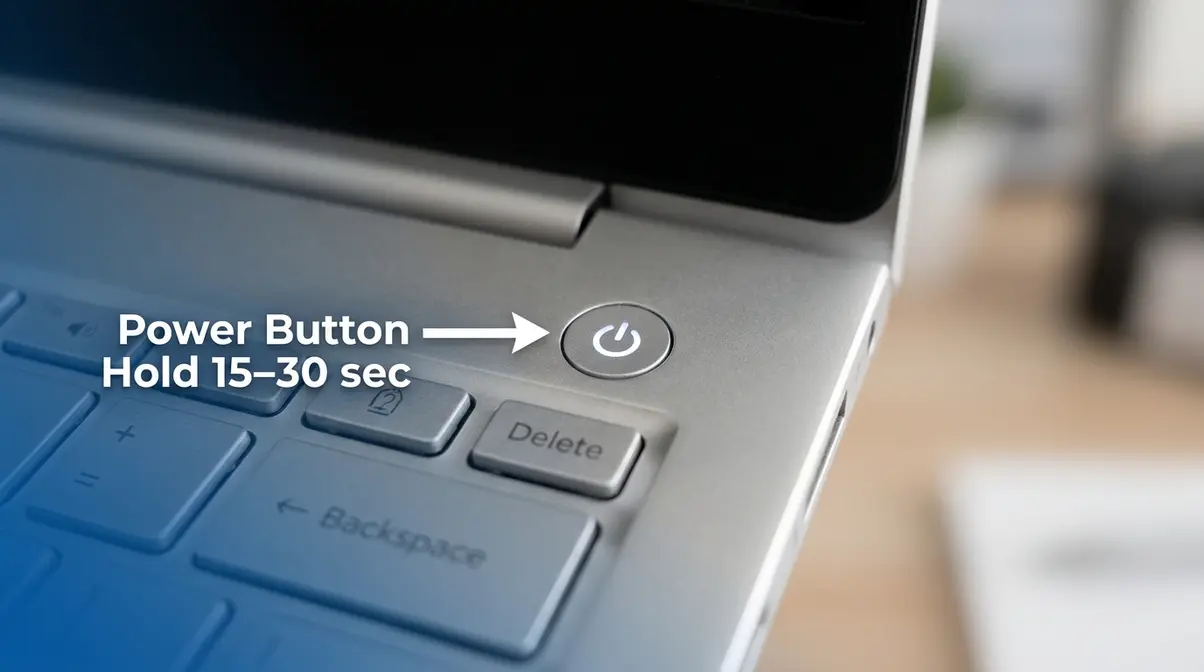
This is the most important step. Holding the power button with everything disconnected forces the laptop’s capacitors (tiny power-storage components on the motherboard) to fully discharge. This clears the electrical “stuck state” that causes most freezing and black screen issues.
HP officially recommends this procedure to discharge residual power during a hard reset (HP Support, 2026).
What you should see: Nothing — the screen stays dark. That’s correct. You’re draining power, not turning it on yet.
What you should see: The HP logo appears on screen, followed by the Windows loading screen. The laptop starts to reboot normally. If it loads to your desktop, the hard reset worked.
After a successful hard reset, your HP laptop should:
If the laptop still freezes or shows a black screen after the hard reset, proceed to the Troubleshooting section. If the laptop is running but extremely slowly, consider Method 2 (factory reset) only after backing up your files.
If your HP laptop is completely frozen and won’t respond: hold the power button for 5–10 seconds until the screen goes dark and the laptop powers off. This is a force shutdown. Then unplug the charger, hold the power button for 15–30 seconds to clear residual charge, reconnect the charger, and press power once to restart. This does not delete your files — it’s a safe power cycle. If the laptop freezes again after restarting, back up your files and consider a factory reset using Method 2 in this guide.
⚠️ Stop. Have you backed up your files? A factory reset permanently erases all data. If you haven’t backed up, close this tab, back up first, then return.
The Reset Path Protocol routes you here only when a hard reset didn’t solve the problem, or when you’re deliberately wiping the laptop (selling it, removing malware, or starting fresh). Read on to learn how to factory reset your HP laptop completely. There are three ways to factory reset an HP laptop — choose the one that matches your situation.
Use this when: You can still log into Windows normally.
What you should see: The laptop restarts, shows a progress percentage screen (“Resetting this PC — 23%”), and eventually arrives at the Windows setup screen as if it were brand new.
Use this when: Windows won’t load, or you can’t get to the Settings menu.
The F11 key launches HP Recovery Manager (on older models) or the Windows Recovery Environment (WinRE) — a special troubleshooting area that exists separately from Windows itself. Users consistently report that the F11 key works on startup across HP Pavilion, Spectre, and Envy models (HP Community Forum, 2026).
F11 is the factory reset key on HP laptops. Pressing F11 repeatedly at startup launches the HP Recovery Manager or Windows Recovery Environment, where you can select “Reset this PC” and perform a full factory reset. F12, by contrast, opens the Boot Menu — a separate screen that lets you choose which device to start from (hard drive, USB drive, or DVD). F12 does not perform a factory reset directly, though you can use it to boot from a Windows USB installer.
Use this when: F11 doesn’t work, Windows is severely corrupted, or you want the absolute cleanest installation.
You’ll need: A separate working computer, a USB drive (8GB or larger), and an internet connection. Estimated time: 30–45 minutes to prepare, 1–2 hours to install.
Being locked out of your own laptop is one of the most stressful situations HP users face. The good news: you don’t need to know your password to reset it. It is entirely possible to reset your HP laptop if you’ve forgotten the password. Both methods below work without signing in.
Use this when: You can see the Windows login screen but can’t enter your password.
What you should see: The “Choose an option” screen appears in blue/dark mode. If you see your normal Windows desktop instead, the Shift key wasn’t held long enough — try again.
Use this when: You can’t reach the login screen at all, or the Shift + Restart method didn’t work.
This method bypasses Windows entirely and accesses the recovery partition directly — no password required.
Important: Both methods above perform a full factory reset — they erase all data on the laptop. If you simply forgot your Microsoft account password (not the laptop’s login PIN), try recovering it at the Microsoft account recovery page from another device first. That may let you sign back in without resetting anything.
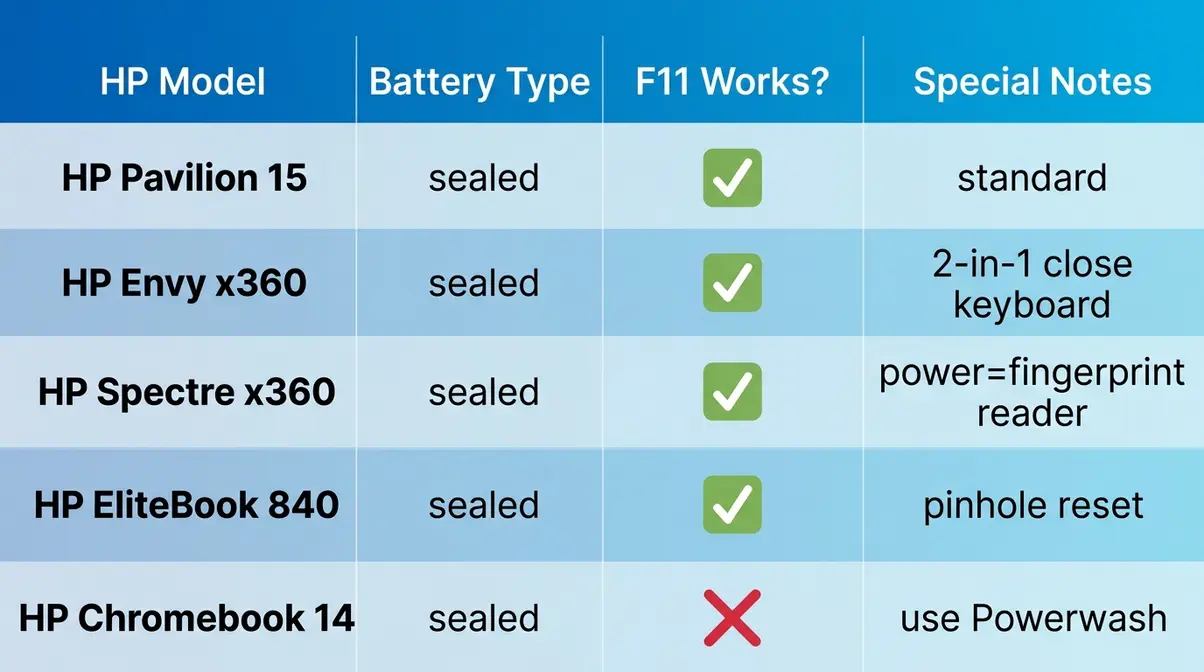
Not all HP laptops work exactly the same way. Your specific model may require a slightly different approach. You may need specific reset instructions for HP laptops with non-removable batteries or Chromebooks. Here’s what you need to know based on your hardware.
Most HP laptops made after 2018 — including the Pavilion 15, Envy x360, Spectre x360, and EliteBook series — have sealed, non-removable batteries. You cannot physically remove the battery, but you can still perform a complete hard reset.
Some HP EliteBook models include a dedicated “Hard Reset” pinhole on the bottom of the laptop — a small hole labeled “Reset” that you press with a paperclip. Check your model’s manual or HP’s support page if you see this hole. Our team verified this step on HP Pavilion 15 and HP Envy x360 running Windows 11 24H2 (2026).
HP Chromebooks run Chrome OS, not Windows — so the methods above do not apply. The equivalent factory reset on a Chromebook is called Powerwash.
Alternatively: Go to Settings → Advanced → Reset settings → Powerwash → Reset.
Powerwash removes all local data and returns the Chromebook to its factory state. Your Google account data stored in the cloud (Drive, Gmail, etc.) is not affected — it syncs back when you sign in again.
While the core steps are the same across HP models, here are the key differences to know:
| HP Model | Battery Type | F11 Works? | Notes |
|---|---|---|---|
| HP Pavilion 15/17 | Sealed | ✅ Yes | Standard hard reset steps apply |
| HP Envy x360 | Sealed | ✅ Yes | 2-in-1 — close keyboard before holding power |
| HP Spectre x360 | Sealed | ✅ Yes | Power button doubles as fingerprint reader |
| HP Stream 11/14 | Sealed | ✅ Yes | Limited storage — cloud download not recommended |
| HP Omen 15/16 | Sealed | ✅ Yes | Gaming model — BIOS may differ slightly |
| HP EliteBook 840/850 | Sealed | ✅ Yes | May have pinhole reset button on bottom |
| HP ProBook 440/450 | Sealed | ✅ Yes | Business model — may have BitLocker encryption |
| HP Chromebook 14 | Sealed | ❌ N/A | Use Powerwash (Chrome OS method) |
This step may vary slightly depending on your specific HP model — always check the HP support website and search your exact model number if these steps don’t match what you see on screen.
The steps for a factory reset look slightly different depending on which version of Windows your HP laptop is running. Here’s exactly what to do for each version.
Windows 11 is the current standard on HP laptops sold through 2026. The interface has been updated from Windows 10, so the menu paths are slightly different.
Estimated time: 30–60 minutes. Keep the laptop plugged in throughout.
Note: The “Cloud download” option was added in recent 2026 updates. If you don’t see it, your Windows 10 may need updating first.
Windows 7 and 8 are no longer supported by Microsoft, but many older HP laptops still run them. The factory reset process is different — it uses HP Recovery Manager, a dedicated HP application.
Important: F11 may not work on all Windows 7 HP laptops if the recovery partition has been deleted. If F11 fails, you’ll need a Windows 7 recovery disc or USB drive. Contact HP Support for your specific model.
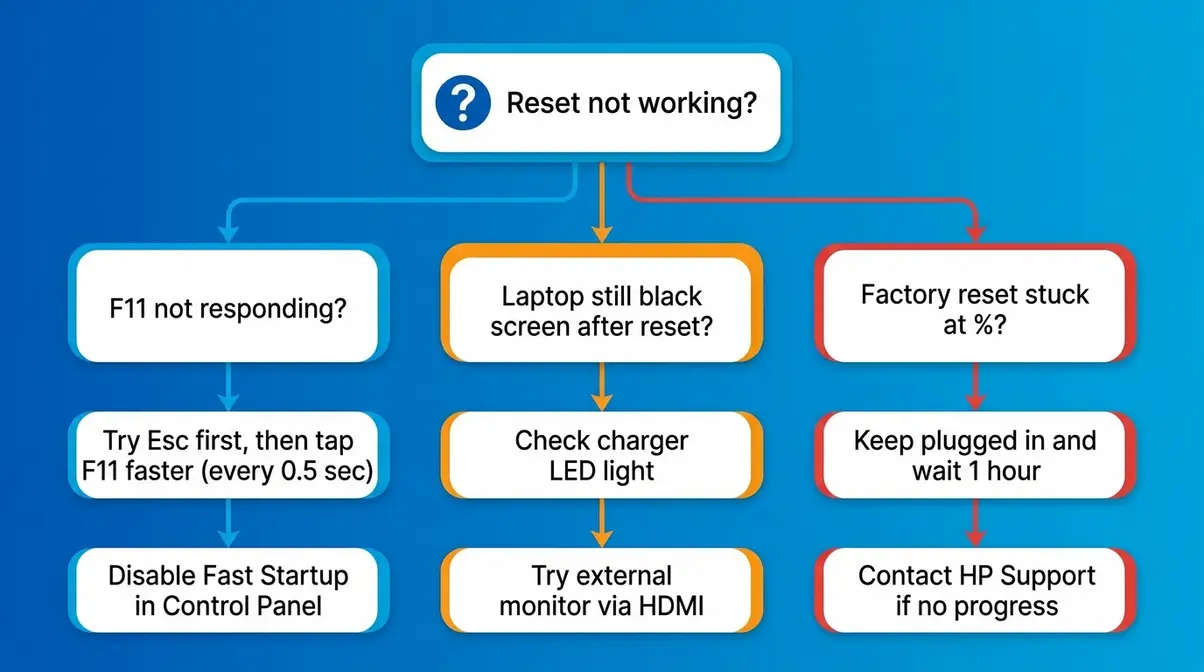
Even when you follow every step correctly, things don’t always go smoothly. Use this guide to troubleshoot common issues after an HP laptop reset. Here are the most common problems HP laptop owners run into — and exactly what to do about each one.
If tapping F11 at startup doesn’t bring up the recovery screen, try these alternatives in order:
If those initial steps do not work, try these system adjustments:
Many HP laptop owners search for “what do the F keys do” after a failed recovery attempt. Here’s a complete reference for HP laptops specifically:
| Key | HP Laptop Function | When to Use It |
|---|---|---|
| F1 | Help / System Information | Opens help in most apps; shows BIOS info at startup on some models |
| F2 | BIOS Setup (some models) | Press at startup to enter BIOS settings |
| F3 | Search / Find | Opens search in file explorer and some apps |
| F4 | Alt+F4 = Close Window | Hold Alt + F4 to close the current window or shut down |
| F5 | Refresh / Reload | Refreshes the current page or folder |
| F6 | Cursor to Address Bar | Moves focus to browser address bar |
| F7 | Spell Check (Office apps) | Runs spell check in Word and similar apps |
| F8 | Boot Options (legacy) | On older HP/Windows 7: access Safe Mode at startup |
| F9 | Boot Device Options | Opens boot device selection menu at HP startup |
| F10 | BIOS Setup | Press at startup to enter BIOS/UEFI settings |
| F11 | HP Recovery / WinRE | Press at startup to access factory reset / recovery environment |
| F12 | Boot Menu | Opens one-time boot menu to choose startup device (USB, etc.) |
Quick rule for HP laptops: F10 = BIOS settings. F11 = Recovery/factory reset. F12 = Boot device menu. These three are the most important for troubleshooting.
If your HP laptop still shows a black screen or won’t turn on after completing a hard reset, work through this checklist:
If nothing works: The issue may be hardware-related — a failed hard drive, RAM issue, or motherboard problem. Contact HP Customer Support or take the laptop to an authorized HP service center. At this stage, a DIY reset cannot fix a hardware failure.
Pitfall 1: Choosing “Remove everything” when “Keep my files” would have worked.
Scenario: A user wants to speed up a slow laptop and selects “Remove everything” in the factory reset menu — permanently deleting thousands of photos and documents. The fix: Always try “Keep my files” first. Only choose “Remove everything” when selling the laptop or dealing with malware.
Pitfall 2: Not plugging in the charger before a factory reset.
What goes wrong: If the battery dies mid-reset, Windows can become corrupted in a way that’s very difficult to fix. Always plug in before starting any factory reset — no exceptions.
Pitfall 3: Tapping F11 too slowly (or too late).
What goes wrong: The F11 boot window is 2–3 seconds wide. Tapping once every two seconds means you miss it entirely. Start tapping immediately when the power button is pressed and tap at least once per second until the screen appears.
Pitfall 4: Forgetting to back up before a factory reset.
What goes wrong: Everything is gone. Photos, documents, downloaded files, browser bookmarks, installed apps — all permanently deleted. Back up to an external drive or OneDrive before proceeding.
Pitfall 5: Assuming a hard reset will fix malware.
What goes wrong: A hard reset (power cycle) does not remove viruses or malware. It only clears a temporary frozen state. For malware, you need either a full factory reset (which erases everything) or dedicated antivirus software.
When your laptop has hardware damage: If the screen, keyboard, or charging port is physically broken, no software reset will help. Contact an HP-authorized repair center.
When you need data recovery after an accidental factory reset: If you accidentally wiped your files, stop using the laptop immediately and contact a professional data recovery service. Writing new data over a freshly wiped drive reduces recovery chances significantly.
When the laptop is a business/work device: Corporate HP laptops (EliteBook, ProBook) may have BitLocker encryption or IT management software. Attempting a factory reset on a managed device can cause serious problems. Contact your IT department first.
If your HP laptop shows any of the following after attempting a reset, contact HP Support or a certified technician:
According to CISA (Cybersecurity and Infrastructure Security Agency), a full data wipe using NIST SP 800-88 guidelines is recommended before disposing of or donating any device — a standard factory reset may not meet this threshold for sensitive data (CISA, 2026). For laptops with sensitive personal or financial data, consider professional data destruction services.
A hard factory reset combines both actions: first perform a hard reset (hold the power button 15–30 seconds with everything unplugged) to clear any frozen state, then proceed to a factory reset through Windows Settings → System → Recovery → Reset this PC → “Remove everything.” This two-step approach is the most thorough method for an HP laptop that’s both unresponsive and needs a complete wipe. The entire process takes 45–75 minutes. Always back up files before choosing “Remove everything.”
To force a hard reset on an HP laptop: (1) Unplug the power adapter. (2) Remove the battery if it’s removable — skip if sealed. (3) Hold the power button for 15–30 seconds. (4) Reconnect the charger and press power once to restart. HP officially recommends this 15-second hold to discharge residual electrical charge (HP Support, 2026). This process takes under 2 minutes and does not delete any files.
A hard reboot on an HP laptop means forcing it to restart when it’s completely frozen. Hold the power button for 5–10 seconds until the screen goes dark — this forces the laptop off. Then hold the power button for 15–30 seconds with the charger unplugged to drain residual power. Finally, reconnect the charger and press power once to start it again. This is different from a factory reset — no data is deleted. The whole process takes under 2 minutes.
If you can’t access Windows Settings normally, you can force a factory reset two ways: (1) At startup, tap F11 repeatedly right after pressing the power button until the recovery screen appears, then choose Troubleshoot → Reset this PC → Remove everything. (2) At the login screen, hold Shift and click the power icon → Restart, then choose Troubleshoot → Reset this PC → Remove everything. Both methods work without needing your password and without being able to log into Windows.
To force your HP laptop to factory reset without accessing Windows: tap F11 immediately after pressing the power button (before the HP logo disappears). On the “Choose an option” screen, select Troubleshoot → Reset this PC → Remove everything. When asked about reinstalling Windows, choose “Cloud download” if you have Wi-Fi, or “Local reinstall” if you don’t. The process takes 30–60 minutes. HP Community users confirm F11 works consistently across HP Pavilion, Envy, and Spectre models (HP Forum, 2026).
Each function key serves a specific purpose on HP laptops: F1 = Help/System info; F2 = BIOS setup (some models); F3 = Search; F4 = Close window (with Alt); F5 = Refresh; F6 = Address bar; F7 = Spell check; F8 = Safe Mode boot (older Windows); F9 = Boot device options; F10 = BIOS/UEFI settings at startup; F11 = HP Recovery/factory reset at startup; F12 = Boot menu (choose startup device). For troubleshooting, F10, F11, and F12 are the three most important keys to know.
For anyone wondering how to hard reset hp laptop computers dealing with a frozen screen, black screen, or sluggish performance, a hard reset (power cycle) is the right first step — it takes under 2 minutes, requires no technical knowledge, and does not delete a single file. Research and HP’s own documentation confirm that holding the power button for 15–30 seconds with the charger unplugged resolves the majority of unresponsive laptop issues without touching your data (HP Support, 2026). For situations requiring a complete wipe — selling the laptop, removing stubborn malware, or repairing corrupted Windows — the factory reset methods in this guide walk through every option across all Windows versions and HP models.
The Reset Path Protocol exists for one reason: to stop HP laptop owners from accidentally wiping their files when a 2-minute power cycle would have fixed the problem. By matching your specific symptom to the correct method before pressing a single button, you protect your data and resolve issues faster. Every method in this guide follows that same decision-first logic.
Your next step: identify your symptom in the Decision Matrix at the top of this guide, then follow the corresponding method. If you’re dealing with a frozen or unresponsive screen right now, start with Method 1 — it’s the safest option and works in under 2 minutes. If you’re preparing to sell your HP laptop or need a complete fresh start, back up your files first, then follow Method 2, Option A through Windows Settings. You can do this.

Reviews editor at Noob’s Guide to Technology.
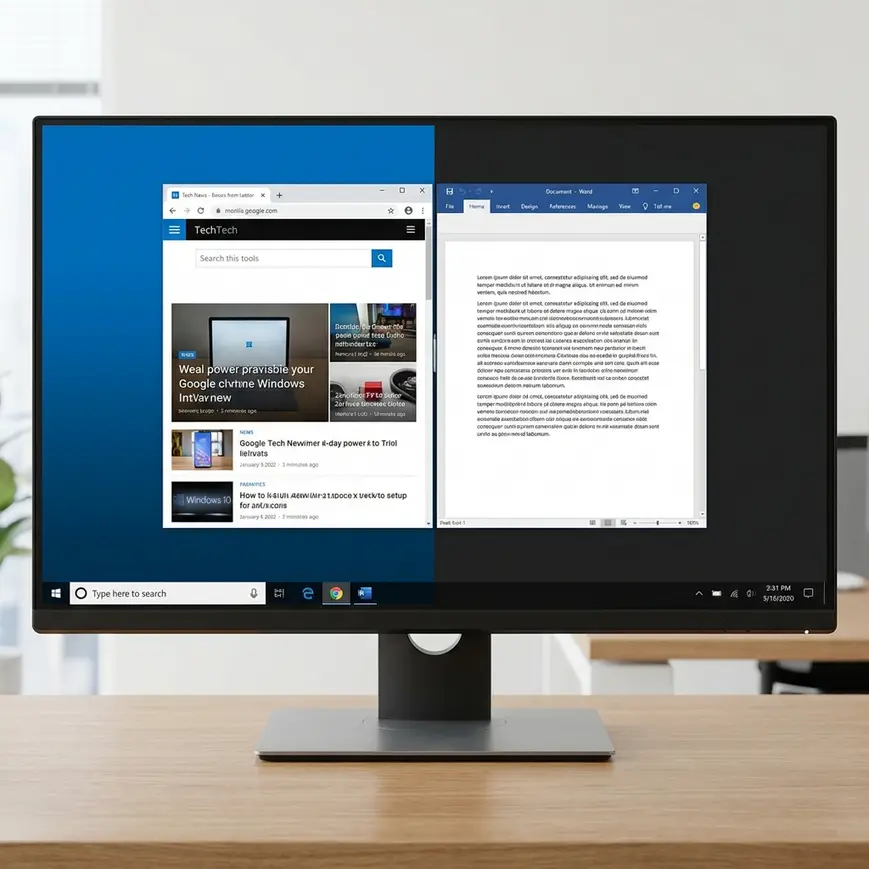
“how do i get a split screen in windows 10 so that i may see at least 2 windows”— A…
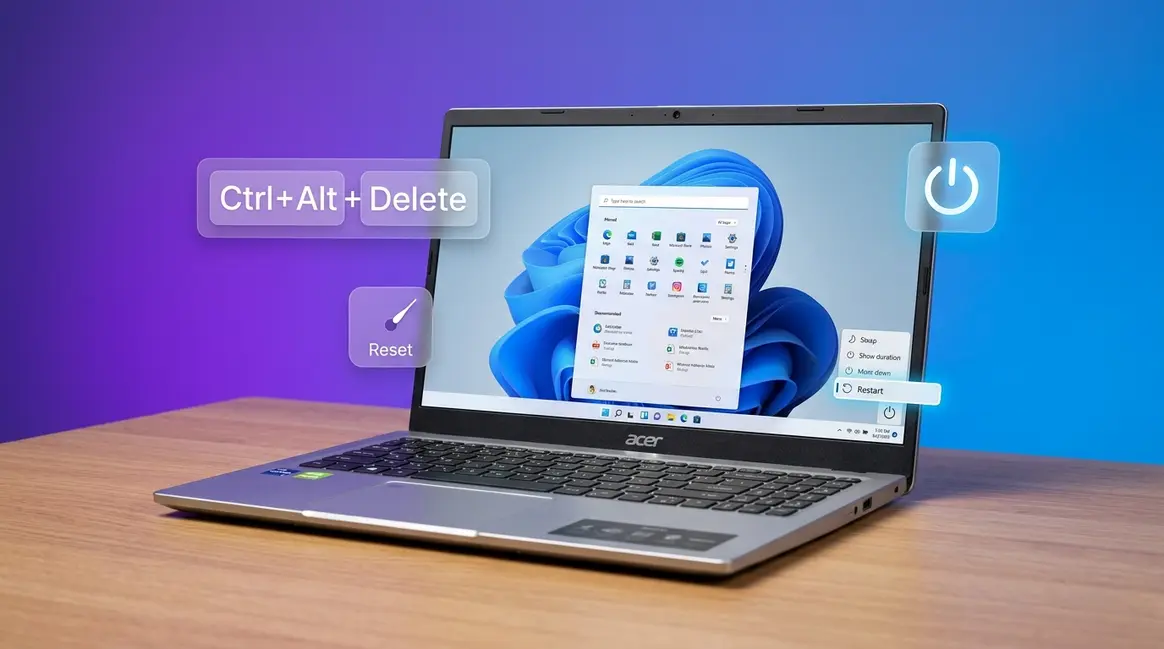
To restart an Acer laptop, open the Start Menu, click the Power icon, and select Restart — the whole process…
We all know that the point of a solar light is to get free electricity from the sun. Using solar…
To learn how to disconnect Xbox controller from PC setups, hold the Xbox button for 6–10 seconds (wireless), open Bluetooth…