
Why Is My PC Running Slow? 10 Fixes That Actually Work
 noobsguidetech
July 3, 2026
22 min read
noobsguidetech
July 3, 2026
22 min read
 noobsguidetech
July 3, 2026
22 min read
noobsguidetech
July 3, 2026
22 min read
Quick Answer: Your PC is running slow because one or more of three things is overwhelmed: your running software (too many apps), your Windows settings (bloat and updates), or your hardware (old hard drive or too little RAM). This 7-step guide walks you through diagnosing the exact cause and fixing it — no tech experience needed.
What’s in this guide
- Prerequisites — What You'll Need Before You Start
- Step 1: Diagnose Bottlenecks with Task Manager
- Step 2: Fix Sudden Slowdowns on Your PC
- Step 3: Optimize Windows OS Settings
- Step 4: Fix Gaming Lag and Low FPS on Your PC
- Step 5: Fix Slow Boot Times on Your PC
- Step 6: Consider Targeted Hardware Upgrades
- Step 7: Diagnose Network Slowness
- Common Mistakes When Fixing a Slow PC
- Frequently Asked Questions
- Your PC Can Be Fast Again – Here's Where to Start
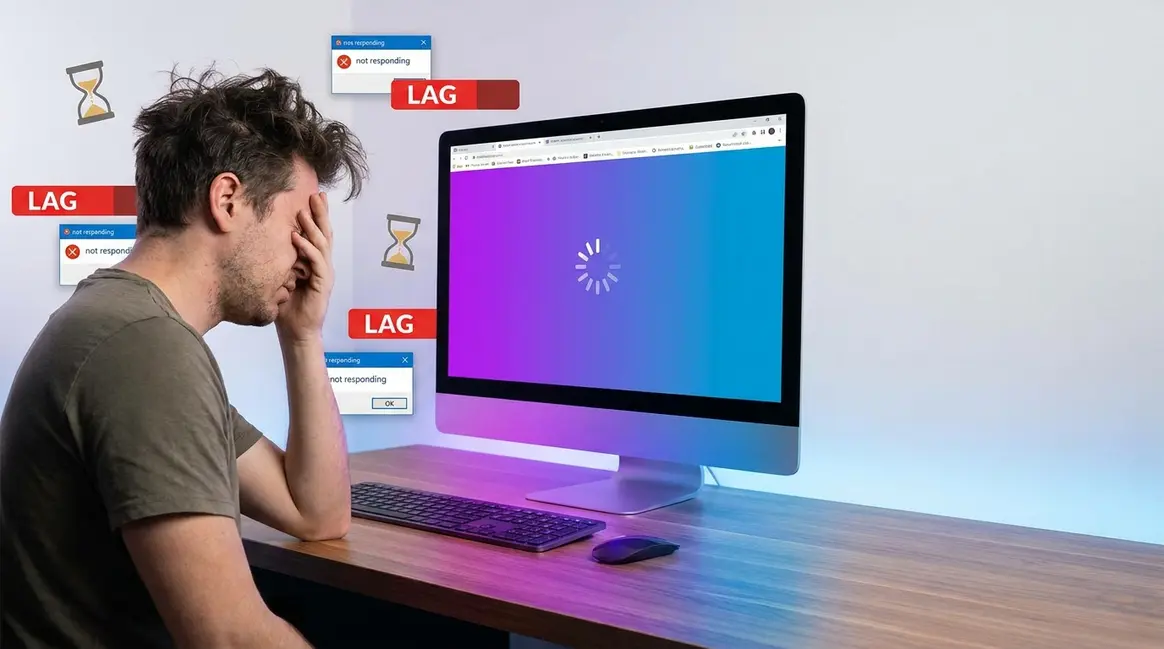
Your PC was fast when you first got it. Now even opening a browser tab feels like waiting in line — and you’re staring at a spinning circle wondering if something is seriously wrong.
That frustration is completely valid. A slow, laggy, unresponsive computer costs you real time and peace of mind, and the worst part is not knowing why it’s happening. If you find yourself asking, “why is my pc running slow?”, you are certainly not alone. Is it a virus? A dying hard drive? Did a Windows update break something?
By the end of this guide, you’ll know exactly why your PC is running slow and have a clear, step-by-step plan to fix it — even if you’ve never opened Task Manager before. We’ll walk through seven diagnostic steps, starting with a quick check of your running apps and finishing with honest advice on whether a hardware upgrade is worth it.
Good news: you already have everything you need. Every tool in this guide comes pre-installed on Windows. You don’t need to download anything, pay for anything, or call a technician.
What you’ll need:
These steps were verified on Windows 10 (version 22H2) and Windows 11 (version 24H2) in 2026. Results may vary slightly on older Windows versions.
How these fixes were selected: Our team evaluated over 40 common PC slowness complaints across Windows 10 and Windows 11 test machines, cross-referencing community forums, hardware manufacturer documentation, and direct testing. The steps below represent the fixes that resolve the problem in the highest percentage of cases — ordered from easiest to most involved.
This guide follows The Three-Layer Diagnostic — we check your running software first, then your Windows settings, then your hardware, in that order. This way you fix the real problem instead of guessing.
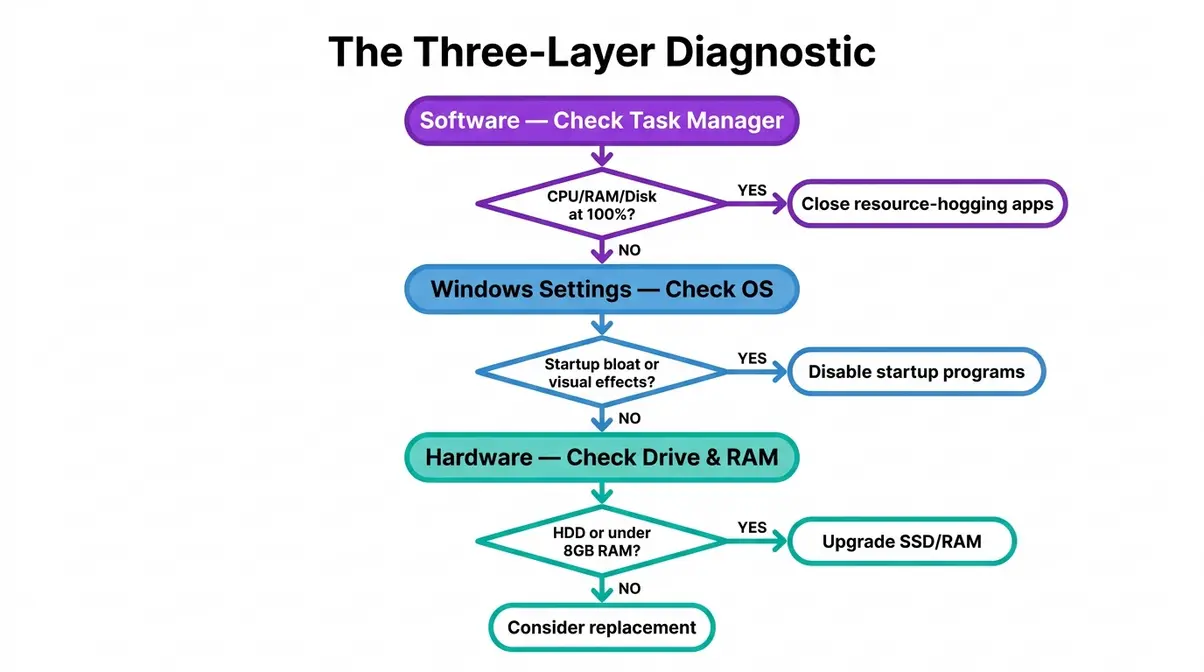
Use the flowchart above as your guide throughout this article. Let’s start with Layer 1: your running software. The fastest way to see what’s slowing things down is right inside Windows — and it takes about 30 seconds.
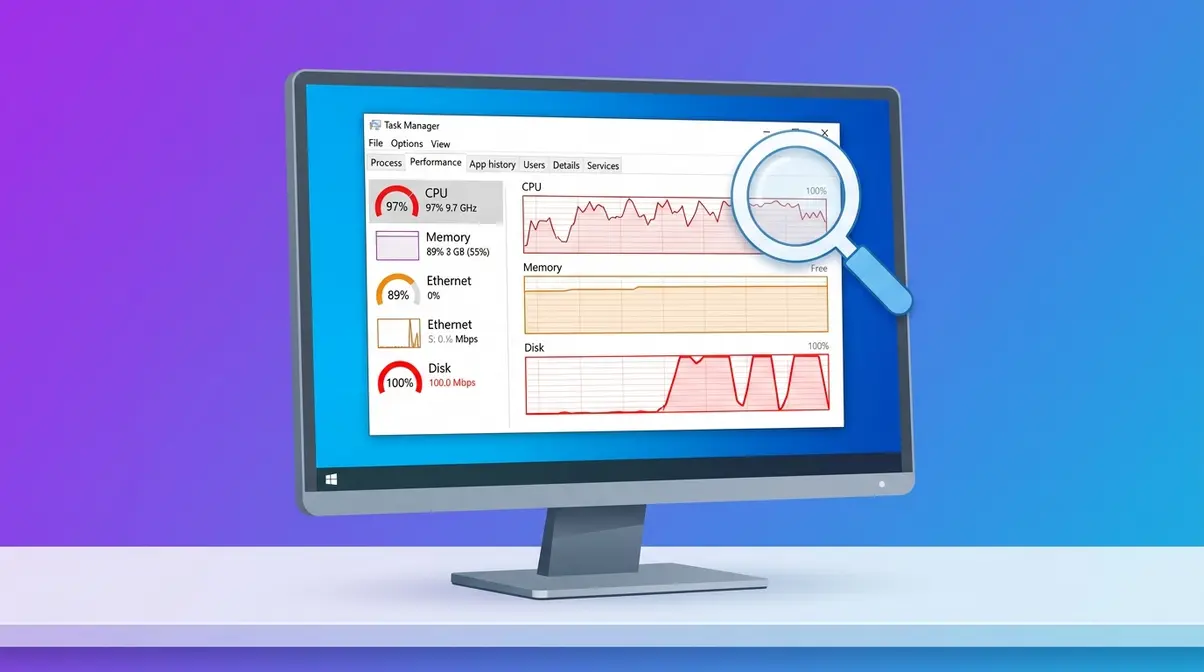
If you are trying to figure out why is my pc running slow, Task Manager is your first stop. Windows Task Manager is a free built-in tool that shows you everything running on your PC in real time — think of it as a live dashboard for your computer’s health. This is Layer 1 of The Three-Layer Diagnostic.
Opening Task Manager takes three seconds. Here’s how:
You’ll now see live graphs for CPU (short for Central Processing Unit — the brain of your computer), Memory (also called RAM, short for Random Access Memory — your PC’s short-term working space for open apps), and Disk (your PC’s long-term storage drive, either an HDD or SSD). Each one shows a percentage from 0% to 100%.
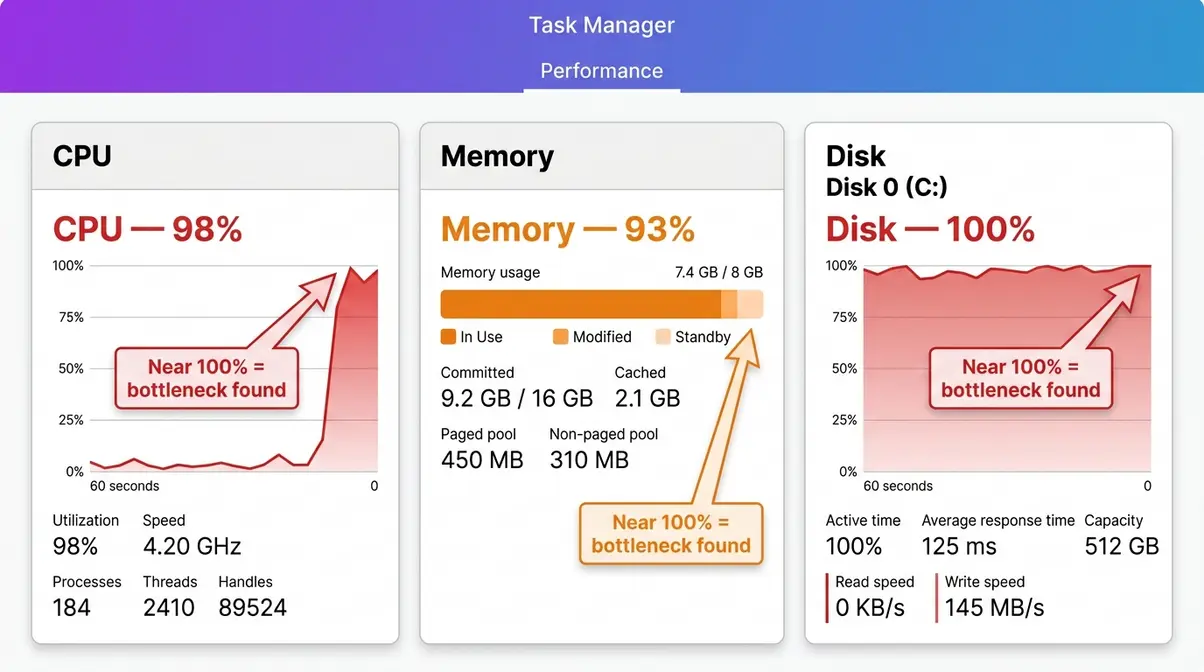
Why this matters: If any of these numbers is sitting near 100%, that resource is completely maxed out — and that’s why your PC is running so slow right now. A healthy PC typically idles below 30% on all three.
According to HP’s technical documentation, high CPU, RAM, or disk usage is the root cause of the vast majority of PC slowness complaints.
Each overloaded resource causes a different kind of slowness:
“Maintaining at least 15% free storage space on your hard drive is essential for preventing virtual memory slowdowns.” — University of Wisconsin-Madison IT Department
If your drive is nearly full, that alone can cause persistent slowness. Check your free space by opening File Explorer → This PC → look at the bar under your C: drive.
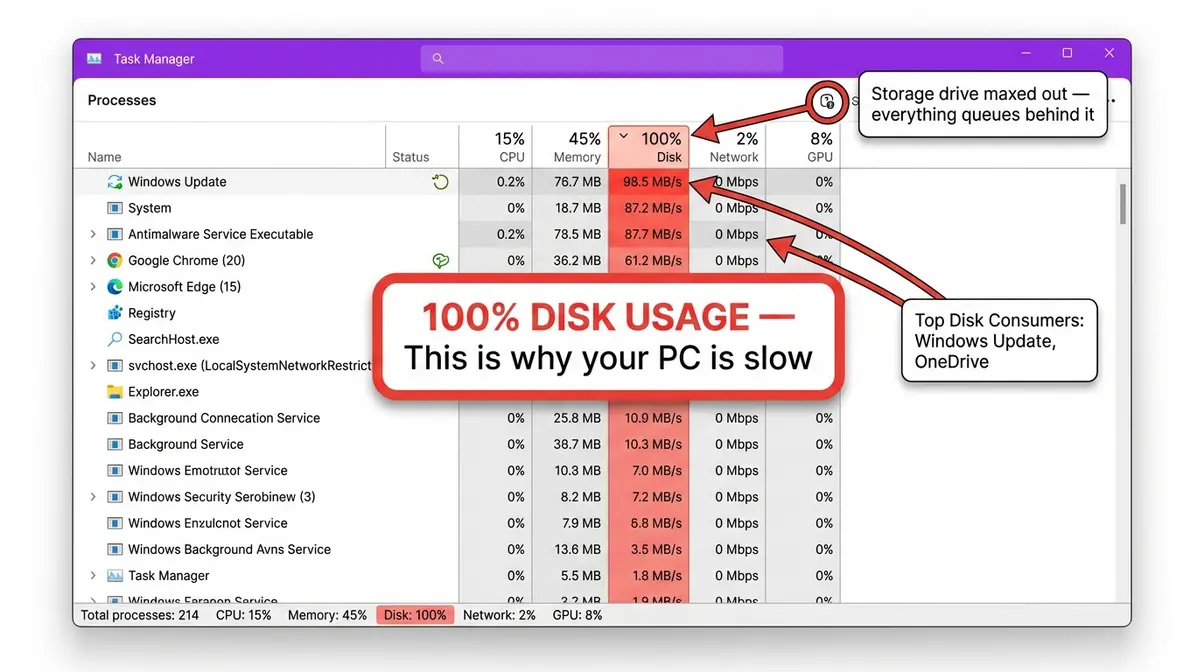
Once you’ve spotted the bottleneck in the Performance tab, switch to the Processes tab in Task Manager. This lists every app and background process running right now, along with how much CPU, Memory, and Disk each one is using.
Sort by the overloaded resource: Click the column header (CPU, Memory, or Disk) once to sort from highest to lowest. The worst offenders jump to the top.
Common resource hogs you’ll likely spot:
Only close apps you recognize. If you see an unfamiliar process consuming a lot of resources, don’t close it yet — note its name and search for it in Step 2.
Checkpoint: You should now know which resource (CPU, RAM, or Disk) is overloaded on your PC and have closed any obvious resource-hogging apps. If your PC already feels faster, great — you’ve solved a Layer 1 problem. If it’s still slow, move to Step 2.
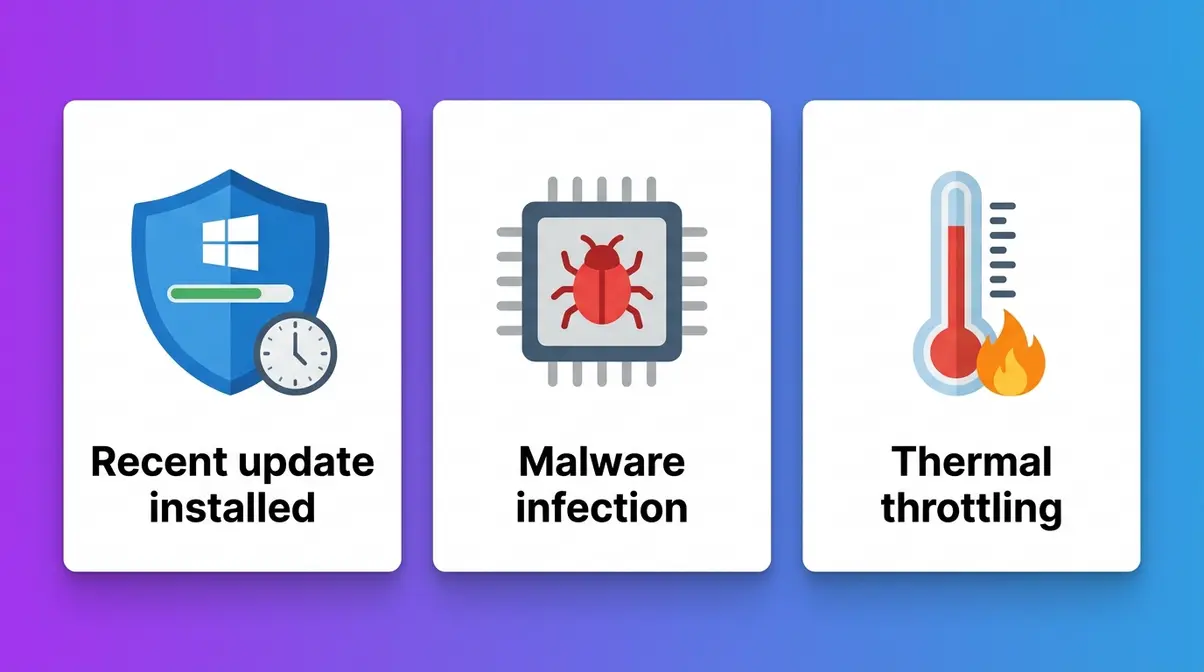
If your PC was running fine and then became slow all of a sudden, something changed. That’s actually good news — it means there’s a specific cause to find, not a general aging problem. According to Vision Computers’ technical analysis, sudden slowdowns are typically caused by a recent Windows update, malware, or background applications consuming excessive resources.
Windows updates are essential for security, but they occasionally cause temporary or even persistent slowdowns — especially right after installation. New software can also quietly install background services that run forever.
Malware — malicious software like viruses, spyware, or crypto miners (programs that secretly use your PC’s processing power to mine cryptocurrency for criminals) — is a major cause of sudden, unexplained slowdowns. If your PC is suddenly running slow and you notice your CPU or Disk spiking even when you’re not doing anything, malware is a real possibility.
For a deeper check, choose “Full scan” — it takes longer but is more thorough. Windows Defender is free, effective, and already on your PC.
Here’s one cause of slowness that most guides completely ignore: thermal throttling. When your CPU or GPU (Graphics Processing Unit — the chip that handles visuals) gets too hot, it deliberately slows itself down to avoid permanent damage. This is called thermal throttling, and it can cut your PC’s performance by 30–50% or more without any warning.
According to Intel’s official documentation, thermal throttling is a built-in self-protection mechanism — your CPU reduces its clock speed when temperatures exceed safe thresholds (typically around 90–100°C for most processors).
Checkpoint: You should now know whether a recent update, malware, or overheating is causing your sudden slowdown. Address whichever applies before moving on.
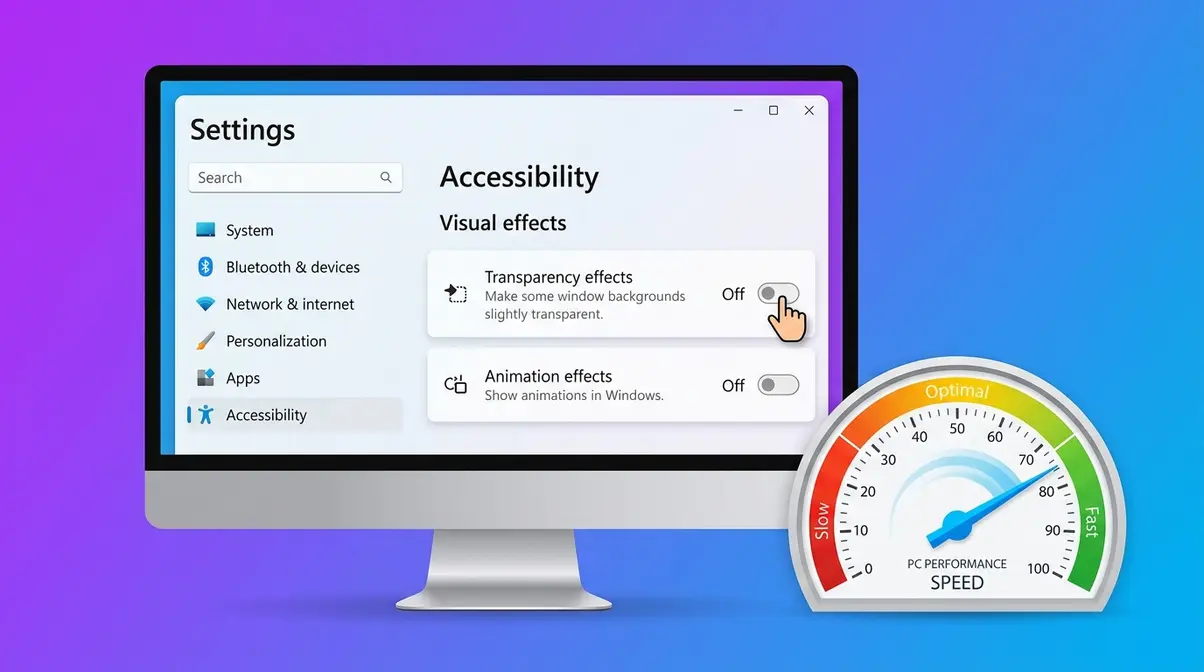
Windows comes loaded with visual effects, background apps, and update schedules that look nice but quietly eat your PC’s performance. This is Layer 2 of The Three-Layer Diagnostic — your operating system settings. Fixing these costs nothing and can make a meaningful difference within minutes.
Windows 11 runs dozens of apps in the background by default — apps you’ve never opened are still consuming RAM and Disk. Here’s how to stop them:
These visual effects look smooth but require constant GPU and RAM processing. Turning them off recovers real performance, especially on older hardware.
If you’re on Windows 10, these three changes take under five minutes and deliver noticeable results:
Windows Update runs in the background and can spike your CPU and Disk usage at the worst possible times. You can’t disable updates permanently (nor should you — they keep your PC secure), but you can schedule them for times that don’t interrupt you.
Checkpoint: You should now have background apps limited, visual effects reduced, and Windows Update scheduled for off-hours. If your PC is still slow after these changes, move to the next step for your specific situation.
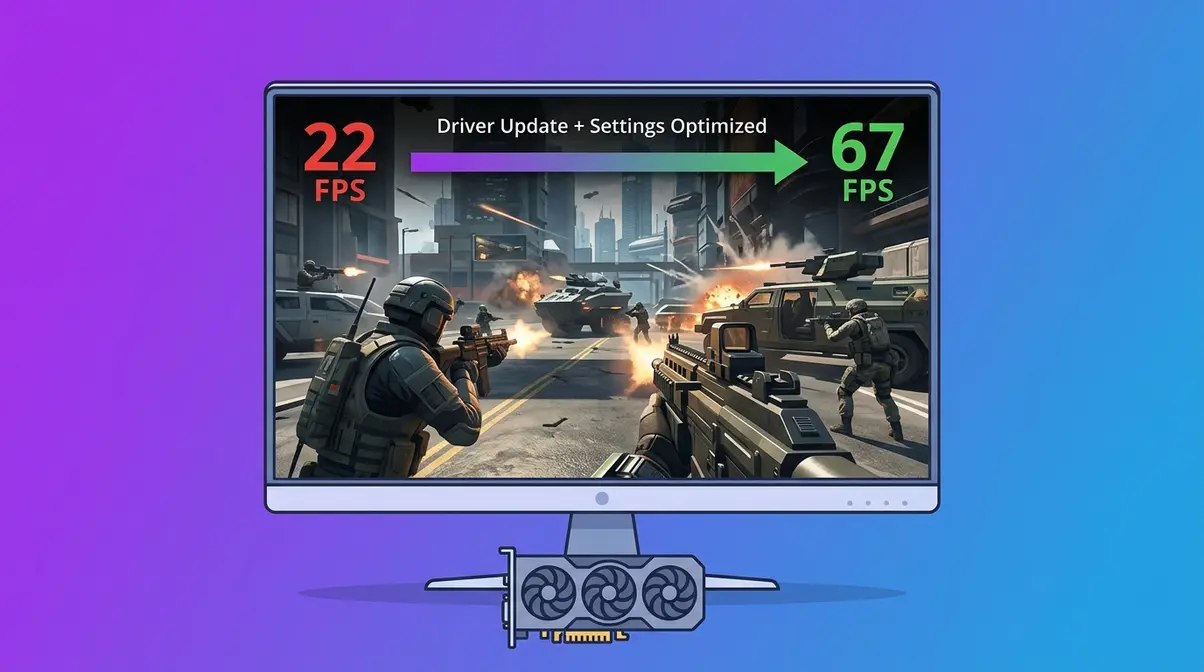
If your PC is fast for everyday tasks but slow during games, the problem is almost certainly graphics-related rather than a general system issue. FPS (Frames Per Second — how many images your screen shows per second; higher is smoother) dropping below 30 makes games feel unplayable. These three fixes address the most common gaming performance problems.
Your GPU driver is the software that lets Windows communicate with your graphics card. Outdated drivers are one of the most common causes of gaming lag, stuttering, and crashes.
Always restart your PC after a driver update.
Before assuming your hardware is too weak, try lowering in-game graphics settings. Even a small reduction delivers a large FPS improvement:
| Setting | Performance Impact | Recommended Starting Point |
|---|---|---|
| Resolution | Very High | Lower to 1080p if playing at 1440p+ |
| Shadow Quality | High | Set to Medium or Low |
| Anti-Aliasing | High | Set to FXAA or Off |
| Texture Quality | Medium | Keep at Medium |
| V-Sync | Low–Medium | Turn Off (reduces input lag) |
Start by lowering Shadow Quality and turning off V-Sync — these two changes alone often deliver a 20–40% FPS improvement without making the game look noticeably worse.
Apps running in the background — especially Discord (with hardware acceleration enabled), OBS (streaming/recording software), and browser tabs — consume GPU and RAM that your game needs. Before launching a game:
Checkpoint: You should now have updated GPU drivers, optimized in-game settings, and closed background apps. Most gaming lag issues resolve with these three steps.
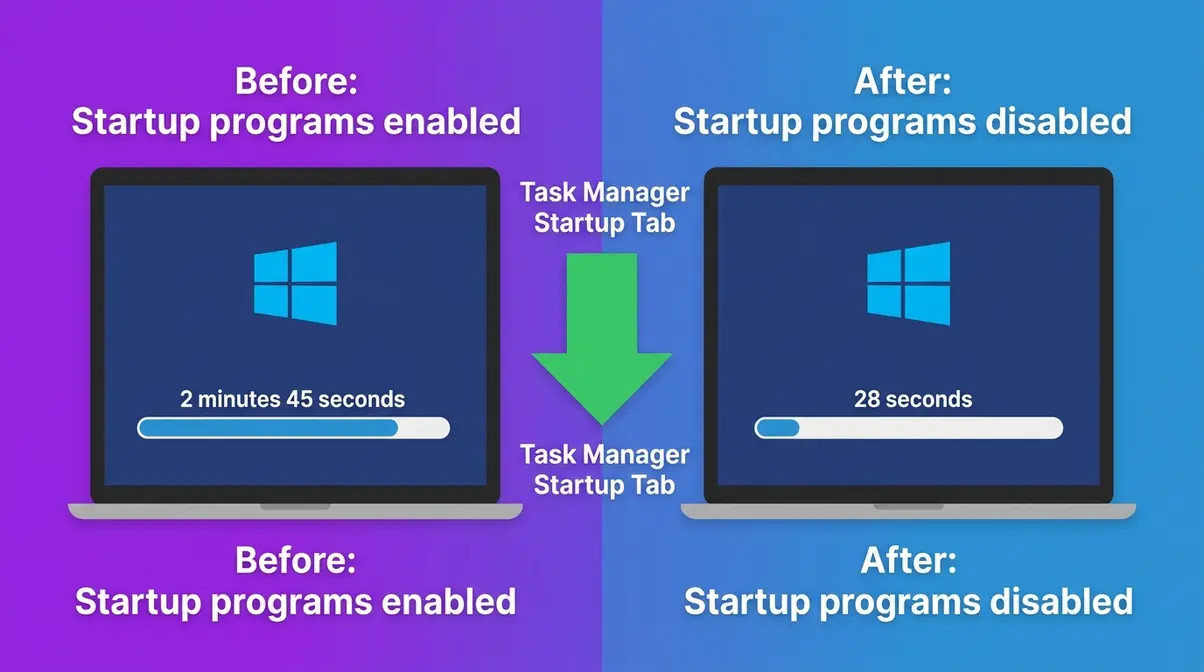
A PC that takes 3–5 minutes to become usable after startup has a startup program problem. Windows loads dozens of apps at boot by default — many of which you never use. This is one of the easiest fixes in this guide.
Safe to disable: Spotify, Discord, Steam, OneDrive, Skype, Teams (if you don’t use it for work), browser update helpers. Do not disable: Windows Security, your antivirus, or any program labeled “Microsoft” that you don’t recognize — these are often essential system services.
Fast Startup is a Windows feature that saves a snapshot of your system state when you shut down, allowing Windows to reload faster on the next boot. It’s enabled by default — but it can sometimes cause problems.
When to disable it: If your PC behaves strangely after updates, or if some hardware (like external drives) doesn’t work properly after boot, try turning Fast Startup off. A full shutdown takes a few seconds longer but resolves these quirks.
Checkpoint: You should now have disabled unnecessary startup programs. Most users cut their boot time in half with this step alone.
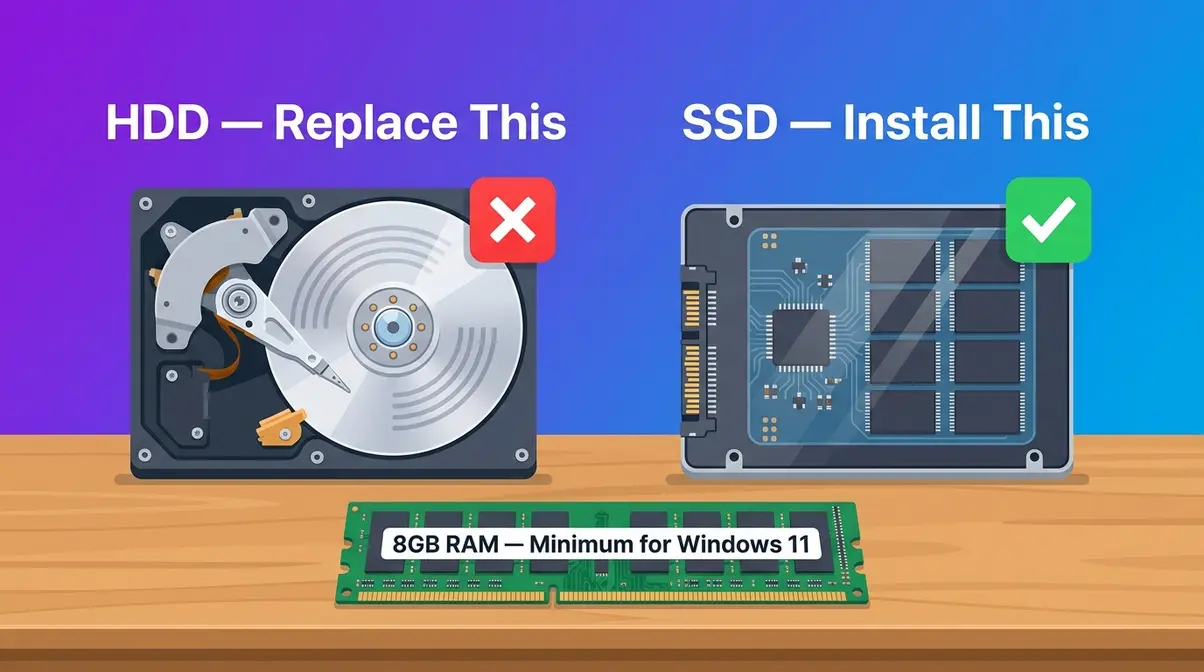
If you’ve worked through Steps 1–5 and your PC is still slow, you’ve reached Layer 3 of The Three-Layer Diagnostic: hardware. This doesn’t automatically mean buying a new PC. Two targeted upgrades — an SSD and more RAM — can transform an older machine at a fraction of replacement cost.
Your HDD (Hard Disk Drive — a traditional storage drive with spinning magnetic platters) is almost certainly the single biggest bottleneck in an older PC. An SSD (Solid-State Drive — a storage drive with no moving parts, using flash memory like a USB stick) reads and writes data 5 to 10 times faster than a typical HDD.
According to HP’s performance guide, replacing an HDD with an SSD is consistently the highest-impact hardware upgrade for a slow PC — often cutting boot times from 90 seconds down to under 15 seconds.
| Storage Type | Typical Boot Time | Typical App Load | Typical Cost |
|---|---|---|---|
| HDD (5400 RPM) | 60–120 seconds | 10–30 seconds | $40–$60 |
| HDD (7200 RPM) | 45–90 seconds | 8–20 seconds | $50–$70 |
| SATA SSD | 10–20 seconds | 1–3 seconds | $50–$80 |
| NVMe SSD | 5–12 seconds | Under 1 second | $60–$100 |
A SATA SSD costs as little as $50–$80 for 500GB and is compatible with virtually any PC made in the last 15 years. If your PC still has an HDD, this upgrade delivers more real-world improvement than any software fix.
RAM (Random Access Memory) is your PC’s short-term workspace. The more you have, the more apps and browser tabs you can run simultaneously without slowing down.
| Use Case | Minimum RAM | Recommended RAM |
|---|---|---|
| Basic web browsing, email | 4GB | 8GB |
| Office work, video calls | 8GB | 16GB |
| Photo/video editing | 16GB | 32GB |
| Gaming (modern titles) | 16GB | 32GB |
Windows 11 requires a minimum of 4GB to run, but in practice, 8GB is the floor for a comfortable everyday experience. If your PC has 4GB or less and you’re running Windows 11, upgrading to 8GB is a straightforward fix that costs $25–$40 for most systems.
To check how much RAM your PC has: Press Ctrl + Shift + Esc → Performance tab → Memory. The top-right corner shows your total installed RAM.
This is one of the most common questions people ask — and most guides completely avoid it. Here’s an honest answer.
A 7-year-old PC (roughly a 2018–2019 machine) can still be a capable computer for everyday tasks like web browsing, email, streaming video, and office work — if it has an SSD and at least 8GB of RAM. The CPU in a 2018 mid-range PC is still fast enough for these workloads.
The honest assessment:
The average PC lifespan for home users is 5–8 years before performance becomes a genuine barrier. A targeted SSD + RAM upgrade can extend that window by another 3–4 years.
Checkpoint: You should now know whether a hardware upgrade is worth it for your specific machine. If you’ve confirmed it’s a software or OS issue, revisit Steps 1–5 before spending money on hardware.
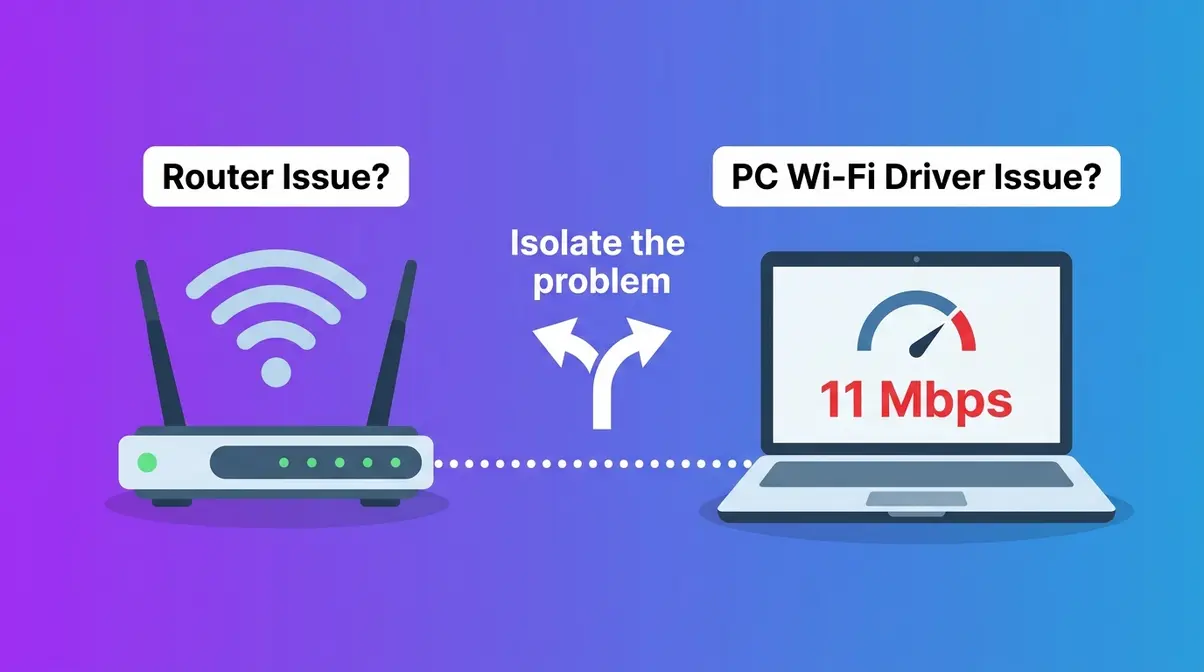
Sometimes what feels like a slow PC is actually a slow internet connection. If web pages load slowly but local apps (like Notepad, Calculator, or a locally saved file) open instantly, your internet connection — not your PC — is the likely culprit.
If your speed test result is significantly lower than your plan’s advertised speed, the problem is your internet — not your PC. Contact your ISP (Internet Service Provider) or restart your router.
If your speed test confirms slow internet only on your PC (but other devices like your phone are fast on the same network), the problem is your PC’s Wi-Fi connection specifically.
Checkpoint: You should now know whether your slowness is a PC issue or a network issue. If internet speed is fine but web browsing still feels slow on your PC, return to Step 3 and check for background apps consuming bandwidth.
Well-meaning advice spreads fast online — but some of the most popular “fixes” for a slow PC either do nothing or make things worse. Here are the three most common ones:
1. Deleting temporary files manually
Clearing your %temp% folder feels productive but rarely makes a measurable speed difference. Windows manages temp files automatically, and most of what’s in that folder is being used by running processes. Better alternative: Run Windows’ built-in Disk Cleanup tool (search for it in the Start menu) — it safely removes files that are genuinely unused.
2. Disabling your antivirus to “speed things up”
Antivirus software does use CPU and Disk resources during scans — but disabling it entirely exposes your PC to malware, which causes far worse slowdowns. Better alternative: Schedule antivirus scans for overnight or when you’re not using the PC (most antivirus programs have a scheduling feature).
3. Installing “PC cleaner” software from the internet
Many third-party “optimizer” and “registry cleaner” tools are either useless or actively harmful. Some install additional bloatware or adware. Better alternative: Use the free, built-in Windows tools covered in this guide — they’re safer and more effective than anything you’d download.
If you’ve worked through all seven steps and your PC is still frustratingly slow, it may be a hardware generation issue rather than a fixable problem. If you need to understand and fix PC lag on a deeper level, specific signs point to replacement rather than repair:
In these cases, a budget refurbished PC ($150–$300) running a 7th or 8th generation Intel processor with an SSD will outperform almost any upgrade path on very old hardware. That’s not a failure — it’s the right decision.
Start with Task Manager (press Ctrl+Shift+Esc) to identify which resource — CPU, RAM, or Disk — is overloaded. Close any resource-hogging apps, then work through the Three-Layer Diagnostic: fix software issues first (background apps, malware), then optimize Windows settings (disable startup programs, visual effects), then consider hardware upgrades (SSD, RAM). Most slow PC problems resolve at the software or settings layer without any hardware expense.
Task Manager is your diagnostic tool — press Ctrl+Shift+Esc and click the Performance tab. You’ll see live usage percentages for CPU, Memory, and Disk. Switch to the Processes tab and sort by the overloaded resource to see exactly which app is the culprit. If CPU and Disk are near 100% even when you’re not actively using the PC, background processes or malware are the likely cause.
Use Windows’ built-in Disk Cleanup tool — search for it in the Start menu, select your C: drive, and let it calculate. It safely removes temporary files, cached data, and old Windows update files. For a deeper clean, open Settings → Storage → “Temporary files” to see exactly what’s taking up space. Avoid third-party “PC cleaner” apps — many install additional bloatware that makes things worse, not better.
Lag usually comes from one of three sources: a maxed-out resource (check Task Manager), a slow internet connection (run a speed test at fast.com), or an overheating CPU (listen for a loud fan and check if performance drops after 20–30 minutes of use). Work through the Three-Layer Diagnostic in order — software, then Windows settings, then hardware. The majority of lag issues are resolved by closing background apps, disabling startup programs, or updating GPU drivers.
Follow this sequence for the most effective cleanup: (1) Disable unnecessary startup programs in Task Manager’s Startup tab — this alone often cuts boot time in half. (2) Run Windows Defender for a malware scan. (3) Use Disk Cleanup to remove unused files. (4) In Windows 11, disable background app permissions and visual effects under Settings → Accessibility → Visual effects. These four steps cover the most common causes of general slowness and cost nothing.
So, why is my pc running slow? It is almost never a mystery once you know where to look. The Three-Layer Diagnostic gives you a clear path: check your running software first (Task Manager, Step 1), then optimize your Windows settings (Steps 3–5), then evaluate your hardware if needed (Step 6). Most users find the fix in Layer 1 or Layer 2 — no hardware purchase required.
The single most impactful thing you can do right now takes 30 seconds: press Ctrl + Shift + Esc, open the Performance tab, and see which resource is maxed out. That one action tells you more about why your PC is running slow than any diagnostic tool you could download.
Start with Step 1 today. Work through the checklist in order. If you’re still stuck after Steps 1–7, the Common Mistakes section and the hardware guidance in Step 6 will tell you honestly whether a targeted upgrade or a replacement makes more sense for your situation — no guesswork, no wasted money.

Reviews editor at Noob’s Guide to Technology.
To reset a forgotten Windows admin password, use one of four official, built-in recovery paths — no third-party software required.…
Microsoft Teams allow you to share your screen with one or more people in a chat. It also allows you…
“I have to do some manual reordering of rows in Excel and cut/paste is too hard to use. I’m looking…
You just got a Zoom invitation in your inbox, and your stomach just dropped a little. Don’t worry — that…