If you’ve been trying to figure out how to cancel streaming services UK platforms offer and keep hitting dead ends, you’re not alone. Millions of UK households are doing exactly the same thing right now — fed up with prices that creep up every few months and a library of content that never quite delivers.
The biggest reason cancellations fail isn’t laziness or confusing websites. It’s something almost no guide talks about: you might be cancelling in the wrong place entirely. If you signed up through your iPhone, Android phone, or a TV bundle, the streaming service’s website can’t cancel your subscription — only your billing source can. This guide explains exactly how to fix that, platform by platform. All steps were verified against each platform’s official help documentation as of July 2026.
Knowing how to cancel streaming services UK providers offer starts with identifying where you’re actually being billed — this is the single most common reason cancellation attempts fail, a problem we call The Billing Source Trap.
- Check your billing source first: Apple, Google, Sky, or Virgin Media may be charging you — not the streaming service itself.
- Each platform hides its cancel button differently: This guide shows you exactly where to find it, step by step.
- UK law is on your side: Under the DMCC Act 2024, you have 14-day cooling-off rights on new subscriptions.
TL;DR — Quick Pick
Already know your billing source? Jump straight to your service: Netflix | Amazon Prime | Disney+ | NOW TV | Apple TV+. If you’re not sure where you’re being billed, start with the Billing Source section — skipping it is the #1 reason cancellations don’t work.
Quick Cancellation Reference Table
Use this table to find the right cancellation route before you start. Cancelling from the wrong place is the most common mistake.
| Service | Most Common Billing Source | How to Cancel | Official Cancel URL |
|---|---|---|---|
| Netflix | Netflix directly, Apple, or Google | Netflix website, Apple subscriptions, or Google Play | netflix.com/cancel |
| Amazon Prime | Amazon directly, Apple, or Google | Amazon account settings or App Store/Google Play | amazon.co.uk/manageprime |
| Disney+ | Disney+ directly, Apple, Google, or Sky | Disney+ website, App Store, Google Play, or Sky account | disneyplus.com/account |
| NOW TV | NOW TV directly or Sky bundle | NOW TV website or Sky account | nowtv.com/cancel |
| Apple TV+ | Apple (always) | Apple Subscriptions on iPhone/Mac | appleid.apple.com |
| BritBox | BritBox directly or Apple/Amazon | BritBox website or billing source | britbox.com/account |
Why UK Households Are Cancelling
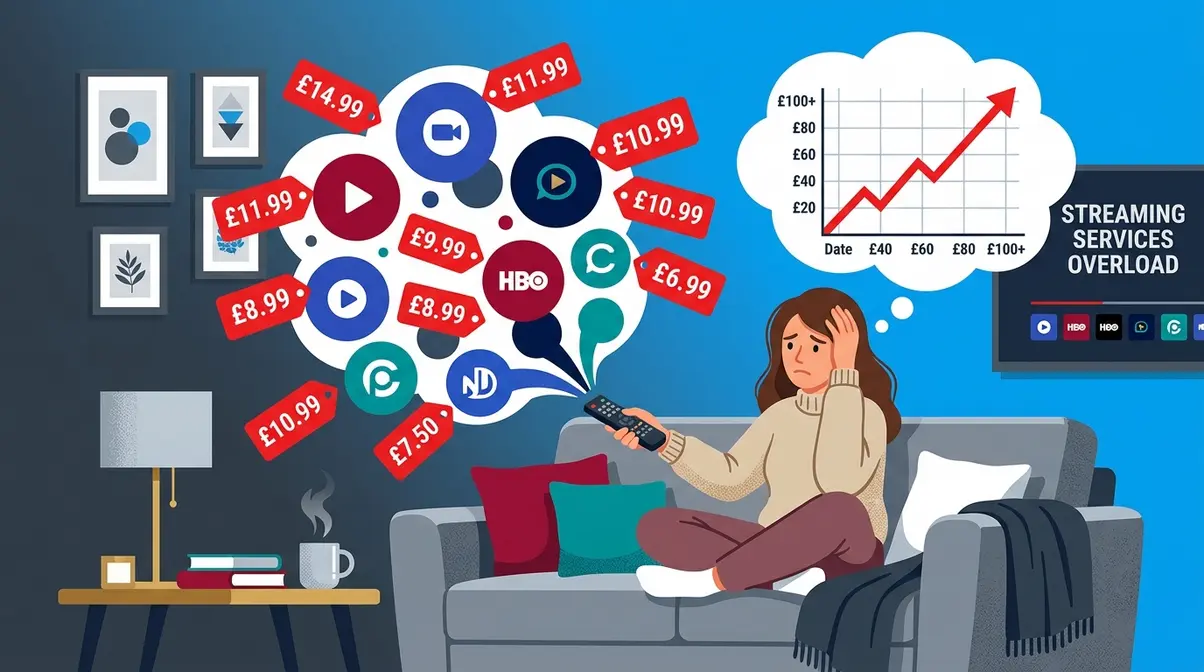
UK households are cutting back on streaming at a record pace — and the reasons are straightforward: prices have risen sharply, and the content often doesn’t justify the cost.
The Cost Has Become Impossible to Ignore
According to YouGov research, rising subscription costs are the leading reason UK viewers cancel their streaming services, with cost cited far more frequently than content quality. Netflix’s standard plan, for example, has more than doubled in price since 2019. Disney+ introduced ads to its cheapest tier and raised prices on ad-free plans. Amazon Prime bundled streaming into a broader membership that now costs significantly more than its original launch price.
Ofcom’s Media Nations 2026 report found that UK adults now subscribe to an average of 2.3 paid streaming services — but a growing share report they feel they are paying for subscriptions they rarely use. The average UK household spends over £50 per month on streaming subscriptions combined, a figure that has prompted widespread reassessment of what’s actually worth keeping (Ofcom, 2026).
The financial pressure is real, and cancelling is a completely reasonable response. The only thing standing between you and saving that money is knowing the right steps.
Too Many Services, Not Enough to Watch
Beyond cost, many UK viewers have hit a wall with content. The promise of streaming was simple: pay once, watch everything. The reality in 2026 is a fragmented library split across half a dozen platforms, with exclusive shows that disappear from one service and reappear behind a different paywall.
“In the last few months we’ve cancelled Netflix, Prime Video, Apple TV and Now TV Entertainment. Prices just kept going up and there wasn’t enough quality.”
That quote captures what thousands of UK households are experiencing. The shift toward subscription fatigue — the feeling that you’re paying for more than you’re watching — is a genuine consumer trend. A Guardian analysis of UK streaming behaviour noted that many households now use a rotation strategy: subscribe, binge-watch, cancel, and repeat. It’s a smart approach — and this guide makes it easy to execute.
Step 1 — Find Out Where You’re Being Billed First
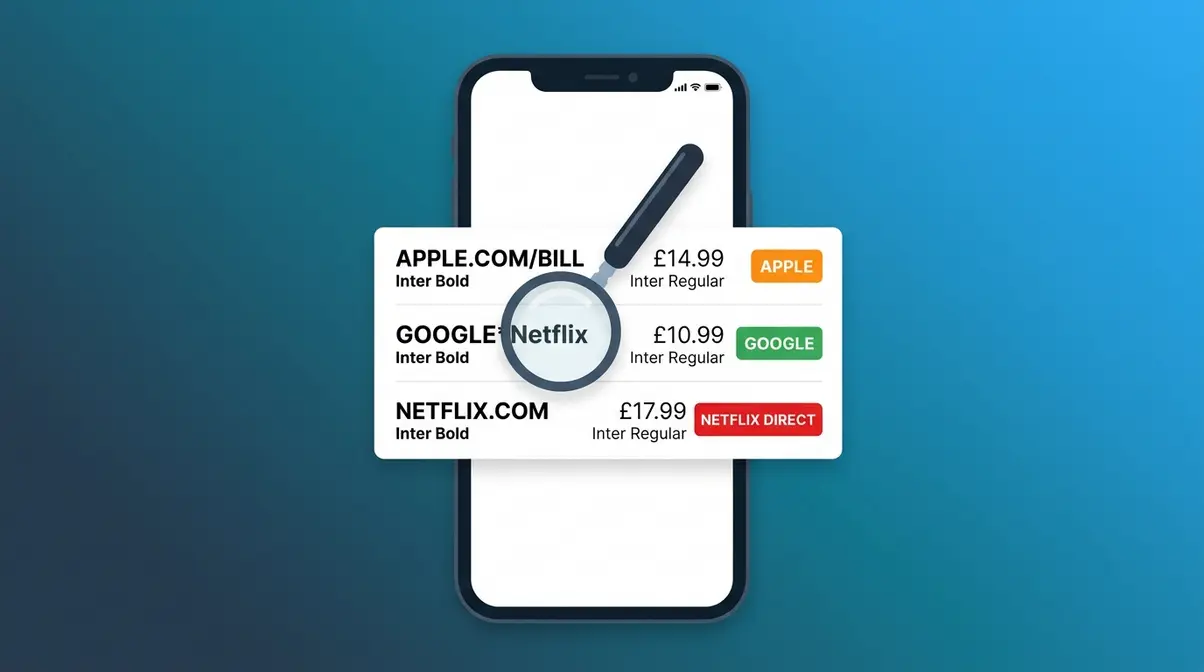
Your bank statement transaction name reveals your billing source instantly — APPLE.COM/BILL, GOOGLE, or the service name directly.*
Before you cancel anything, you need to answer one question: who is actually taking money from your account? This is the most important step in the entire guide, and it’s the one most people skip.
The Billing Source Trap
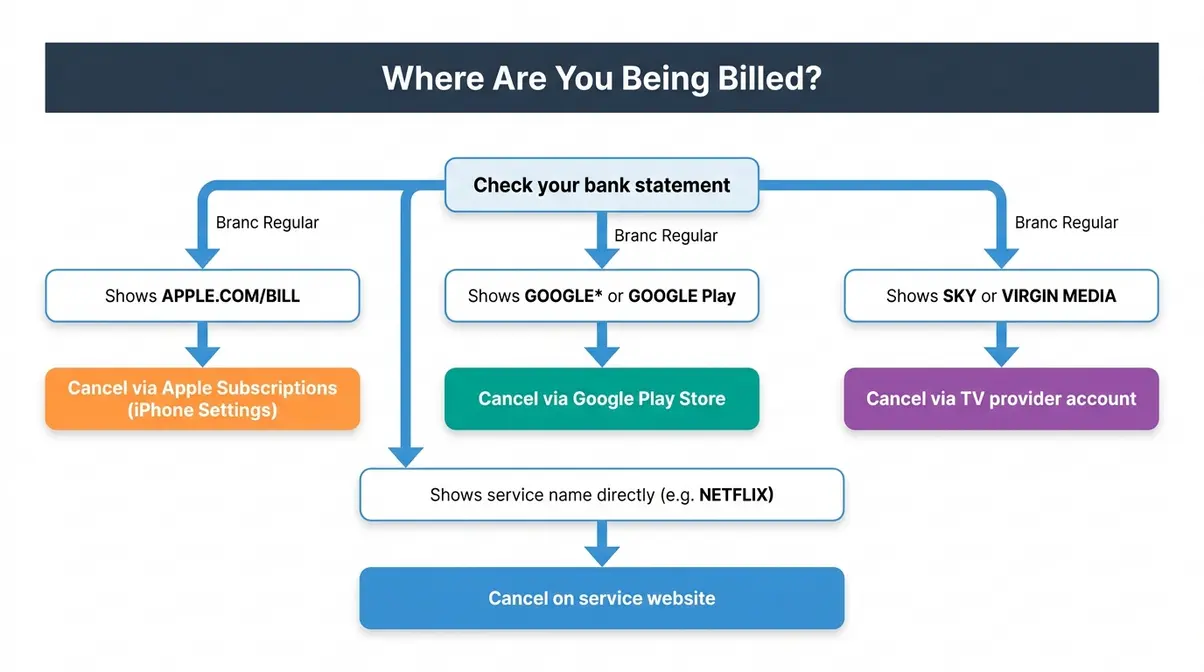
The Billing Source Trap is the single most common reason UK cancellation attempts fail. Here’s how it works: when you sign up for a streaming service, you may have done so through three very different routes — and each requires a completely different cancellation process.
- Direct billing: You signed up on the service’s own website and entered your card details directly. Cancel on the service’s website.
- Apple billing: You signed up through an iPhone, iPad, or Mac App Store. Cancelling on Netflix’s (or any other) website does absolutely nothing. You must cancel through Apple.
- Google billing: You signed up through an Android phone or Google Play. Again, the streaming service’s website cannot cancel this. You must cancel through Google Play.
- TV bundle billing: Your service is included in a Sky or Virgin Media package. You must contact Sky or Virgin Media directly.
Cancelling on the wrong platform does not cancel your subscription. You’ll keep being charged, and you may not notice for months. This is not an accident — it’s how the billing systems are designed.
Identify Your Billing Source
Check these three places quickly to find out who’s billing you:
- Check your bank or card statement. Look at the transaction name. Does it say “NETFLIX,” “APPLE.COM/BILL,” “GOOGLE*Netflix,” or “SKY”? The name tells you the billing source immediately.
- Check your email inbox. Search for “subscription” or the service name. The confirmation email from when you first signed up will show the billing route.
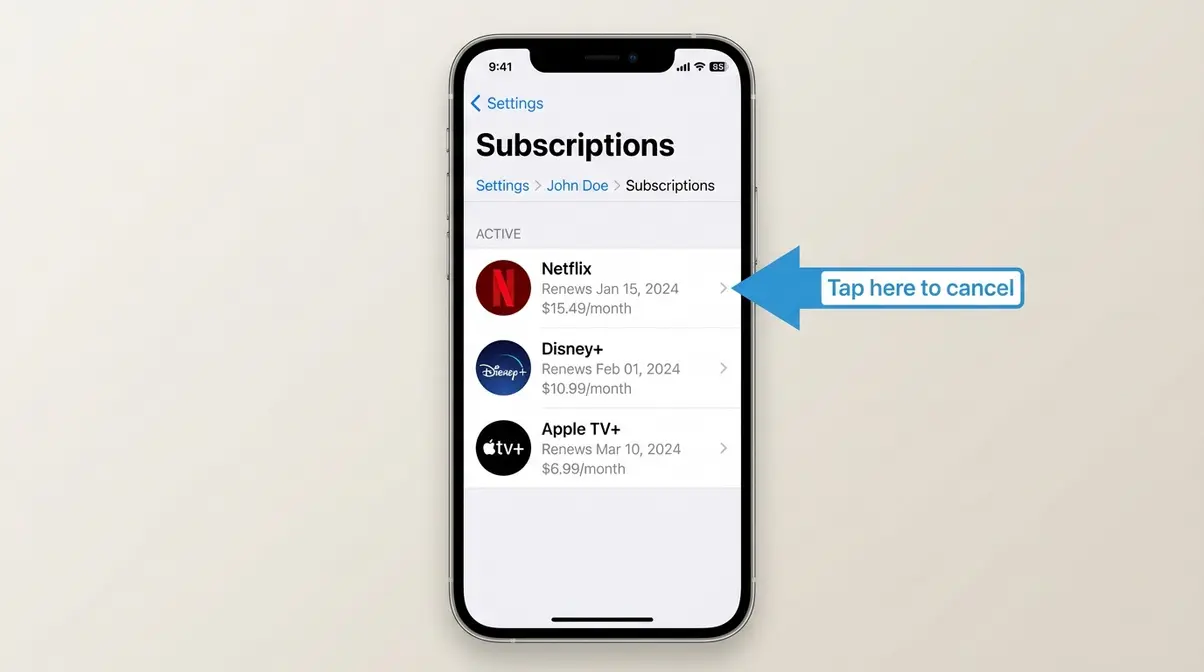
- On iPhone: Go to Settings → → Subscriptions. Any streaming service listed here is billed through Apple.
- On Android: Open the Google Play Store → Profile icon → Payments & subscriptions → Subscriptions. Any service listed here is billed through Google.
Once you know your billing source, jump to the relevant section below. If you’re billed directly by the streaming service, follow the platform-specific steps. If you’re billed through Apple, Google, Sky, or Virgin — go to the Third-Party Billing section first. For more platforms, read our comprehensive guide on how to cancel every streaming service.
How to Cancel Netflix in the UK {#netflix}
Netflix is the UK’s most-subscribed streaming service, and its cancellation process is relatively straightforward — as long as you’re billed directly by Netflix. Steps verified against Netflix’s official help pages as of July 2026.
Cancelling Netflix on Desktop or Laptop
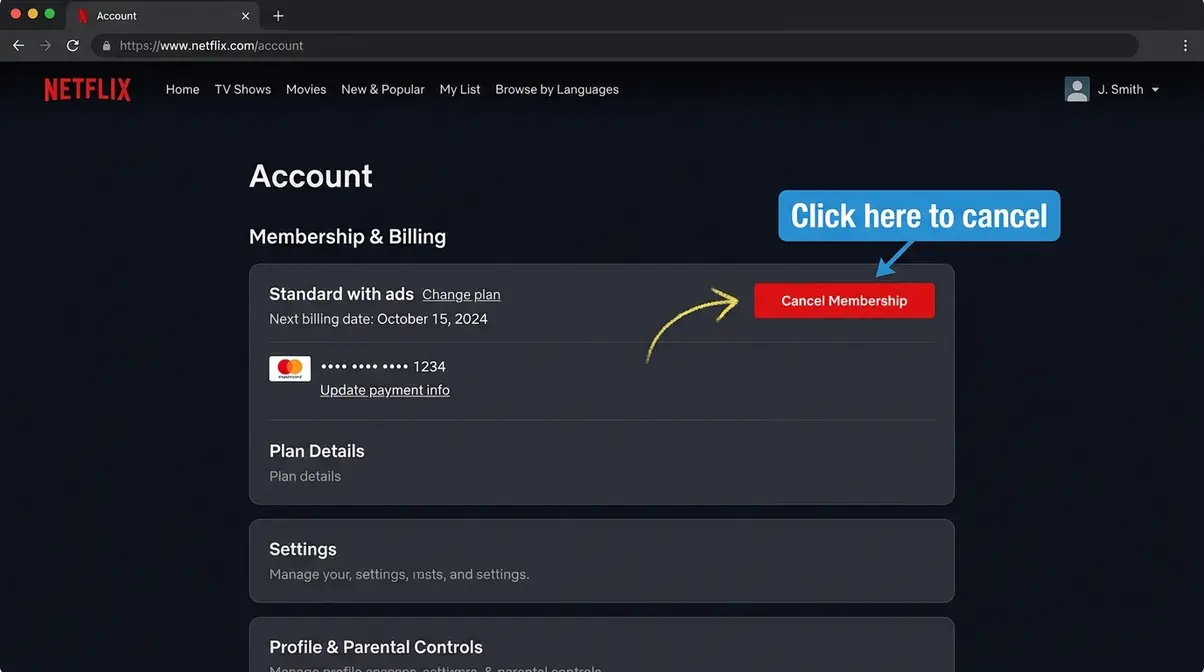
- Go to netflix.com and sign in.
- Click your profile icon in the top-right corner.
- Select Account from the drop-down menu.
- Under “Membership & Billing,” click Cancel Membership.
- Click Finish Cancellation to confirm.
Netflix will show you your final access date — you keep access until the end of your current billing period. You won’t be charged again after that.
Cancelling Netflix on Mobile
If you’re on Android: The Netflix app does not allow cancellation within the app itself. Open a browser on your phone, visit netflix.com, and follow the desktop steps above.
If you’re on iPhone or iPad: Netflix cannot be cancelled through the Netflix app or website if you’re billed by Apple. Instead, follow these steps:
- Open Settings on your iPhone or iPad.
- Tap your name at the top.
- Tap Subscriptions.
- Find Netflix in the list and tap it.
- Tap Cancel Subscription and confirm.
Why this matters: Apple takes a cut of subscriptions processed through its App Store, so Netflix redirects iPhone sign-ups through Apple’s billing system. The only way to cancel is through Apple — Netflix’s own website simply won’t show a cancel option if Apple is your billing source.
Cancel Amazon Prime UK {#amazon-prime}
Amazon Prime includes streaming as part of a broader membership that also covers free delivery, Prime Music, and other benefits. Cancelling ends access to all of these, not just the video streaming. Steps verified against Amazon’s official cancellation help page as of July 2026.
Cancelling Amazon Prime on Desktop
- Go to amazon.co.uk and sign in.
- Hover over “Hello, “ in the top-right corner and click Account & Lists.
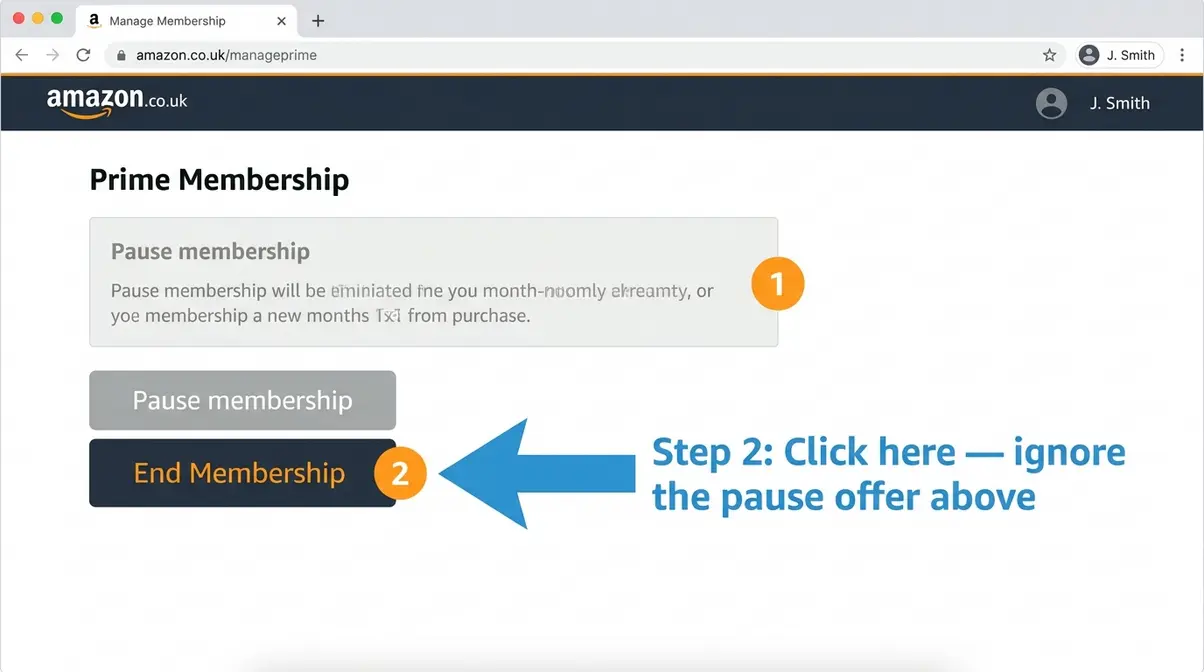
- Click Prime Membership (or go directly to amazon.co.uk/manageprime).
- Click Manage membership on the left-hand side.
- Select End Membership.
- Choose whether to end immediately or at the end of your billing period, then confirm.
Amazon will ask you to confirm twice and may offer you a pause or discount — ignore these if you want to cancel fully.
Amazon Prime Cancellation Penalty?
No — there is no cancellation penalty or fee. If you cancel mid-cycle, Amazon gives you a choice: keep access until the end of the current billing period (no refund) or end immediately and receive a prorated refund for unused days. Amazon’s refund policy is generally generous for customers who haven’t made significant use of the membership in the current period.
How to Cancel Disney+ in the UK {#disney-plus}
Disney+ has grown its price considerably since launch, and cancellation steps vary depending on how you signed up. Steps verified against Disney+’s official help pages as of July 2026.
Cancelling Disney+ on Desktop
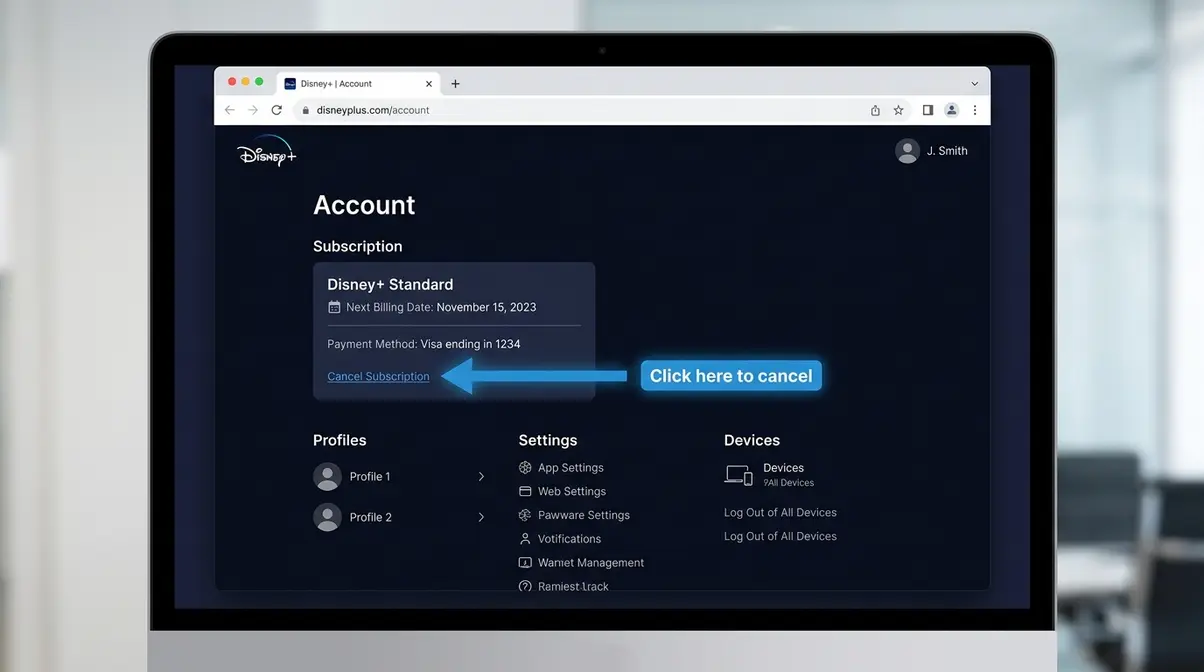
- Go to disneyplus.com and sign in.
- Click your profile icon in the top-right corner.
- Select Account.
- Under your subscription details, click Cancel Subscription.
- Follow the prompts to confirm.
Cancelling Disney+ via Sky or Virgin
If your Disney+ is bundled with a Sky or Virgin Media package, you cannot cancel it on the Disney+ website. You’ll need to:
- Sky customers: Call Sky on 03300 412 993 or log in at sky.com and manage your package online.
- Virgin Media customers: Log in at virginmedia.com or call 0345 454 1111 to remove Disney+ from your bundle.
How to Cancel NOW TV in the UK {#now-tv}
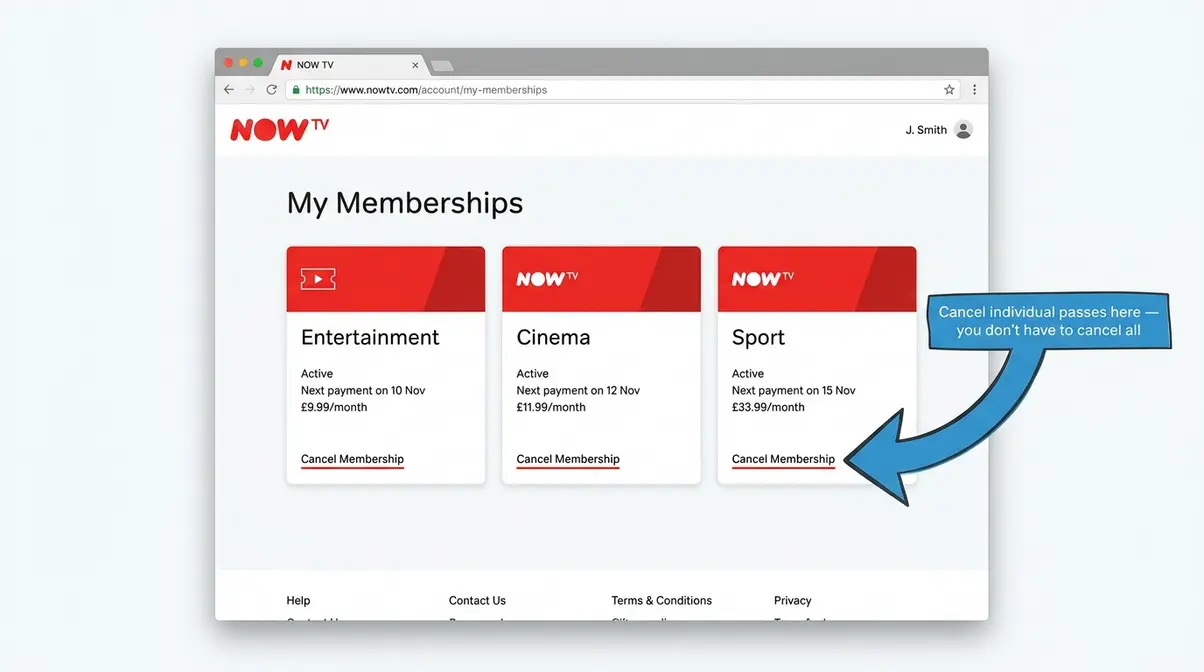
NOW TV uses a membership system with separate “passes” — Entertainment, Cinema, Sport, and Hayu. You can cancel individual passes without cancelling your whole account. Steps verified against NOW TV’s official cancellation help page as of July 2026.
- Go to nowtv.com and sign in.
- Click your profile icon and select My Account.
- Go to My Memberships.
- Find the pass you want to cancel and click Cancel Membership.
- Confirm your cancellation.
Important: NOW TV’s Sport pass in particular auto-renews monthly. If you signed up during a promotional period (such as a free trial), make sure you cancel before the trial ends — NOW TV does not send a reminder.
Cancel Apple TV+ UK {#apple-tv-plus}
Apple TV+ is always billed through Apple — there is no direct billing option. This means you must always cancel through your Apple account, regardless of which device you watch on. Steps verified as of July 2026.
- On iPhone or iPad:
- Open Settings.
- Tap your name at the top.
- Tap Subscriptions.
- Tap Apple TV+.
- Tap Cancel Subscription and confirm.
- On a Mac:
- Open the App Store.
- Click your name at the bottom-left.
- Click View Information at the top of the page.
- Scroll to Subscriptions and click Manage.
- Find Apple TV+ and click Edit, then Cancel Subscription.
- On a Windows PC or non-Apple device:
- Go to appleid.apple.com and sign in.
- Click Subscriptions in the menu.
- Find Apple TV+ and select Cancel Subscription.
Third-Party Billing Trap {#third-party-billing}
Third-party billing is when a company other than the streaming service itself collects your monthly payment. It’s extremely common — and it’s the root cause of The Billing Source Trap that leaves thousands of UK subscribers paying for services they thought they’d already cancelled.
Cancel Subscriptions via Apple
If your bank statement shows “APPLE.COM/BILL,” all of the following can be billed through Apple: Netflix, Disney+, BritBox, Paramount+, and many others.
- On iPhone or iPad:
- Open Settings → tap your name → tap Subscriptions.
- Find the streaming service you want to cancel.
- Tap it, then tap Cancel Subscription.
- On Mac:
- Open the App Store → click your name → click View Information.
- Scroll to Subscriptions → click Manage.
- Find the service and click Cancel.
Cancel Subscriptions via Google
If your bank statement shows “GOOGLENetflix” or “GOOGLEDisney,” your subscription is billed through Google Play.
- Open the Google Play Store on your Android device.
- Tap your profile icon (top right).
- Tap Payments & subscriptions → Subscriptions.
- Find the service you want to cancel and tap it.
- Tap Cancel subscription and follow the prompts.
You can also do this from a browser: Go to play.google.com/store/account/subscriptions and sign in with your Google account.
Cancel via Sky or Virgin Media
Sky and Virgin Media both bundle streaming services into their TV packages. If you’re a Sky or Virgin customer, your Disney+, Netflix, or NOW TV subscription may be part of your monthly bundle — meaning you can’t cancel it on the streaming service’s website.
- Sky: Log in at sky.com/shop/manage-account or call 03300 412 993. Navigate to your package and remove the streaming add-on.
- Virgin Media: Log in at virginmedia.com/my-virgin-media or call 0345 454 1111 to downgrade your package.
Always check your Sky or Virgin bill before trying to cancel a streaming service online. If the service appears on your TV provider’s bill, that’s where you need to cancel it.
Your UK Consumer Rights
UK law gives you meaningful protections when it comes to subscriptions and cancellations. This section covers general information only — it is not legal advice. For complex disputes, contact Citizens Advice.
The 14-Day Cooling-Off Period
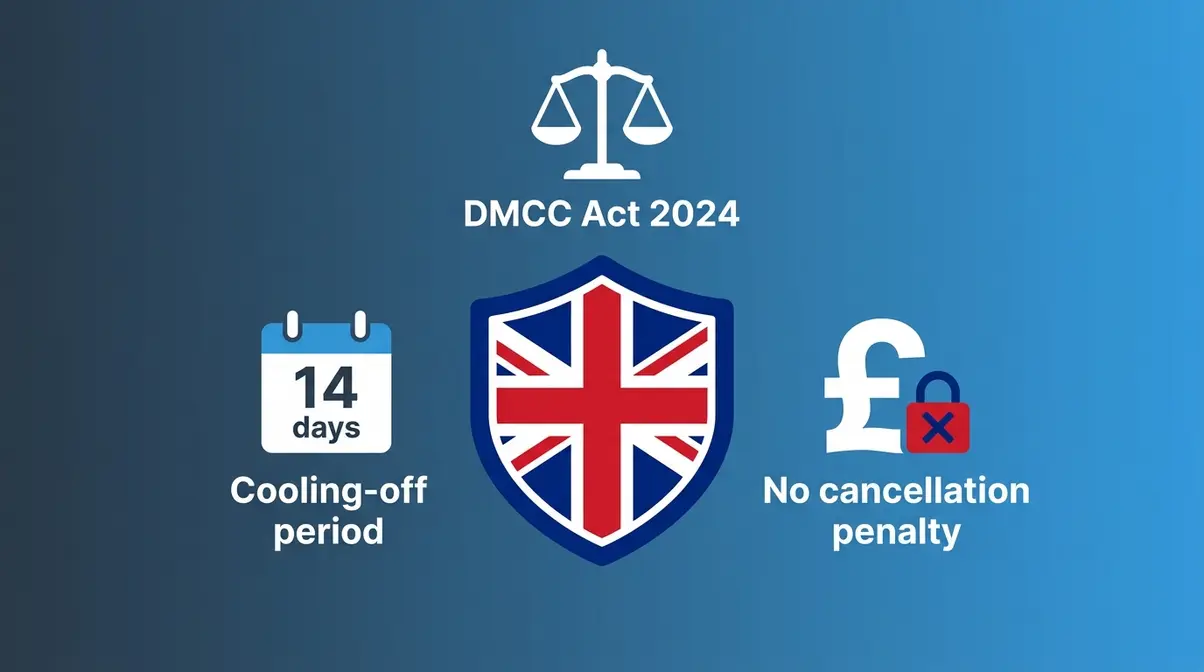
Under the Digital Markets, Competition and Consumers (DMCC) Act 2024, UK consumers have the right to cancel most digital subscriptions within 14 days of signing up and receive a full refund. This is called the “cooling-off period.” You don’t need to give a reason.
- However, there are important exceptions:
- If you’ve already started watching content, some services may deduct the value of what you’ve used from your refund.
- Free trials that convert to paid subscriptions are subject to their own terms — check the service’s T&Cs carefully.
Citizens Advice confirms that the cooling-off right applies to digital services purchased online and gives you a clear route to request a refund in writing if a company refuses.
Protections Under DMCC Act 2024
The DMCC Act 2024 introduced stronger protections for UK consumers against problematic auto-renewal practices. Under the Act:
- Businesses must make it as easy to cancel a subscription as it was to sign up.
- Traders must give clear, prominent notice before a free trial or discounted period converts to a full-price subscription.
- Consumers can challenge auto-renewal charges that were not clearly disclosed at sign-up.
According to Gov.uk guidance on the DMCC Act, the Competition and Markets Authority (CMA) has enforcement powers to act against businesses that make cancellation deliberately difficult. This is directly relevant to streaming services that bury their cancel buttons or use dark patterns (design tricks that make it hard to find the cancel option).
Practical tip: If a streaming service makes it unreasonably difficult to cancel, you can report it to the CMA via Gov.uk or seek help from Citizens Advice.
⚠️ The information in this section is general guidance only and does not constitute legal advice. For specific disputes or complex situations, please contact Citizens Advice or seek independent legal guidance.
How to Stop Automatic Payments
If you cannot cancel through the normal route and keep being charged, you have two further options:
- Contact your bank. Ask your bank to block future payments from that company. Under UK banking rules, your bank must action this request. Be aware this doesn’t cancel the underlying subscription — the company may still pursue the debt.
- Use a chargeback. If you were charged after cancelling, or during a free trial you cancelled in time, ask your bank to initiate a chargeback. This is a formal dispute process that can recover the money.
Common Cancellation Mistakes to Avoid
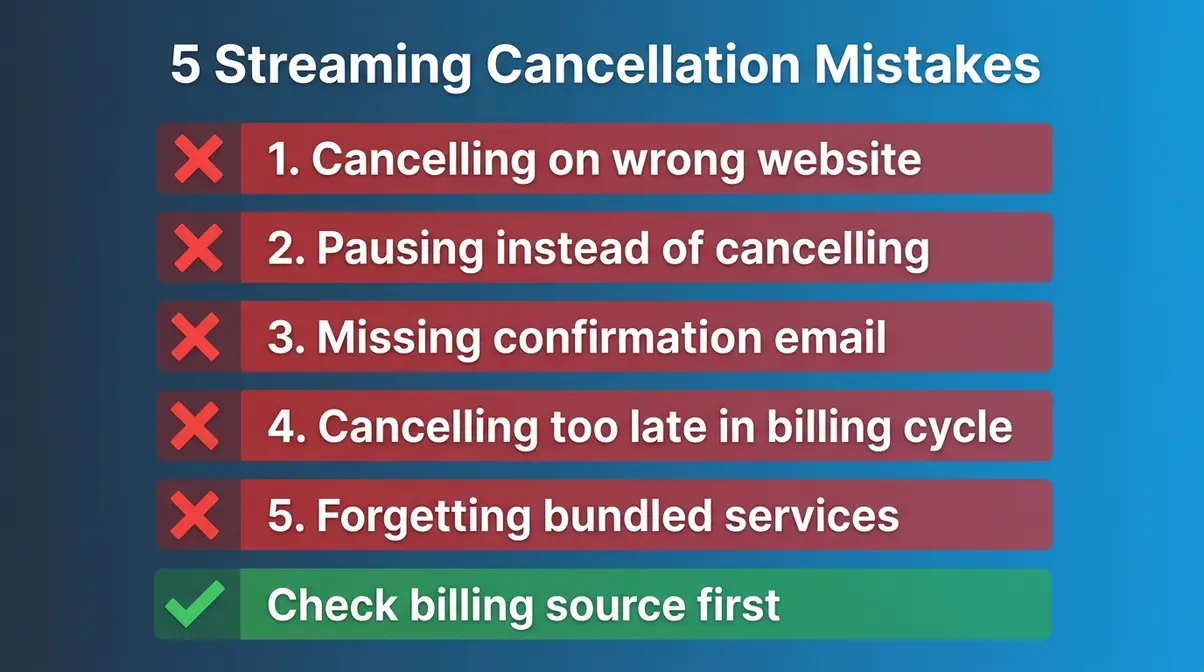
Even with the right steps, small errors can leave you paying for services you thought you’d cancelled. Here are the most frequent pitfalls — and how to avoid them.
Common Pitfalls
1. Cancelling on the website when you’re billed through Apple or Google
This is The Billing Source Trap in action. The website will often show no cancel option at all, or it will show a message saying “manage your subscription through Apple/Google” — but many people miss this message and assume the cancellation went through. Always check your bank statement the following month to confirm no charge appeared.
2. Confusing “pausing” with “cancelling”
Netflix, Amazon Prime, and Disney+ all offer a “pause” option during the cancellation flow. Pausing does not cancel your subscription — you’ll be charged again when the pause ends. If you want to stop paying entirely, you must select “Cancel” or “End Membership,” not “Pause.”
3. Missing the confirmation email
Every legitimate streaming service sends a cancellation confirmation email. If you don’t receive one within 24 hours, your cancellation may not have gone through. Check your spam folder, then log back into the service to verify your subscription status.
4. Cancelling too late in the billing cycle
Most streaming services charge you for the full month, even if you cancel on day one of a new billing period. Cancel at least a day before your renewal date to avoid an extra charge. Find your renewal date in your account settings or on your last payment receipt.
5. Forgetting bundled services
If you cancelled Sky or Virgin Media but kept Disney+ or Netflix as a standalone service, you may now have a duplicate subscription you’re paying for directly. Check your bank statement after any bundle change to catch unexpected charges.
When to Choose Alternatives
If you’re cancelling to save money rather than because you’re unhappy with the content, consider these options before cancelling permanently:
- Downgrade your plan: Netflix, Disney+, and Amazon Prime all offer cheaper ad-supported tiers. Downgrading can cut your monthly cost by 30–50%.
- Use free alternatives: BBC iPlayer, ITVX, Channel 4, and Freeview Play are all free with a UK TV licence and offer a substantial content library.
- Rotate subscriptions: Cancel now, re-subscribe when a new season or film you want arrives. Most services offer returning subscriber deals.
When to Seek Expert Help
- Contact Citizens Advice or your bank directly if:
- A service refuses to cancel your subscription despite repeated requests.
- You’ve been charged after a confirmed cancellation.
- You believe you were misled about a free trial converting to a paid subscription.
- You are in a dispute about a refund under the 14-day cooling-off right.
Frequently Asked Questions
How to cancel streaming services UK?
The fastest way to cancel a UK streaming service is to first identify your billing source. Check your bank statement — if it shows “APPLE.COM/BILL” or “GOOGLE*Netflix,” you must cancel through Apple Subscriptions or Google Play, not the streaming service’s website. If billed directly, log into the service’s website, go to Account settings, and look for “Cancel Membership” or “Cancel Subscription.” Most cancellations take under two minutes once you’re in the right place.
Is cancelling Amazon Prime hard?
Cancelling Amazon Prime is straightforward once you know where to look. Go to amazon.co.uk, hover over your account name, and select “Prime Membership.” From there, click “Manage membership” and then “End Membership.” Amazon will ask you to confirm twice and may offer a discount or pause — simply decline these if you want to cancel fully. The whole process takes about two minutes on a desktop browser (Amazon Support, 2026).
What is the UK cooling-off period?
UK consumers have a 14-day cooling-off period on most new digital subscriptions, including streaming services, under the DMCC Act 2024. Within those 14 days, you can cancel and receive a full refund without giving a reason. If you’ve already used the service (for example, watched films), the provider may deduct the value of what you consumed. Citizens Advice recommends making your cancellation request in writing to create a paper trail (Citizens Advice, 2026).
Why do people cancel streaming?
Rising costs are the leading reason UK viewers cancel streaming subscriptions, according to YouGov research. In 2026, UK households pay an average of over £50 per month across all streaming services combined — a figure that has more than doubled over five years. Content quality and the sense of “not enough to watch” is the second most common reason, particularly as exclusive shows shift between platforms. Many households now rotate between services rather than maintaining multiple simultaneous subscriptions (YouGov, 2026).
Stopping automatic payments?
To stop automatic payments, you need to cancel the subscription at its billing source — not just delete the app. If billed directly, log into the service and cancel under Account settings. If billed through Apple, go to Settings → → Subscriptions on your iPhone. If billed through Google, open Google Play → Profile → Payments & subscriptions → Subscriptions. As a last resort, you can ask your bank to block future payments from a specific company — UK banks are required to honour this request.
Any penalty for cancelling Prime?
There is no cancellation penalty for ending Amazon Prime. If you cancel mid-cycle, Amazon offers you a choice: keep access until your next billing date (no refund) or cancel immediately and receive a prorated refund for any unused days. Amazon’s help page confirms that refunds are available if you haven’t made significant use of Prime benefits in the current billing period (Amazon UK Support, 2026). The company cannot charge you a fee for cancelling.
Why is everyone cancelling?
Subscription fatigue is driving a wave of UK cancellations in 2026. Ofcom’s Media Nations report found that UK adults subscribe to an average of 2.3 paid streaming services — but a growing proportion say they are paying for services they rarely watch. Prices have risen sharply across every major platform since 2022. At the same time, the fragmentation of content across multiple platforms means no single service offers enough to justify its cost on its own. Many UK households have switched to a rotation strategy: subscribe, watch, cancel, and re-subscribe when something new arrives (Ofcom, 2026).
What to Do After Cancelling
Cancelling is just the first step. Once you’ve cut a subscription, a few smart moves will make sure you stay in control of your streaming costs going forward.
Free legal streaming in the UK is genuinely excellent. BBC iPlayer, ITVX, Channel 4, and My5 are all free with a valid UK TV licence and offer thousands of hours of on-demand content, including box sets, films, and live sport. Many UK households discover they don’t miss paid streaming as much as they expected once they explore these options properly.
The rotation strategy saves the most money over time. Rather than maintaining subscriptions year-round, cancel after you’ve finished watching what you signed up for. Re-subscribe when a new season or exclusive film arrives, take advantage of the promotional pricing often offered to returning subscribers, then cancel again. The Billing Source Trap makes this feel risky — but now that you know exactly where to cancel, it’s simple and reliable.
Set a calendar reminder for every free trial you start. The most common way to accidentally overpay is to forget a trial end date. Set a reminder two days before the trial expires so you have time to decide whether to keep the service or cancel before the first charge hits.
When mastering how to cancel streaming services UK viewers no longer want, knowing your billing source and cancellation rights gives you the leverage to rotate services on your own terms — saving hundreds of pounds per year without missing the content you actually want to watch.