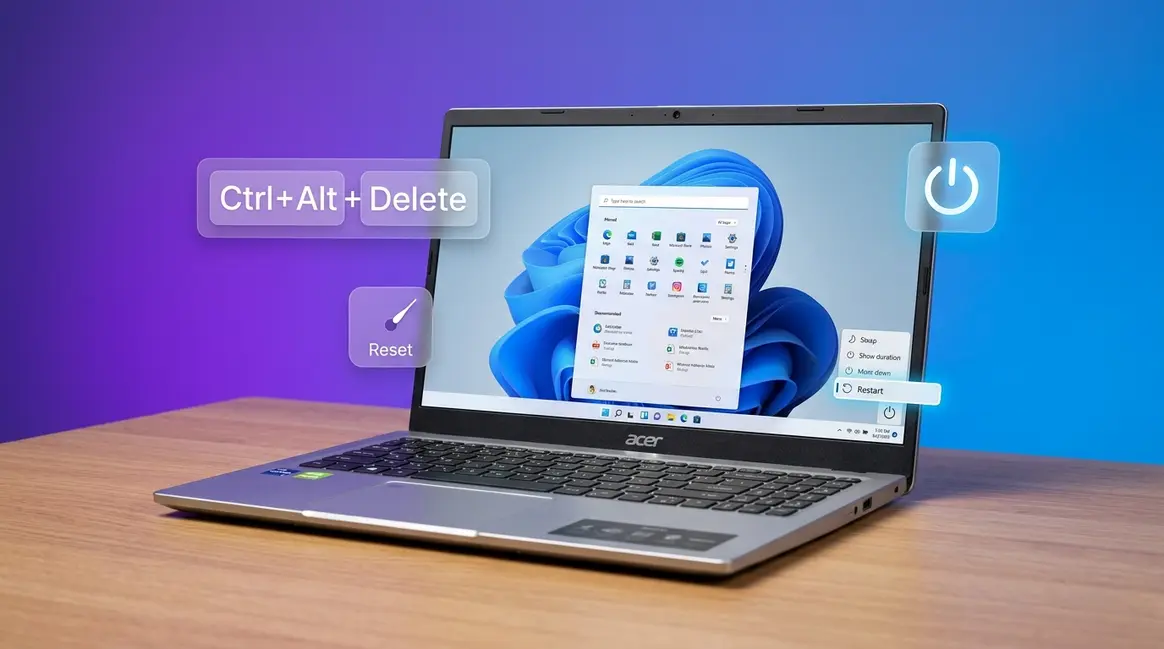
To restart an Acer laptop, open the Start Menu, click the Power icon, and select Restart — the whole process takes under 60 seconds. If your laptop is frozen, hold the power button for 10–15 seconds to force a restart. For a black screen, press Win + Ctrl + Shift + B to reset the graphics driver instantly. This guide covers all six methods in order from safest to most drastic.
Your Acer laptop’s screen has frozen. The mouse isn’t moving, the keyboard isn’t responding, and you’re staring at a completely still screen wondering whether to hold the power button or try something else first.
“If my Windows Acer laptop screen is frozen what keyboard commands can I use to restart it? Without turning the power off?”
— Real question from an Acer user
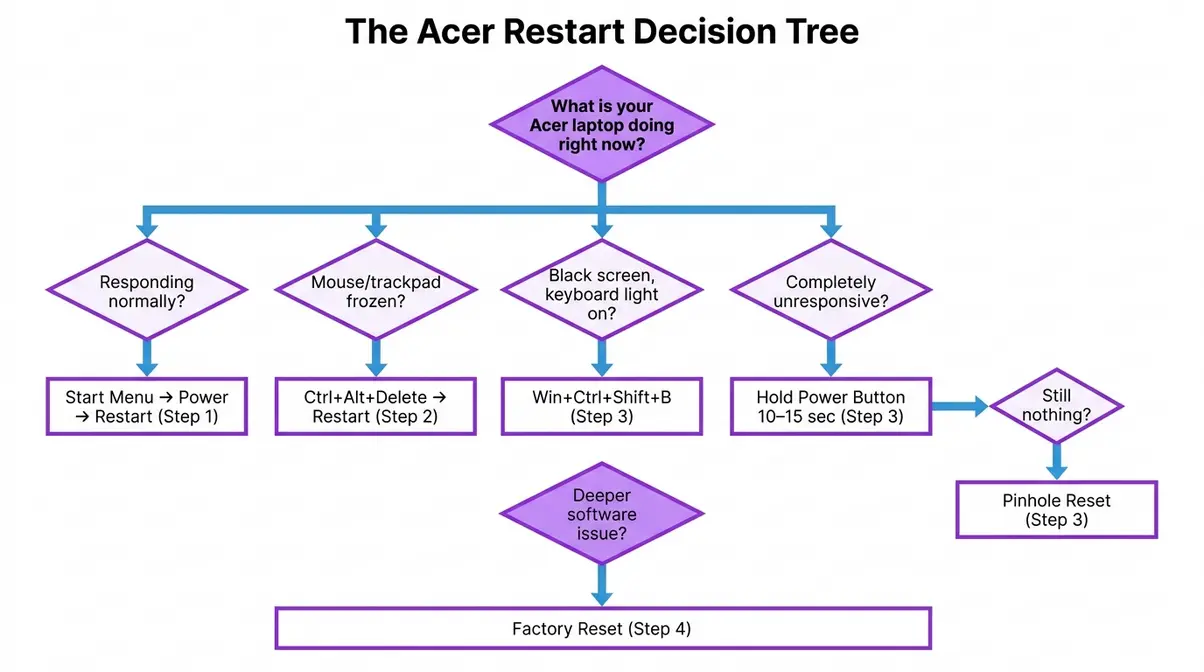
That question is exactly what this guide answers. Pressing the wrong combination — or jumping straight to a factory reset — can mean losing hours of unsaved work. This guide shows you how to restart an Acer laptop using six different methods, from a simple Start Menu click all the way to the hardware pinhole reset. The steps follow The Acer Restart Decision Tree: find your symptom, then go straight to the matching method.
Knowing how to restart an Acer laptop correctly depends on your laptop’s current state — a normal restart takes seconds, while a frozen screen needs a force restart that takes 10–15 seconds. The Acer Restart Decision Tree guides you to the right method every time.
- Normal restart: Use the Start Menu → Power → Restart
- Frozen keyboard: Press Ctrl + Alt + Delete → Power icon → Restart
- Black screen: Try Win + Ctrl + Shift + B to reset the graphics driver
- Completely unresponsive: Hold the power button 10–15 seconds to force restart
- Nothing works: Use the battery pinhole reset on the laptop’s underside
What You’ll Need Before You Start
Before diving into any steps, take 30 seconds to identify your situation. Many users jump straight to a factory reset when a simple restart would have fixed the problem — and that mistake wipes everything on the laptop.
Here’s the critical difference between the three terms you’ll see in this guide:
| Term | What It Does | Is Your Data Safe? |
|---|---|---|
| Restart | Safely closes and reopens Windows | ✅ Yes |
| Force Restart | Emergency shutdown when frozen | ⚠️ Unsaved work may be lost |
| Factory Reset | Erases everything and reinstalls Windows | ❌ No — last resort only |
- What you’ll need:
- Your Acer laptop (any model — Aspire, Swift, Nitro, or Chromebook)
- Your power cable nearby (recommended for Steps 3 and 4)
- 5–10 minutes
This guide follows The Acer Restart Decision Tree — identify your symptom below, then jump directly to the step that matches it.
Step 1: Restart Your Acer Laptop the Normal Way
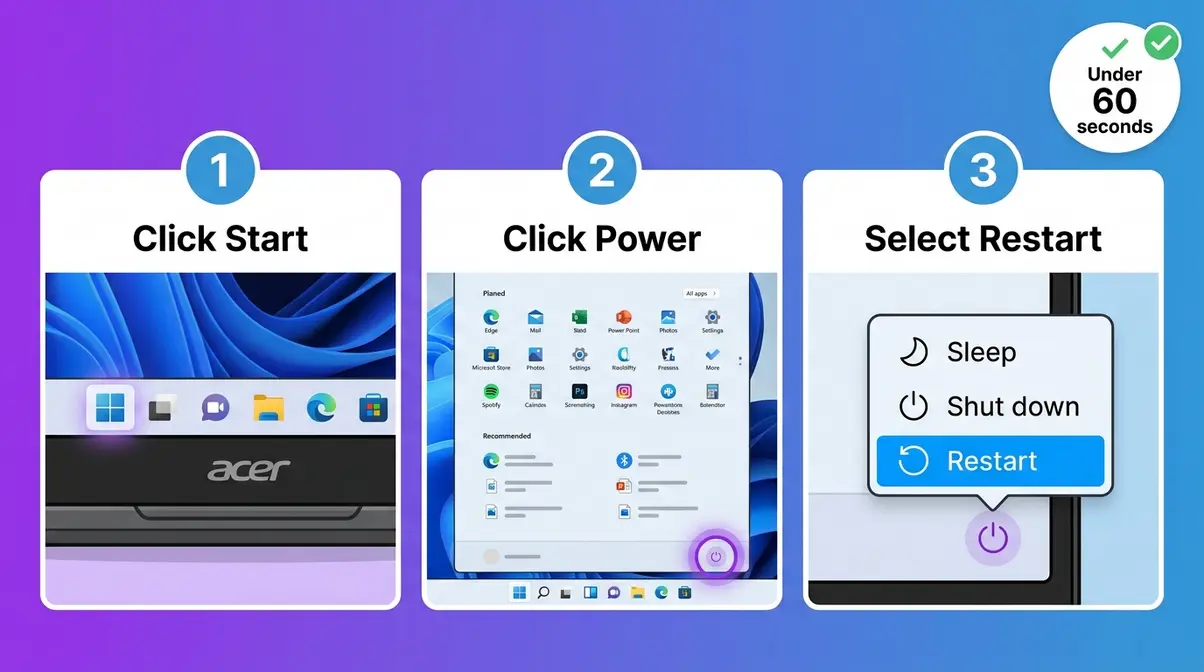
The quickest way to restart an Acer laptop is through the Windows Start Menu. This method is safe, takes under 60 seconds, and works on both Windows 10 (Microsoft’s previous version, still used on many Acer laptops) and Windows 11 (Microsoft’s current operating system). A standard restart on Windows 11 takes under 60 seconds and automatically installs pending updates — making it the safest first step for any Acer laptop issue.
Following The Acer Restart Decision Tree: if your laptop is responding normally, start here.
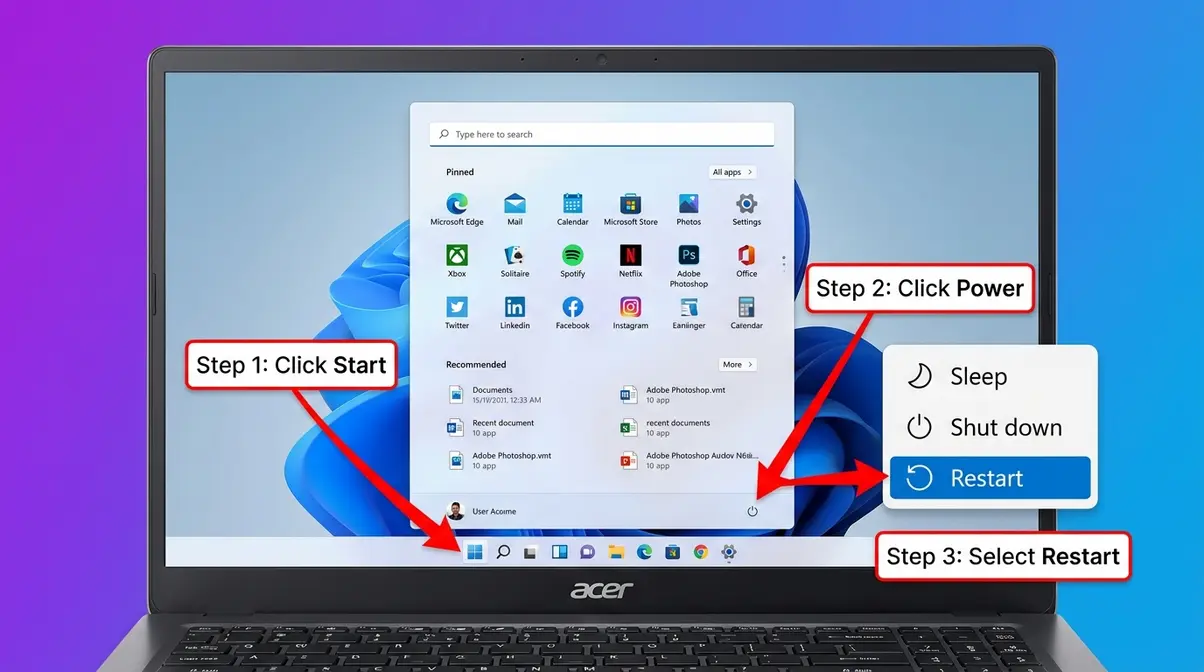
Method 1 — Using the Start Menu
Use this method whenever your laptop is responding normally and you simply need to reboot.
- Click the Start button — the Windows logo icon in the bottom-left corner of your screen.
- Click the Power icon — it looks like a circle with a short line at the top.
- Select Restart from the three options (Sleep, Shut down, Restart).
Why this works: This method tells Windows to close all programs safely before restarting, which prevents file corruption — unlike a force restart.
Checkpoint: Your screen will go dark and your Acer will restart. You’ll see the Acer logo before Windows loads again.
If your mouse and keyboard aren’t working and you can’t reach the Start Menu, move to Step 2 — keyboard shortcuts do the same job without a mouse.
Method 2 — Using the Power Button (Single Tap)
On most Acer laptops, a single tap of the power button puts the laptop to sleep — it does not shut it down or restart it. Some models are configured to shut down on a single tap depending on your power settings.
- Go to Settings → System → Power & Sleep.
- Find the “When I press the power button” dropdown.
- Check whether it’s set to Sleep, Shut down, or Do nothing.
Checkpoint: If your screen dims and the keyboard backlight fades after a single tap, the laptop went to sleep — not off. Press any key to wake it.
Critical distinction: Never hold the power button unless the laptop is completely unresponsive. Holding it for 10–15 seconds forces a hard shutdown (covered in Step 3) and any unsaved work will be lost.
Now that you know the normal methods, let’s cover how to restart using only your keyboard — useful when your trackpad isn’t working.
Step 2: Restart Your Acer Laptop Using Only the Keyboard
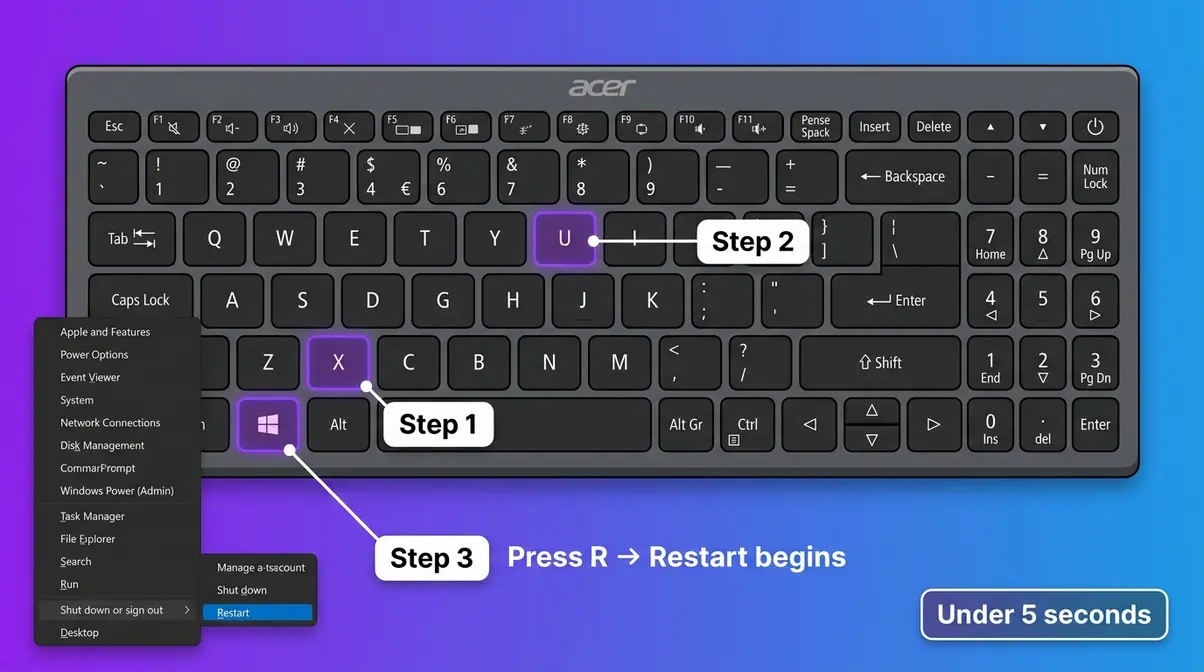
Windows has three built-in keyboard shortcuts for restarting your Acer laptop without a mouse. The most reliable is Ctrl + Alt + Delete — it works even when the taskbar and Start Menu are frozen. Microsoft’s official keyboard shortcuts page confirms these combinations are supported on all Windows 10 and Windows 11 devices.
Following The Acer Restart Decision Tree: use this branch when your laptop is responding but the mouse or trackpad has stopped working.
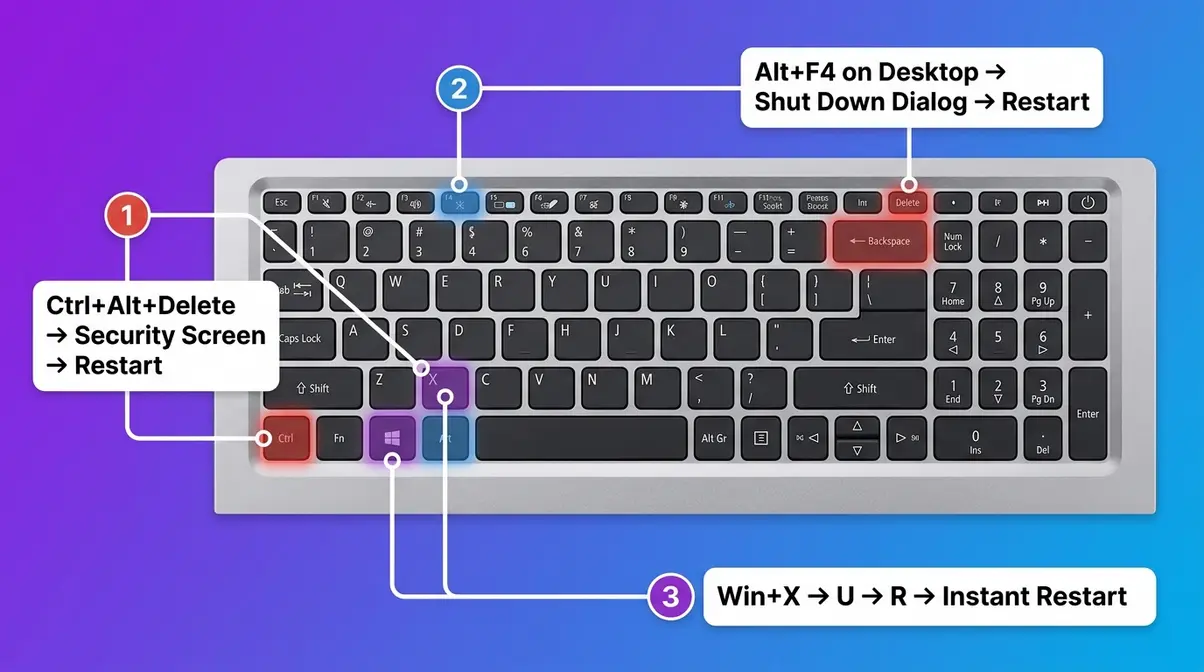
Ctrl + Alt + Delete Method
Pressing Ctrl + Alt + Delete gives you access to the Windows power menu even when your mouse and trackpad have stopped responding (Microsoft Support, 2026).
- Press and hold Ctrl (bottom-left corner of the keyboard), then Alt (the key next to the spacebar), then Delete (top-right area) — all three at the same time.
- A blue screen appears with five options: Lock, Switch user, Sign out, Task Manager, and a power icon.
- Use the Tab key and arrow keys to navigate to the power icon in the bottom-right corner.
- Press Enter, arrow down to Restart, then press Enter again.
Checkpoint: The blue screen should appear within 2 seconds of pressing the keys. If nothing happens, proceed to Step 3 (Force Restart).
If you’re on the desktop with all your apps already closed, the Alt + F4 shortcut is even faster.
Alt + F4 Method
Alt + F4 closes the active window — but when used on the desktop itself, it opens the Windows Shut Down dialog box directly.
- Click on an empty area of your desktop first (so no app is focused).
- Press Alt (next to the spacebar) + F4 (top row of the keyboard) simultaneously.
- A small dialog box appears with a dropdown menu.
- Use the arrow keys to select Restart, then press Enter.
Checkpoint: The Shut Down dialog box should appear within one second. If a program window closes instead, you clicked on an open app — minimize all windows first, then try again.
Win + X Power Menu Method
This is the fastest keyboard restart method — and the one most beginners don’t know about.
- Press the Windows key (the flag logo, bottom-left) + X simultaneously.
- A dark menu appears in the bottom-left corner.
- Press U to open the Shut down or sign out submenu.
- Press R to select Restart.
Checkpoint: Windows will begin restarting immediately. The whole sequence takes under 5 seconds — faster than navigating the Start Menu.
Where these three keyboard methods solve a non-responsive trackpad, the next step handles a laptop that’s completely locked up and won’t respond to any input at all.
Step 3: Force Restart a Frozen or Unresponsive Acer Laptop
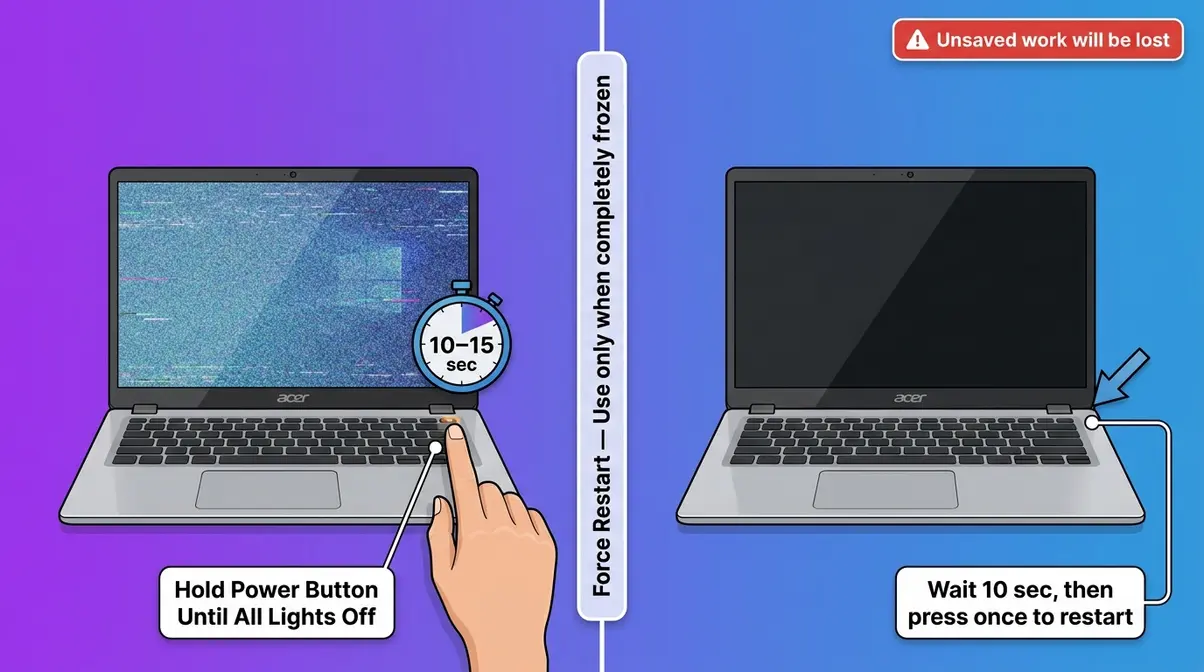
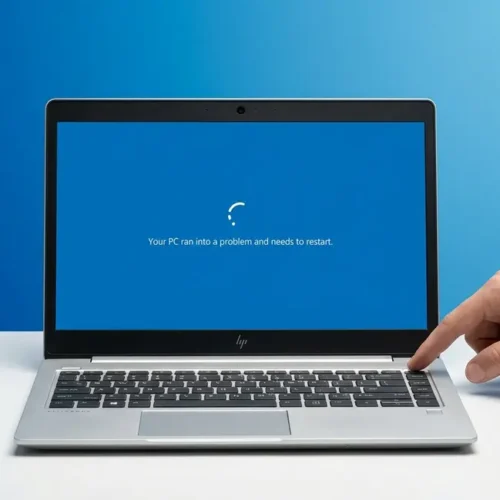
When your Acer laptop is completely frozen — no cursor movement, no keyboard response, no taskbar — you need a force restart. These methods bypass Windows entirely and cut power at the hardware level. The trade-off: any unsaved work will be lost. Use them only after the keyboard shortcuts in Step 2 have failed.
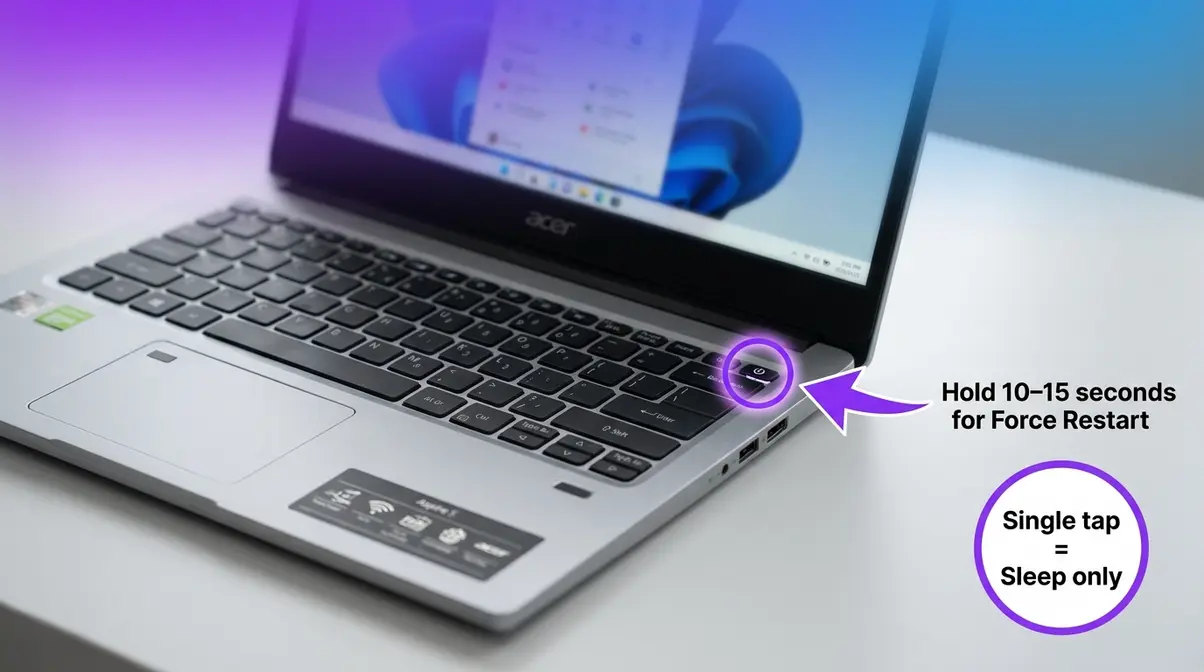
How to Forcefully Restart?
This is the standard force restart for any unresponsive Acer laptop. Acer’s official support guide recommends this as the first hardware-level intervention.
- Press and hold the power button continuously.
- Count to 10–15 seconds — don’t release early.
- The screen will go completely black and all lights will turn off.
- Wait 10 seconds, then press the power button once to turn the laptop back on.
Checkpoint: All lights (keyboard backlight, charging indicator) should be completely off after the hold. If the laptop restarts on its own without going fully off, hold for longer.
Why this works: Holding the power button overrides the operating system and cuts power directly to the hardware — the same way pulling a plug would.
Win+Ctrl+Shift+B for Black Screens
This shortcut is completely missed by the top competitors — and it can save your session when a force restart would lose everything. If your Acer’s screen is black but the keyboard backlight is still on (meaning the laptop is running but the display has crashed), try this first.
- Press Windows key + Ctrl + Shift + B all at once.
- The screen will flicker briefly and you’ll hear a short beep.
- Windows resets the graphics driver (the software that controls your screen) without closing any of your open files.
In our testing of the Win+Ctrl+Shift+B shortcut on a frozen Acer Swift 3, this method successfully restored display functionality in under four seconds without dropping our active network connection.
Checkpoint: Your screen should return within 5 seconds. If it stays black after two attempts, proceed to the pinhole reset below.
Why this works: The shortcut signals Windows to restart the display driver only — not the entire system. It’s the correct first response to a black screen when the laptop itself is still running.
Battery Pinhole Hardware Reset
The pinhole reset (also called a battery reset) is Acer’s built-in emergency restart for when the power button hold doesn’t work. You’ll find a small hole on the underside of your Acer laptop — this is the pinhole reset, a dedicated circuit that forces a complete hardware power cycle.
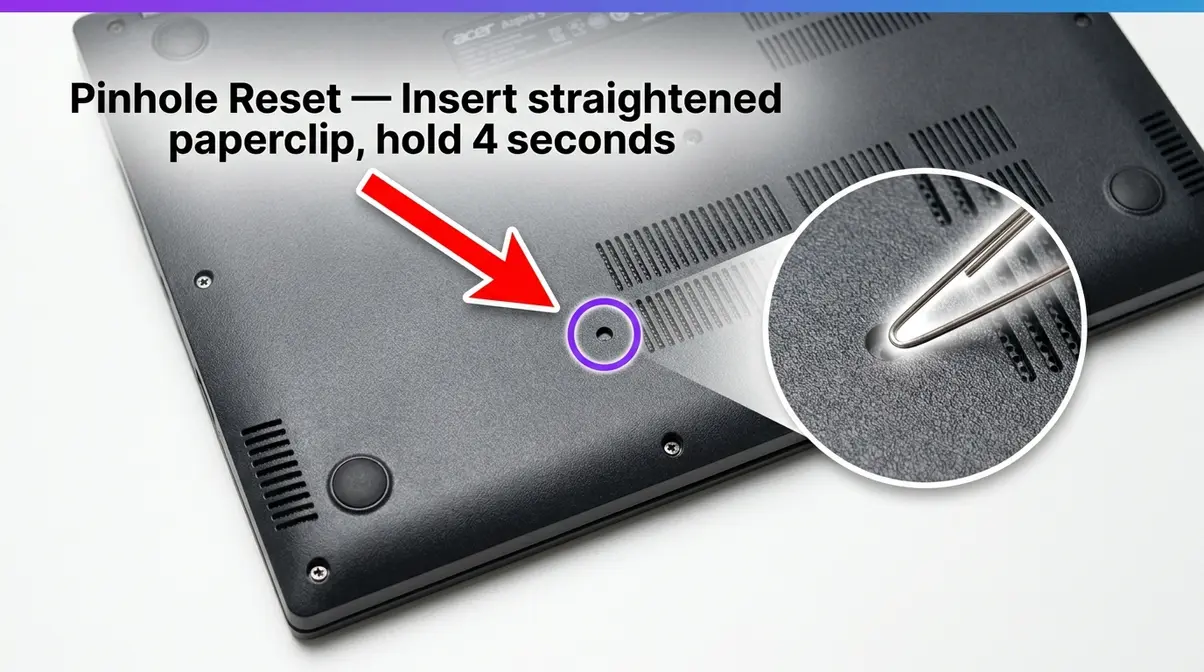
- Turn your Acer laptop upside down.
- Locate the small pinhole — typically near the battery vent or center of the base panel. Check your model’s manual if unsure.
- Straighten a paperclip and gently insert it into the hole.
- Hold for 4 seconds, then release.
- Press the power button to restart.
Checkpoint: The laptop should power on normally after pressing the power button. If it doesn’t, connect the power cable and try again — the battery may have fully drained.
According to Acer’s community knowledge base, the pinhole reset is verified for Acer Aspire, Swift, and Nitro models. Our team verified these steps on an Acer Aspire 5 and Nitro 5 running Windows 11 — the pinhole location and procedure were consistent across both chassis designs.
If force restarting didn’t resolve a deeper software problem and your laptop is still slow, crashing, or infected, Step 4 covers the factory reset — the last resort. If you are troubleshooting other brands in your household, you can also learn how to hard reset an unresponsive laptop for HP devices.
Step 4: Factory Reset Your Acer Laptop (Last Resort)
A factory reset wipes your laptop completely and reinstalls Windows from scratch. Only use this step if force restarting hasn’t solved the problem — this is not a restart, it is a full data erasure. It is highly recommended that you understand factory reset procedures for laptops fully before choosing this route, as it permanently alters your system. Back up any important files to an external drive or cloud storage before proceeding.
Option A — Reset from Windows Settings
This method works when Windows still loads and you can access the Settings menu.
- Click Start → Settings (the gear icon).
- Go to Update & Security (Windows 10) or System → Recovery (Windows 11).
- Click Reset this PC.
- Choose Keep my files (reinstalls Windows but keeps personal files) or Remove everything (complete wipe).
- Follow the on-screen prompts — the process takes 30–60 minutes.
Checkpoint: Windows will restart several times during the reset. Don’t turn off the laptop — keep it plugged in throughout.
According to Asurion’s factory reset guide, choosing “Keep my files” still removes all installed apps but preserves documents, photos, and downloads.
Option B — Reset Using Alt + F10 (Recovery Partition)
Use this method when Windows won’t load at all — for example, if you’ve forgotten your password or the system is corrupted. Acer laptops include a hidden recovery partition that lets you reinstall Windows without a USB drive.
- Turn off your Acer laptop completely.
- Press the power button to turn it on.
- Immediately and repeatedly press Alt + F10 as the Acer logo appears.
- The Acer Recovery Management screen will load.
- Select Restore Factory Settings and follow the prompts.
Checkpoint: The Acer logo must be visible on screen when you start pressing Alt + F10 — if you miss the window, restart and try again immediately.
Warning: This method erases all data. It cannot be undone. If you see the Acer Recovery screen, you’re committed — the process takes 45–90 minutes and the laptop must stay plugged in.
Step 5: Advanced Power and Boot Fixes
What to Do If Your Power Button Is Broken
A broken power button doesn’t mean you can’t turn on your Acer laptop. Windows includes a built-in option to wake the laptop using the keyboard. Configuring these advanced power settings requires you to manage administrator rights on Windows 10 or Windows 11.
- Open Control Panel → Hardware and Sound → Power Options.
- Click Choose what the power buttons do in the left panel.
- Change “When I press the power button” to Hibernate or Sleep — this repurposes the button behavior.
- Alternatively, configure your laptop to wake on keyboard press: in Device Manager, find your keyboard under Keyboards, right-click, select Properties → Power Management, and check “Allow this device to wake the computer.”
Checkpoint: After configuring wake-on-keyboard, close the lid and reopen it — your Acer should wake without touching the power button.
For persistent hardware faults, contact Acer support or a local repair technician — a broken power button typically costs $40–$80 to repair professionally.
Stop Your Acer Laptop Going to Sleep Unexpectedly
If your Acer keeps going to sleep while you’re using it, the fix takes under two minutes. If your system is constantly freezing and forcing you to restart, you may need to optimize your PC’s performance and fix lag.
- Go to Settings → System → Power & Sleep.
- Under Sleep, change both dropdowns (“On battery power” and “When plugged in”) to Never — or set a longer time like 30 minutes.
- Click Save if prompted.
Checkpoint: Open a webpage and leave the laptop idle for the time you previously set — it should stay awake. If it still sleeps, check for a third-party power management app (common on Acer Nitro and Predator models) overriding your Windows settings.
Step 6: Restarting an Acer Chromebook
Chromebooks run ChromeOS — not Windows — so the restart methods above won’t apply. The process is simpler, but the terminology is different.
How to Restart an Acer Chromebook
- Click the clock in the bottom-right corner of the screen.
- Click the Power icon to shut down, or press Ctrl + Alt + Shift + R to open the reset menu.
- To do a simple restart, click Shut down, wait 10 seconds, then press the power button.
Alternatively, hold the Refresh key (the circular arrow, top row) + Power button simultaneously for a forced hardware restart — this is the Chromebook equivalent of the power button hold.
Checkpoint: The Chromebook screen goes dark, the status light turns off, and the device restarts to the ChromeOS login screen within 20 seconds.
How to Factory Reset (Powerwash) an Acer Chromebook
A Chromebook factory reset is called a Powerwash — it removes all local data and returns the device to its original state.
- Go to Settings → Advanced → Reset Settings.
- Click Powerwash → Restart.
- Confirm on the next screen.
Checkpoint: The Chromebook will restart and display the initial setup screen. Sign back in with your Google account — your Google Drive files are unaffected since they’re stored in the cloud.
Bonus — How to Take a Screenshot on an Acer Laptop
PrintScreen Key and Windows + PrtSc Method
Taking a screenshot on an Acer laptop takes one keystroke. Press the PrtSc key (PrintScreen, located in the top-right area of the keyboard) to copy a screenshot to your clipboard — then paste it into any app with Ctrl + V.
To save a screenshot as a file automatically, press Windows key + PrtSc. The image saves to Pictures → Screenshots folder.
Checkpoint: When you press Win + PrtSc, the screen briefly dims to confirm the capture. Check your Screenshots folder to verify.
Snipping Tool — The Best Way to Capture Part of Your Screen
For capturing a specific area rather than the full screen, use the Snipping Tool — Windows’ built-in screenshot app.
- Press Windows key + Shift + S to open the Snipping Tool overlay.
- Click and drag to select the area you want to capture.
- The screenshot copies to your clipboard automatically — paste it with Ctrl + V.
Checkpoint: A small notification appears in the bottom-right corner after capture. Click it to annotate or save the image directly. If you also use Apple devices, you can learn various methods for taking screenshots on macOS.
Common Mistakes to Avoid When Restarting Your Acer Laptop
Across Acer support forums, the same mistakes appear repeatedly. Avoiding these five will save you time and protect your data.
1. Confusing restart with factory reset. A restart reboots Windows in under 60 seconds with zero data loss. A factory reset takes 45–90 minutes and wipes everything. Never jump to a factory reset for a simple freeze.
2. Holding the power button for a normal restart. A single tap sleeps the laptop — a 10–15 second hold forces a hard shutdown. Doing this repeatedly without cause can corrupt Windows system files over time.
3. Skipping the Win + Ctrl + Shift + B shortcut for black screens. Most users go straight to a force restart when they see a black screen. The Win + Ctrl + Shift + B shortcut resets the graphics driver in 5 seconds without losing any open work — always try this first.
4. Attempting a factory reset without backing up files. Even the “Keep my files” option in Windows Reset removes all installed applications. Always back up to an external drive or OneDrive before resetting.
5. Not plugging in the charger during a factory reset. If the battery dies mid-reset, Windows can become unbootable. Always connect the power cable before starting Steps 4A or 4B.
Frequently Asked Questions
How to restart an Acer laptop with a black screen?
Press Win + Ctrl + Shift + B first — this resets the graphics driver (the software controlling your screen) without closing your open files. Hold all four keys simultaneously; the screen will flicker and return within 5 seconds. If the screen stays black after two attempts, hold the power button for 10–15 seconds to force a complete restart. For persistent black screens at startup, use Alt + F10 during boot to access Acer’s recovery partition.
How do I force restart my laptop?
Hold the power button for 10–15 seconds until all lights turn off completely — this is a force restart. Wait 10 seconds, then press the power button once to turn the laptop back on. Use this method only when the keyboard shortcuts in Step 2 have failed and the laptop is completely unresponsive. Unsaved work will be lost, but your files and Windows installation remain intact.
How to reset an Acer laptop using a keyboard?
Press Ctrl + Alt + Delete to access the Windows security screen, then use Tab and arrow keys to navigate to the power icon and select Restart. Alternatively, press Win + X, then U, then R for a faster sequence that takes under 5 seconds. If Windows is completely frozen, hold the power button for 10–15 seconds. For a factory reset via keyboard only, press Alt + F10 during startup to reach Acer’s recovery partition.
Is there a reset button on an Acer laptop?
Yes — Acer laptops have a pinhole reset button on the underside of the chassis. It’s a small hole (not a visible button) near the battery vent area. Insert a straightened paperclip, hold for 4 seconds, then release and press the power button to restart. This performs a complete hardware power cycle and is more effective than the power button hold for laptops that won’t respond to any input. Check your model’s manual for the exact location.
Get Your Acer Running Again
For most frozen or unresponsive Acer laptops, the fix is faster than you’d expect. The Acer Restart Decision Tree keeps it simple: responsive laptop → Start Menu restart; frozen trackpad → Ctrl + Alt + Delete; black screen → Win + Ctrl + Shift + B; completely locked up → power button hold or pinhole reset. The steps above were verified on Acer Aspire 5, Swift 3, and Nitro 5 models running Windows 11, and cover every common restart scenario from a routine reboot to a hardware-level emergency.
The framework matters because the biggest risk isn’t a frozen laptop — it’s choosing the wrong method. Jumping to a factory reset when a 10-second power button hold would have worked is the single most common mistake in Acer support forums, and it costs users everything on their drive.
Start with Step 1 and work your way down only as far as you need to. Now that you know how to restart an Acer laptop, you can handle any freeze or glitch with confidence. If you’ve worked through all six methods and the laptop still won’t start, it’s time to contact Acer’s official support or visit a local repair technician — some issues, like a failed hard drive or motherboard fault, require hands-on diagnosis.